Style the Buttons on the Dashboard
This page describes how to customize the appearance of the left panel on the dashboard in Bloomreach Content. Custom styling is useful when you have multiple custom buttons in the panel. You can reduce button size, update icons, and arrange buttons in two columns to optimize vertical space and improve clarity.
Create the CSS File
Create a custom CSS file for the CMS at the following location:
cms/src/main/resources/skin/myskin.css
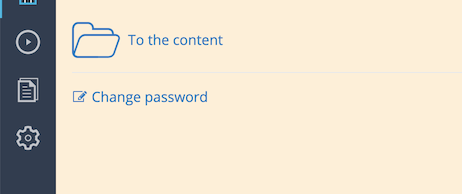
Add the following CSS to set a custom background color for the left dashboard panel:
.hippo-perspective-dashboard-panel.left { background-color: papayawhip; }
Rebuild and restart your project to apply the changes. To verify that the file is packaged and accessible, open http://localhost:8080/cms/skin/myskin.css in your browser.
Configure the CSS File
Configure the CMS to load your custom CSS file:
-
Open the Bloomreach Content Console.
-
Navigate to the following node:
/hippo:configuration/hippo:frontend/cms/cms-static/root -
Add a String property named
wicket.skin. -
Set the value to
skin/myskin.css. This path is relative tocms/src/main/resources.
After configuration, log in to the CMS. The left panel of the dashboard should display the new papayawhip background color. If you do not see the change, log out and log in again.
Style the Left Panel
Adjust Button Size and Layout
To display buttons in two columns and reduce their size, update myskin.css with the following CSS. Replace the previous background-color rule:
.hippo-perspective-dashboard-shortcuts > div { width: 50%; float: left; }
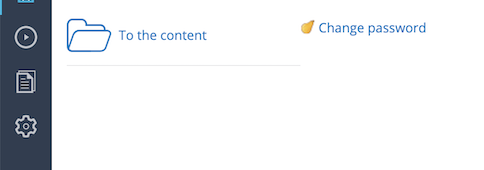
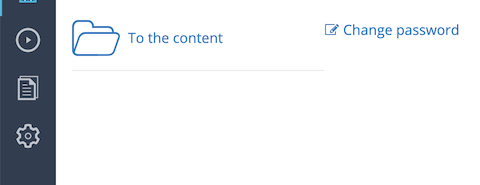
This CSS sets each button to 50% width and floats them left, creating two columns in the left panel.
To apply the updated CSS in the CMS:
- If you use JRebel, recompile the
cms/src/main/resources/skinfolder. JRebel will copy the updated file to the target directory, and the browser will load the new styles on refresh. - If you do not use JRebel, rebuild and restart your project to load the changes.
Update Button Icons
You can also replace the icons for the smaller links, such as 'Change password', using CSS. In this example, the 'edit' icon is replaced with a papaya icon.
-
Create a new folder for your images:
cms/src/main/resources/skin/images/myskin -
Add the papaya icon file to this folder.
-
Update your CSS file with the following rules:
.hippo-perspective-dashboard-shortcuts .quick-link { padding-left: 20px; background: url(images/myskin/papaya-icon.png) left center no-repeat; } .hippo-perspective-dashboard-shortcuts .quick-link svg { display: none; }
These rules hide the original SVG icon for quick links and display the papaya icon as the link background.
Rebuild and restart your project. After logging in, you should see the papaya icon applied to at least one quick link in the dashboard.