Display a Sub Tree as a Separate Content Section
Overview
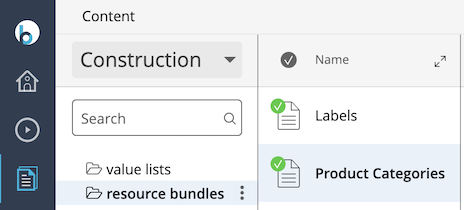
This guide explains how to configure the Content application to display a specific subset of content—such as a "construction" folder—as a separate section. This section will appear alongside standard sections like Documents, Images, and Assets.
When to Use
Use this approach when you want to separate certain folders (for example, those containing labels or banners) from the main documents tree. This is useful when most authors do not need to edit these folders directly, but still require access for reference or selection.
Prerequisites
- Access to the project source code and configuration files
- Access to the Bloomreach Console
- Familiarity with node type definitions and YAML configuration
Note: The examples use a project named
myproject. Replacemyprojectwith your actual project name where appropriate.
Implementation Steps
1. Define a Custom Folder Node Type
Create a node type for the construction folder in your project's CND file, typically located at repository-data/application/src/main/resources/hcm-config/namespaces/myproject.cnd:
[myproject:constructionfolder] > hippostd:folder orderable
Rebuild and restart your application to apply the new node type.
2. Create the Construction Folder
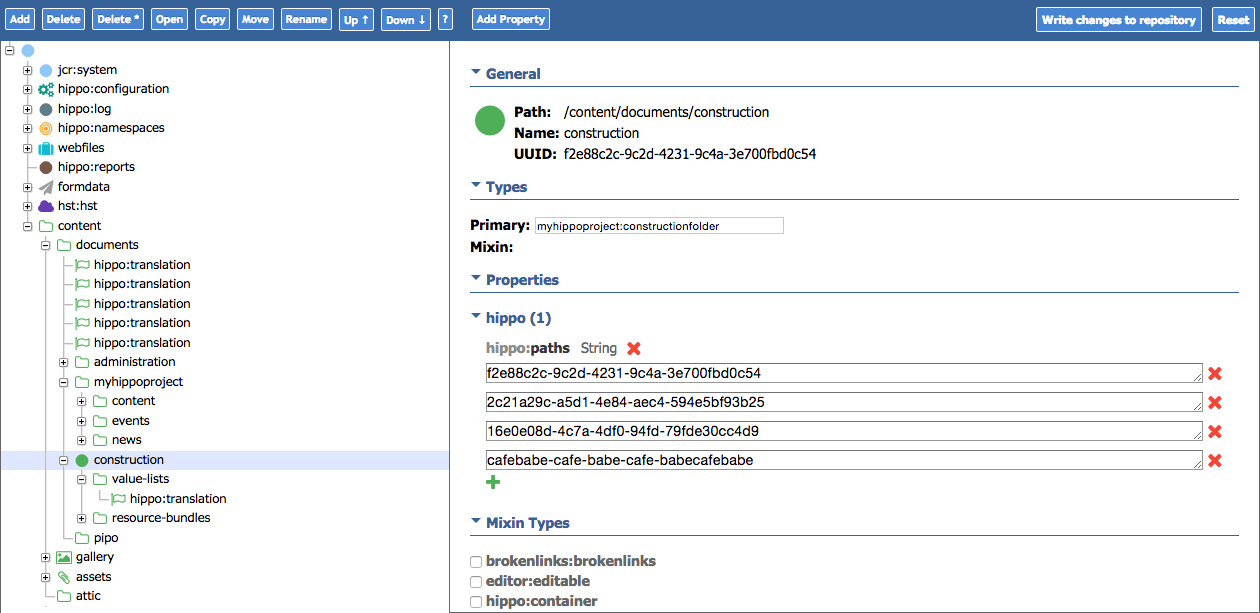
Use the Console to create a folder named construction of type myproject:constructionfolder under /content/documents.
3. Add a Tree View for the Construction Section
To display the construction folder as a separate section in the Content application, configure a new UI plugin cluster. This cluster will include:
- A Section Plugin (use
SearchingSectionPluginto include a search box) - A Browser Plugin to display the tree and context menu
- An optional Add Folder Plugin for creating new root folders
You can import the following YAML configuration using the Console. Select the node:
/hippo:configuration/hippo:frontend/cms/cms-tree-views/
Import this YAML definition:
definitions: config: /hippo:configuration/hippo:frontend/cms/cms-tree-views/construction: jcr:primaryType: frontend:plugincluster frontend:properties: [use.width.from.classname, bind.to.layout.unit, workflow.enabled, nodetypes, root.path] frontend:references: [browser.id, editor.id] frontend:services: [wicket.id, model.folder] model.folder: ${cluster.id}.model.folder nodetypes: [] root.path: /content/documents/construction /sectionPlugin: jcr:primaryType: frontend:plugin extension.addfolder: ${cluster.id}.addfolder extension.tree: ${cluster.id}.tree model.folder.root: ${root.path} plugin.class: org.hippoecm.frontend.plugins.cms.browse.section.SearchingSectionPlugin title: section-construction wicket.extensions: [extension.tree, extension.addfolder] /documentsBrowser: jcr:primaryType: frontend:plugin path: ${root.path} plugin.class: org.hippoecm.frontend.plugins.cms.browse.tree.FolderTreePlugin rootless: 'true' wicket.id: ${cluster.id}.tree wicket.model: ${model.folder} /module.workflow: jcr:primaryType: frontend:plugin plugin.class: org.hippoecm.addon.workflow.ContextWorkflowManagerPlugin workflow.categories: [threepane, folder-translations] /filters: jcr:primaryType: frontend:pluginconfig /showFolderType: jcr:primaryType: frontend:pluginconfig child: hippostd:folder display: true /showDirectoryType: jcr:primaryType: frontend:pluginconfig child: hippostd:directory display: true /hideHandleType: jcr:primaryType: frontend:pluginconfig child: hippo:handle display: false /hideResultsetType: jcr:primaryType: frontend:pluginconfig child: hippo:facetresult display: false /hideFacNavType: jcr:primaryType: frontend:pluginconfig child: hippofacnav:facetnavigation display: false /hideTranslationsType: jcr:primaryType: frontend:pluginconfig child: hippotranslation:translations display: false /addfolderPlugin: jcr:primaryType: frontend:plugin option.location: /content/documents/construction plugin.class: org.hippoecm.frontend.plugins.standardworkflow.FolderShortcutPlugin wicket.id: ${cluster.id}.addfolder wicket.variant: addfolder workflow.categories: threepane workflow.translated: new-translated-folder
4. Configure Section Translations
Translations for section titles are managed in repository resource bundles at:
/hippo:configuration/hippo:translations/hippo:cms/sections
Add a property named section-construction to the relevant language nodes (such as en, nl, etc.) to provide the display name for the new section.
5. Register the Section in the CMS Browser
To activate the new tree section, add a PluginClusterLoader to the cms-browser plugin cluster. Select the node:
/hippo:configuration/hippo:frontend/cms/cms-browser/
Import the following YAML definition:
definitions: config: /hippo:configuration/hippo:frontend/cms/cms-browser/constructionTreeLoader: jcr:primaryType: frontend:plugin cluster.name: cms-tree-views/construction plugin.class: org.hippoecm.frontend.plugin.loader.PluginClusterLoader /cluster.config: jcr:primaryType: frontend:pluginconfig bind.to.layout.unit: true browser.id: service.browse editor.id: service.edit wicket.id: service.browse.tree.construction workflow.enabled: true
6. Update the Navigator Plugin
Make the Navigator plugin aware of the new section. Select the node:
/hippo:configuration/hippo:frontend/cms/cms-static/navigator
Add the following property:
section.construction = service.browse.tree.construction
Add section.construction to the multi-value property sections.
7. Verify the Construction Section
Log in to the CMS. The new construction section should appear as a separate entry in the documents browser.
Adjusting Folder and Document Trees
Hide the Construction Folder in the Documents Section
To prevent the construction folder from appearing in the main Documents section, apply a filter at the following nodes:
/hippo:configuration/hippo:frontend/cms/cms-tree-views/documents/documentsBrowser/filters/
and
/hippo:configuration/hippo:frontend/cms/cms-folder-views/hippostd:directory/root/filters/
Import this filter configuration:
definitions: config: /hippo:configuration/hippo:frontend/cms/cms-tree-views/documents/documentsBrowser/filters/hideConstructionFolderType: jcr:primaryType: frontend:pluginconfig child: myproject:constructionfolder display: false
Ensure the hideConstructionFolderType filter is listed before the showFolderType filter. In the Console, move the hideConstructionFolderType node above showFolderType using the up button.
Configure the Document Picker
To display the construction section in the document picker, update the picker navigator. Select the node:
/hippo:configuration/hippo:frontend/cms/cms-pickers/documents/navigator
Add the following property:
section.construction = service.dialog.tree.construction
Add section.construction to the multi-value property sections.
Add a plugin cluster loader to the document picker to start the construction tree view. Select the node:
/hippo:configuration/hippo:frontend/cms/cms-pickers/documents
Import this YAML definition:
definitions: config: /hippo:configuration/hippo:frontend/cms/cms-pickers/documents/constructionTreeLoader: jcr:primaryType: frontend:plugin cluster.name: cms-tree-views/construction plugin.class: org.hippoecm.frontend.plugin.loader.PluginClusterLoader /cluster.config: jcr:primaryType: frontend:pluginconfig bind.to.layout.unit: false root.path: /content/documents/construction use.width.from.classname: hippo-picker-tree wicket.id: service.dialog.tree.construction workflow.enabled: false
Verification
- The construction section should appear as a separate entry in the Content application.
- The construction folder should not appear in the main Documents section.
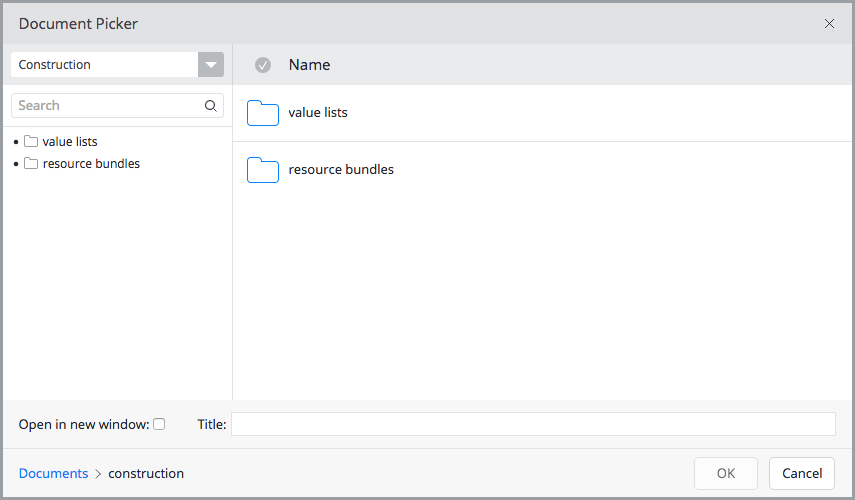
- The construction section should be available in the document picker dialog.
Troubleshooting
- If the new section does not appear, verify that all configuration nodes and properties are set correctly.
- Ensure the node type is defined and the application has been rebuilt and restarted.
- Check that the filters are ordered correctly in the configuration.