Update a Project
Info: This feature in Bloomreach Content requires a standard or premium license. Contact Bloomreach for more information.
This page explains how to update a project with channel changes made to the core after the project was created or last updated.
Info: Updating a project only includes channel changes from the core. Content changes on the core are not included.
Prerequisites
- You have access to the Projects application.
- You have a standard or premium license.
Steps to Update a Project
-
Open the Projects application.
-
In the list of projects, find your project. If there are channel changes on the core, the
Updatebutton appears in the project's row.
-
Click Update.
Hint: You can also click your project to open its detail screen, then click Update.
-
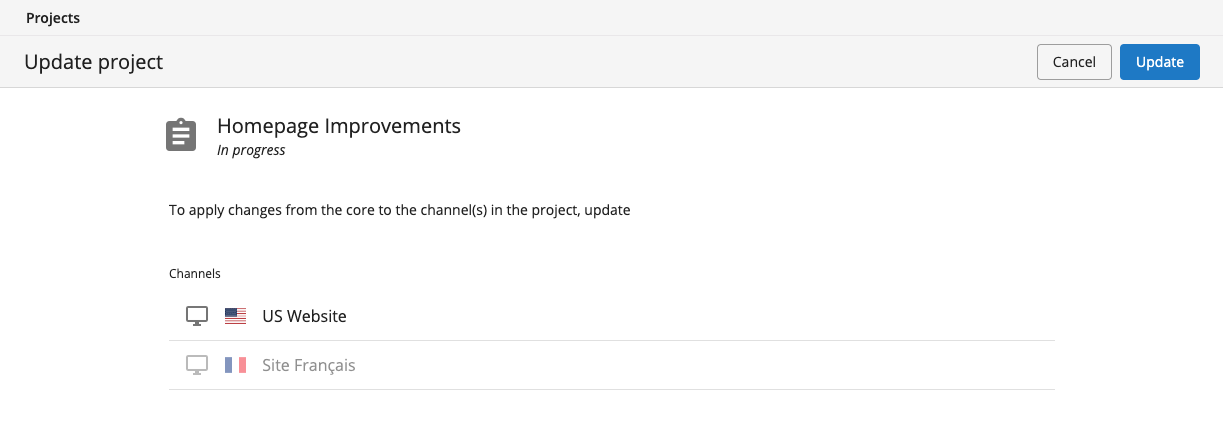
In the Update project dialog, review the list of channels in the project. Channels without core changes are greyed out.
-
Click Update.
The system checks for conflicting changes between the project and the core.
-
If conflicts exist, select how to resolve them:
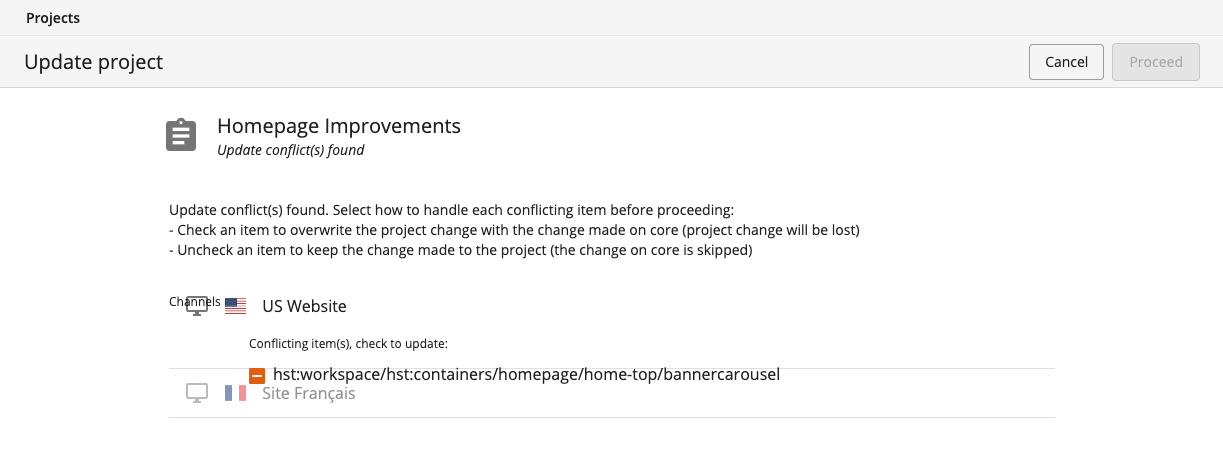
- Check the items you want to overwrite in the project with changes from the core.
- Uncheck items to keep the project's changes and skip the core update for those items.
- Click Proceed.
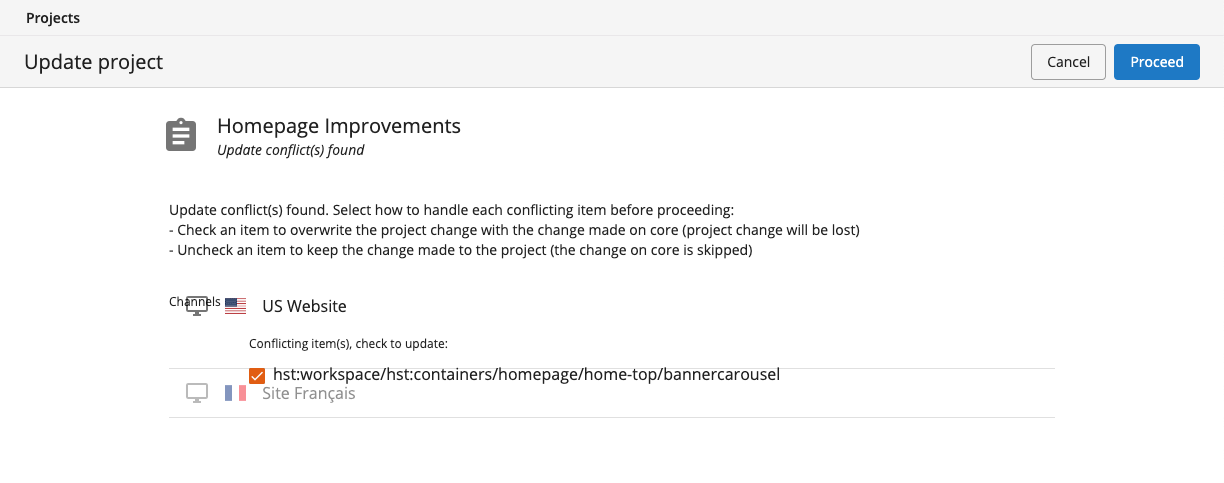
Important: Overwriting will discard any conflicting changes made by others.
After completing these steps, the channels in your project are updated with the latest changes from the core since the project was last updated or created.