Review a Project
Info: This feature in Bloomreach Content requires a standard or premium license. Contact Bloomreach for details.
This page explains how to review changes included in a project.
Project review is required before you can merge a project or run it as a campaign. At least two webmasters must review and accept all changes in the project.
Prerequisites
- You must have at least two webmasters available to review the project.
- The project must be in a state that requires review.
Review Process
-
Open the
Projectsapplication. Projects that require review display an "In review" status beneath the project title.
-
Click the project you want to review. You can review both channel and content changes included in the project.
Review Channel Changes
-
Select the
Channelstab to see a list of channels with changes.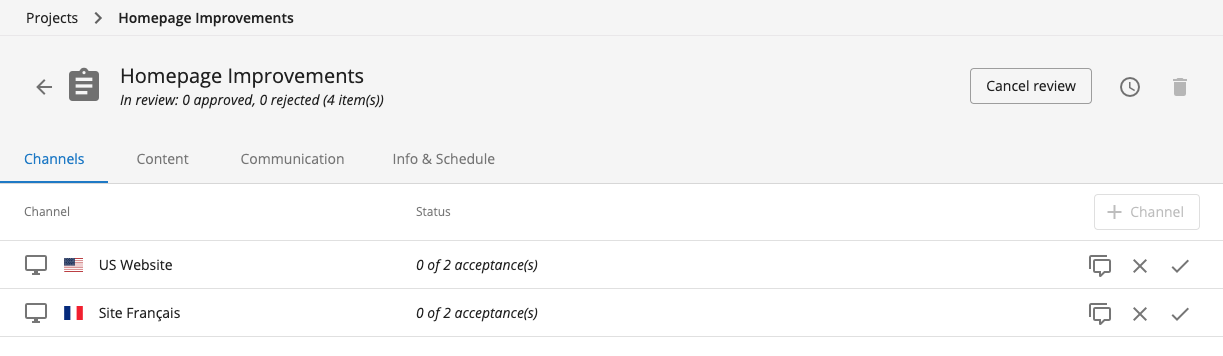
-
Click a channel to open it in the context of the project. Review the changes for each channel.
Review Content Changes
-
Select the
Contenttab to view documents included in the project.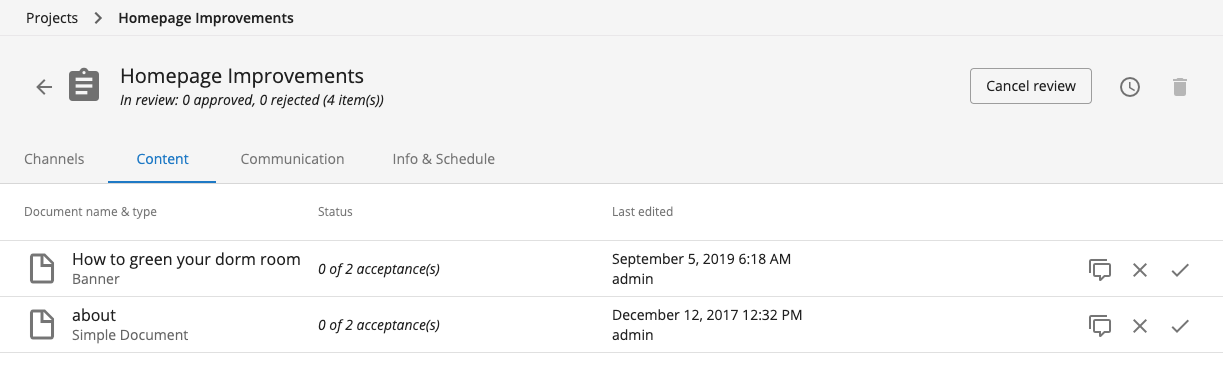
-
Click a document to open it in the
Contentapplication. Review the changes for each document.
Accept or Reject Changes
You can accept or reject channels and documents from within the Projects application using the Channels or Content tabs.

Alternatively, you can accept or reject changes directly from the Channels or Content applications.
Accept or Reject a Document
-
In the
Contentapplication, open the document and select theProjectmenu item.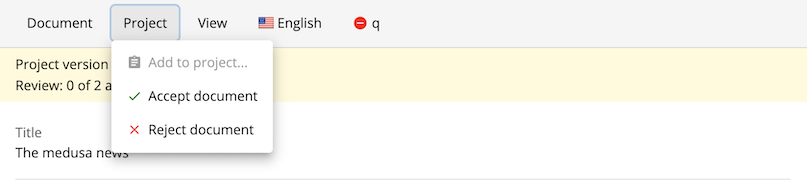
Accept or Reject a Channel
-
In the
Experience manager, open the channel and select theChannelmenu item.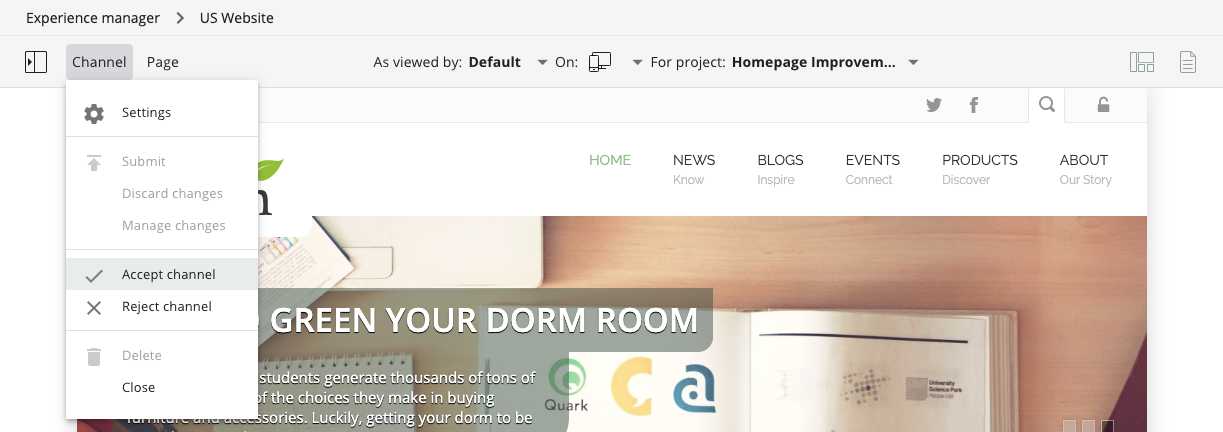
Provide Feedback on Rejection
When you reject a channel or document, you must leave a comment explaining the reason.
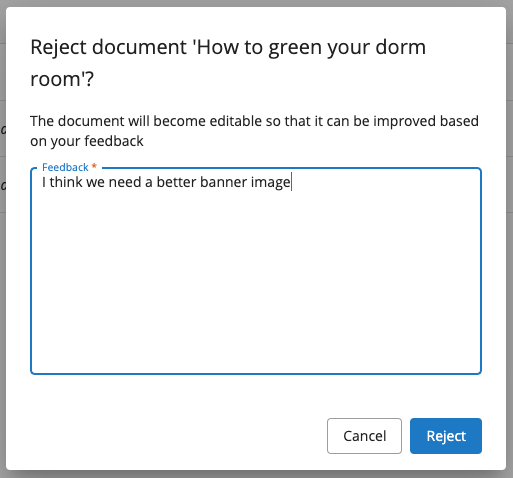
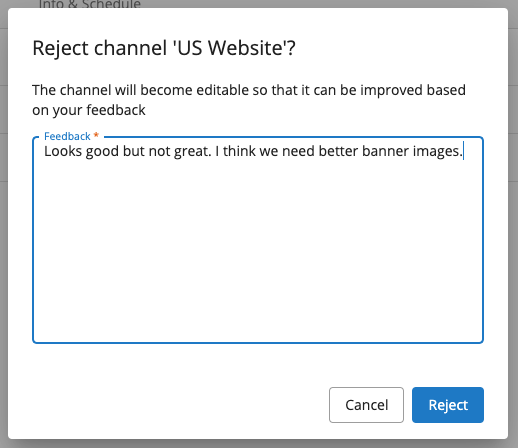
Rejection comments appear in the relevant tabs within the Projects application. For example, if you reject a channel, the comment is visible in the comment log for that channel in the Channels tab and in the Communication tab.
Next Steps After Review
- When you reject a document or channel, it becomes editable again. You can either edit and restart the review or remove the item from the project.
- If two webmasters accept all channels and documents in the project, you can merge the project into the core or run it as a campaign.