Merge a Project into the Core
Info: This feature in Bloomreach Content requires a standard or premium license. Contact Bloomreach for more information.
This page explains how to merge channel or content changes from a project into the core.
Prerequisites
Before you can merge a project into the core:
- You must request a review.
- Two webmasters must review and accept the changes in the project.
Merge a Project
-
Open the Projects application.

-
Identify projects with the
Approvedstatus. These projects are ready to be merged.
Projects with the
Campaign runningstatus can also be merged into the core. -
Click the project you want to merge. The top-right of the screen displays three options:
Reopen,Merge, andStart Campaign.
- Select Reopen to move the project back to the 'in progress' state. All changes remain, but the project status changes from 'approved' to 'in progress'.
- Select Merge to proceed with merging the project into the core.
-
When you click Merge, the
Merge projectscreen appears. This screen lists the channels and the number of documents that will be merged into the core.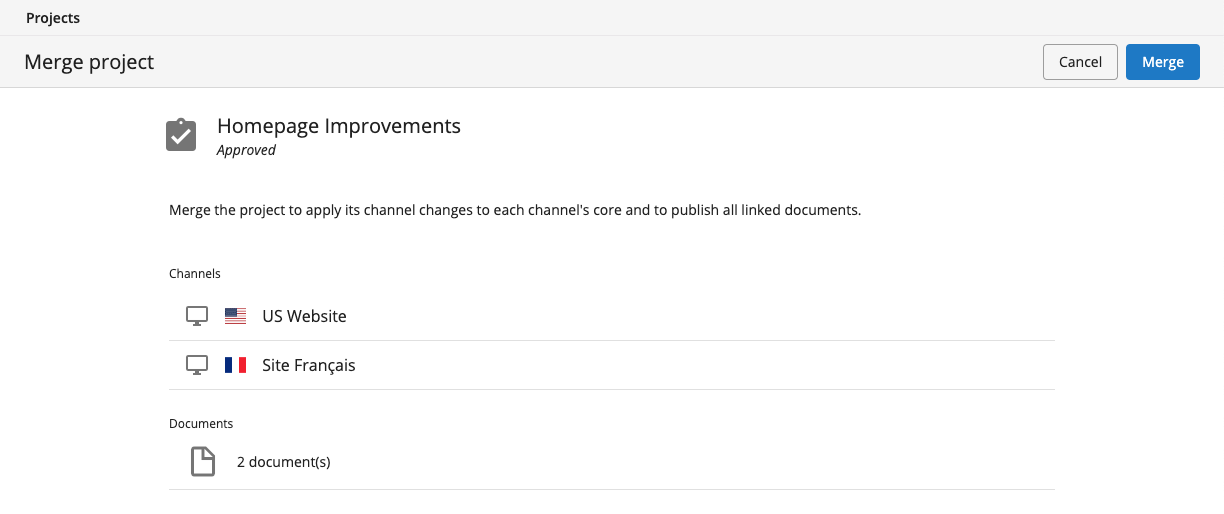
- Click Merge to confirm and start the merge process.
- Click Cancel to stop and return to the previous screen.
-
After you confirm by clicking Merge, the merge process begins. When the merge completes, the
Info & Scheduletab appears.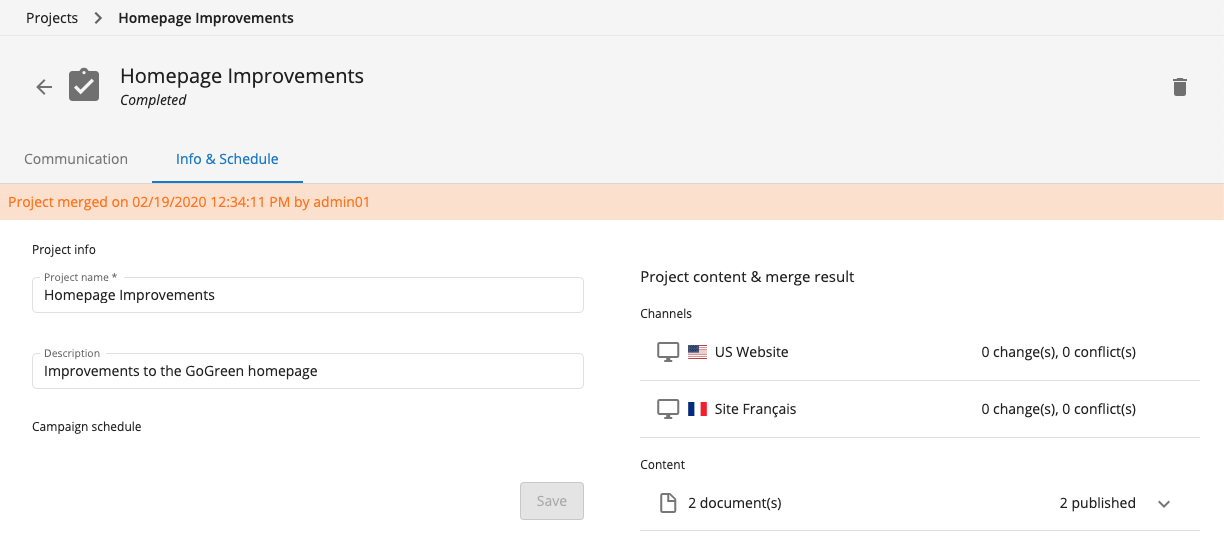
The
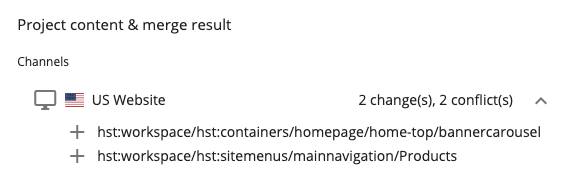
Info & Scheduletab displays the merge date and time, and provides aProject content & merge resultsummary. This summary includes an overview of merged channels and content, as well as information about any conflicts resolved during the merge.
Handle Merge Conflicts
A merge conflict occurs when the same component has been modified both in the project and on the core. If a conflict is detected during the merge, the system displays the conflict and prompts you to choose one of the following actions:
- Overwrite core: Apply the project's change to the core.
- Skip: Keep the existing core change and do not apply the project's change.
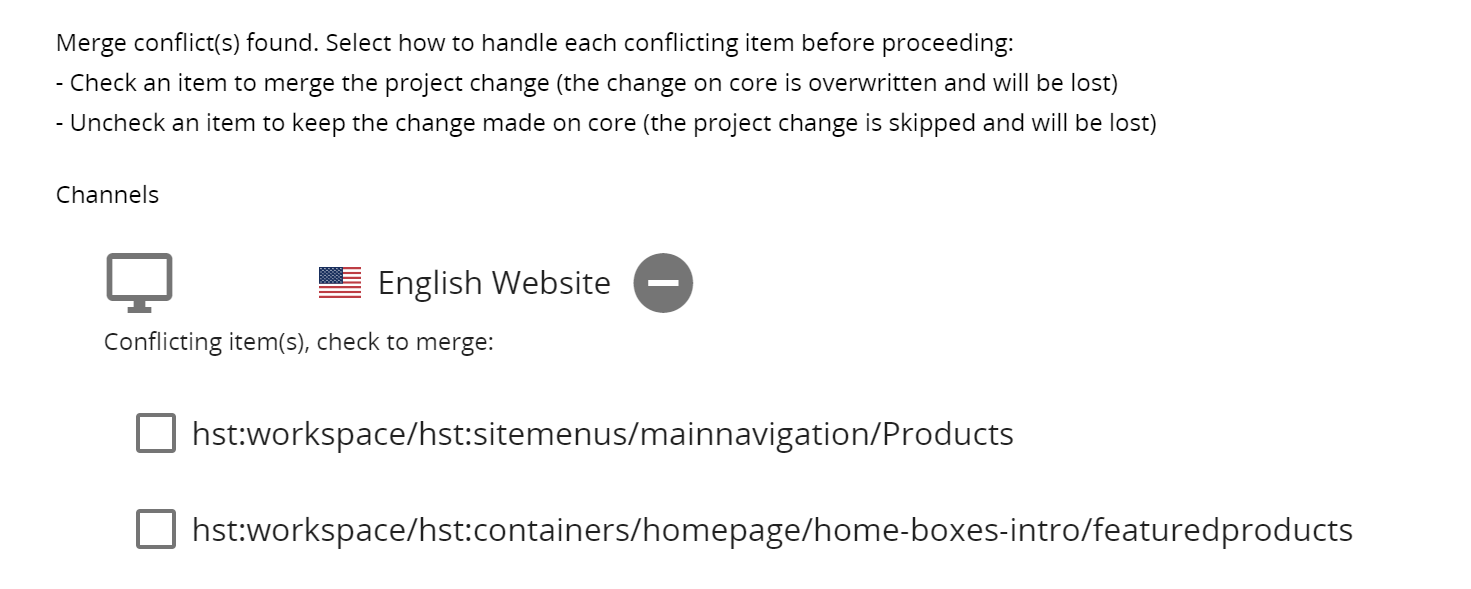
Each conflicting item is shown by its path, which matches the path in the console. Developers can review these changes in detail if needed before making a decision.
After the merge completes, the merge report lists all items changed for each channel. Items with conflicts that were overwritten on the core are marked with a check mark.