Run a Campaign
Info: Running campaigns in Bloomreach Content requires a standard or premium license. Contact Bloomreach for details.
Overview
This page explains how to run a set of project changes as a campaign in Bloomreach Content.
Before you can run a project as a campaign, you must request a review and have two webmasters review and accept the changes.
You can either schedule a campaign to start and stop automatically, or manually start and stop a campaign at any time.
Schedule a Campaign
-
Open the Projects application.

-
If you have not created a project for your campaign, you can set the start and end date and time during project creation.
-
If your project already exists and you did not set a schedule during creation, open the project and go to the
Info & Scheduletab. -
Click the calendar icon next to
Start dateto select the campaign start date.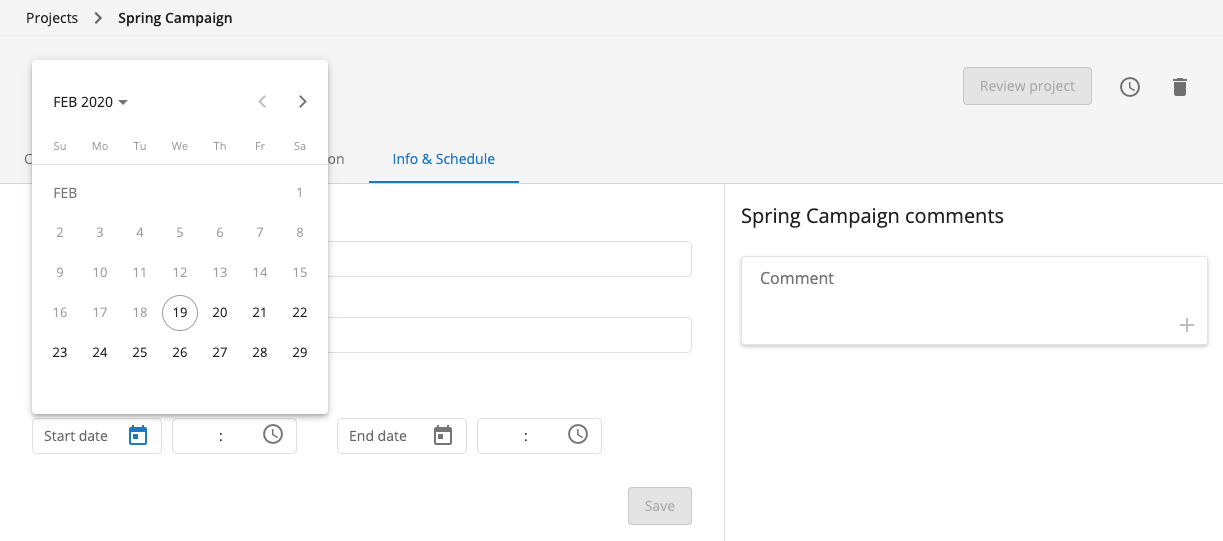
-
Click the clock icon next to
Start timeto select the campaign start time.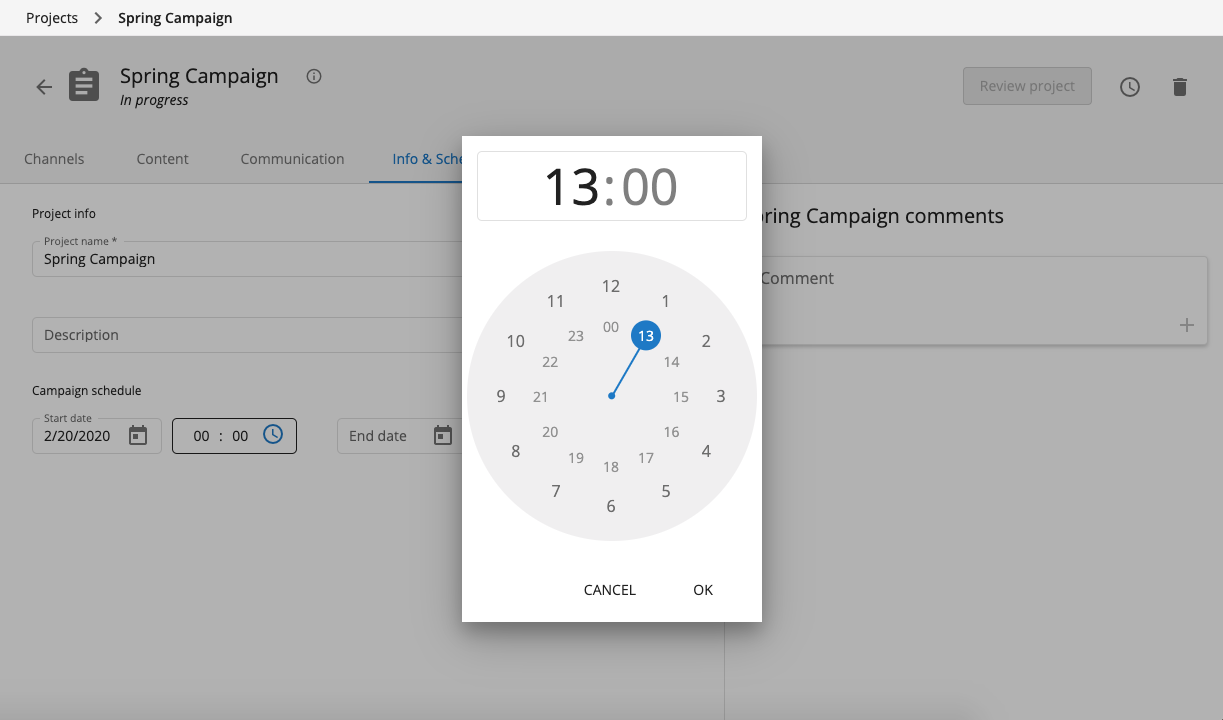
-
Repeat these steps for
End dateandEnd time. ClickSaveto store the campaign schedule.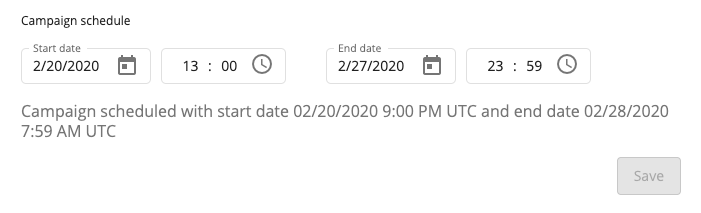
Campaign Start and Status
-
The campaign starts automatically at the scheduled date and time if the project is in the "approved" state.
-
The project header updates to reflect the campaign status at the scheduled start time.
-
Scheduled, not running:

-
Running:

-
-
When the campaign starts, a system message "Campaign started" is added to the comments.

-
The campaign stops automatically at the scheduled end date and time.
Overdue Campaigns
-
If the project is not approved at the scheduled start time, the campaign does not start and becomes overdue.
-
The clock icon in the project screen turns orange 7 days before the scheduled start time and red after the scheduled start time passes. Hover over the icon to view the scheduled dates and times.
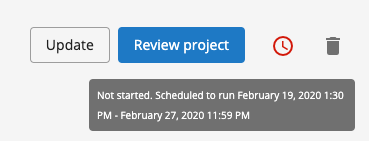
-
You can still review an overdue campaign project. Once approved, you must reschedule the campaign or start and stop it manually.
Additional Notes
- You can override the scheduled start date by manually starting the campaign before the start date.
- You can override the scheduled end date by manually stopping the campaign before the end date.
- You can merge a running campaign into core. This stops the campaign immediately and makes the changes permanent.
Manually Start and Stop a Campaign
-
Open the Projects application.
-
Projects that are fully accepted and ready to run as a campaign display an
Approvedstatus.
-
Select the project you want to run as a campaign. The top-right of the screen displays
Reopen,Merge, andStart Campaignoptions.
-
Click
Start Campaign. A confirmation dialog appears.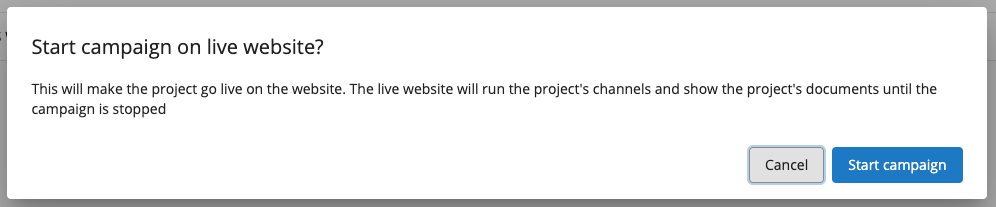
-
Click
Start Campaignin the dialog to launch the campaign. -
While the campaign is running, the top-right displays
MergeandStop Campaign.
-
To take the campaign offline and revert all affected channels to core, click
Stop Campaign. Confirm in the dialog.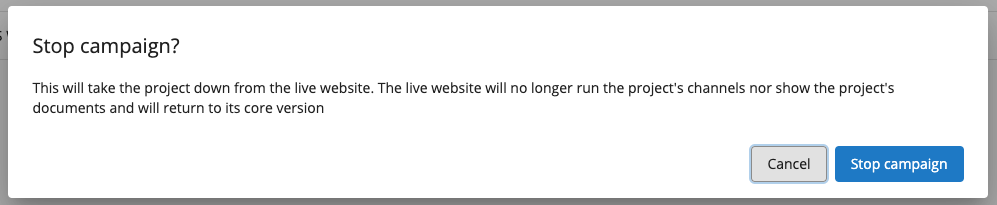
-
Alternatively, to make the changes permanent, merge the project into core. This also ends the campaign.
Multiple Campaigns Running Concurrently
If more than one campaign is running at the same time for a channel, the campaign with the shortest running period is served to visitors of that channel.
For example, on February 13, if the following campaigns are active:
- Campaign 1: Started February 12, ends February 28
- Campaign 2: Started February 9, ends February 14
- Campaign 3: Started February 7, ends February 28
On February 13, Campaign 2 is served because it has started, has not ended, and has the shortest running period.
This is the default behavior. Developers can customize this logic in a Bloomreach Content implementation.