Add Featured Products to the Home Page
Previous Step
Develop the Products Feature Part 3: Product Detail Page
This section describes how to create a reusable catalog component that displays four manually selected "featured" products on the Home Page.
Review the Web Design
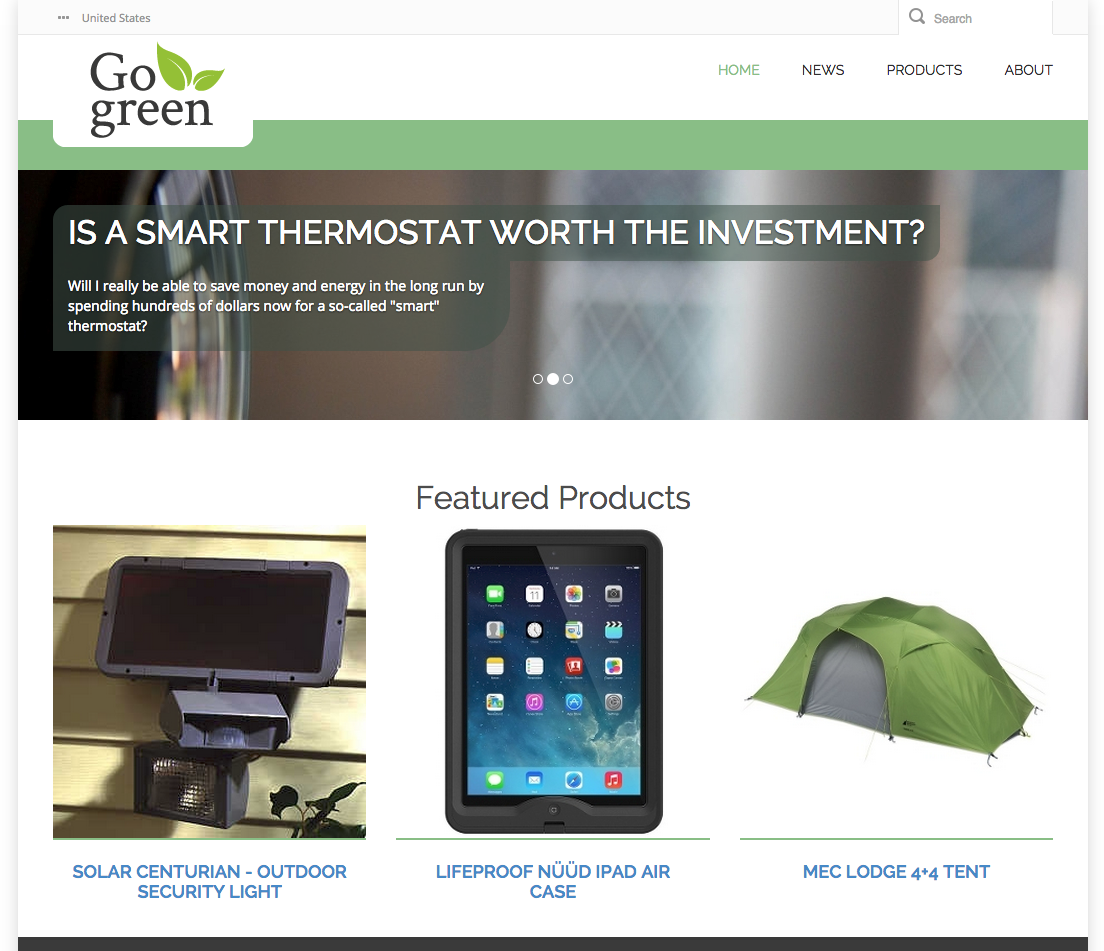
Open the web design in your browser and examine the Featured Products section on the Home Page.
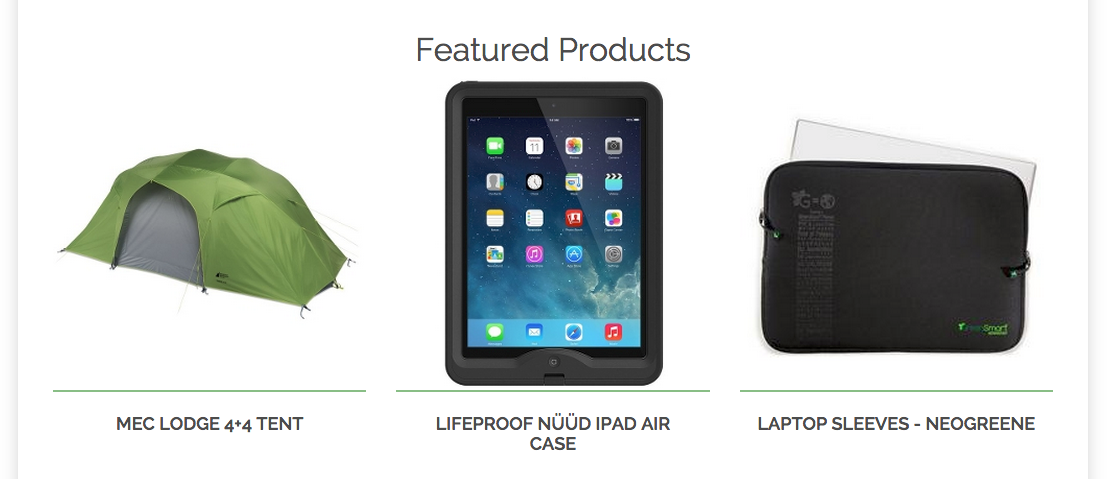
The section includes:
- A list of four products.
- Each product displays a thumbnail image and title.
- Each product links to its detail page.
Featured products are selected by a CMS user.
Implement the Featured Products Component
Implement the Featured Products section as a reusable, user-configurable component. CMS users, such as webmasters, can configure this component in the Experience manager in Bloomreach Content.
Use the List Picker Component from the standard component library:
- Users can select up to 10 documents in the Experience manager.
- The selected documents are exposed as a pageable collection.
Create the Featured Products Template
The Featured Products component requires a template to render the selected products as HTML according to the web design.
- Open the
index.htmlfile from the web design. - Locate the comment
<!-- featured products -->. This marks the start of the HTML markup for the Featured Products section. - Create the file
repository-data/webfiles/src/main/resources/site/freemarker/gogreen/featured-products.ftlin your project. This Freemarker template will render the featured products.
Use Freemarker syntax to render the configured products as HTML. Use the 'largesquare' image variant.
Add <@hst.manageContent> tags to provide buttons for editing selected products, selecting different products, or creating and selecting new products. For details on tag parameters, see Render a Manage Content Button. Render buttons for all three slots, regardless of whether they are used. The List Picker Component uses the parameters document1, document2, and document3. For the documentTemplateQuery parameter, use new-product-document so that only 'product' documents can be created.
The following example shows the expected Freemarker template:
<#include "../include/imports.ftl"> <#if pageable??> <div class="row"> <div class="col-md-12 col-sm-12"> <h2 class="h2-section-title">Featured Products</h2> </div> </div> <div class="container"> <div class="row"> <#list pageable.items as item> <@hst.link var="link" hippobean=item/> <div class="col-md-4 col-sm-4"> <div class="feature product-category"> <@hst.manageContent hippobean=item parameterName="document" + item?counter documentTemplateQuery="new-product-document" rootPath="products" /> <div class="feature-image"> <a href="${link}"> <#if item.images?? && item.images[0]??> <@hst.link var="img" hippobean=item.images[0].largesquare/> <img src="${img}" alt="${item.title?html}" /> </#if> </a> <div class="feature-content"> <h3 class="h3-body-title"> <a href="${link}">${item.title?html}</a> </h3> </div> </div> </div> </div> </#list> <#list [1, 2, 3] as i> <#if (pageable.total < i) > <div class="col-md-4 col-sm-4"> <div class="feature product-category"> <@hst.manageContent parameterName="document" + i documentTemplateQuery="new-product-document" rootPath="products" /> </div> </div> </#if> </#list> </div> </div> </#if>
In the Console, navigate to /hst:gogreen/hst:configurations/gogreen/hst:templates.
- Add a new node named
featured-productsof typehst:template. - Add the property
hst:renderpathto thefeatured-productsnode with the valuewebfile:/freemarker/gogreen/featured-products.ftl.
/hst:gogreen/hst:configurations/gogreen/hst:templates/featured-products: jcr:primaryType: hst:template hst:renderpath: webfile:/freemarker/gogreen/featured-products.ftl
Configure the Catalog Component
With the component elements in place, add the component to the catalog.
-
In the Console, go to
/hst:gogreen/hst:configurations/gogreen/hst:catalog/gogreen-catalog. -
Add a new node named
featured-productsof typehst:containeritemcomponent. -
Add the following properties to the
featured-productsnode:hst:componentclassname:org.onehippo.cms7.essentials.components.EssentialsListPickerComponenthst:template:featured-productshst:label:Featured Products
/hst:gogreen/hst:configurations/gogreen/hst:catalog/gogreen-catalog/featured-products: jcr:primaryType: hst:containeritemcomponent hst:componentclassname: org.onehippo.cms7.essentials.components.EssentialsListPickerComponent hst:label: Featured Products hst:template: featured-products
Add the Featured Products Component to the Home Page
Add the Featured Products component to the Home Page using the Experience manager.
- In Bloomreach Content, open the site in the Experience manager.
- Click the
Show componentsicon in the top right. - Open the side navigation and select
Components. The component catalog appears, includingFeatured Products.
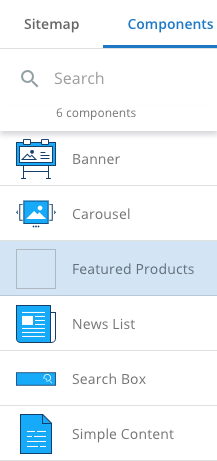
- Select the
Featured Productscomponent, then click the container that contains the Banner Carousel to add the Featured Products component.
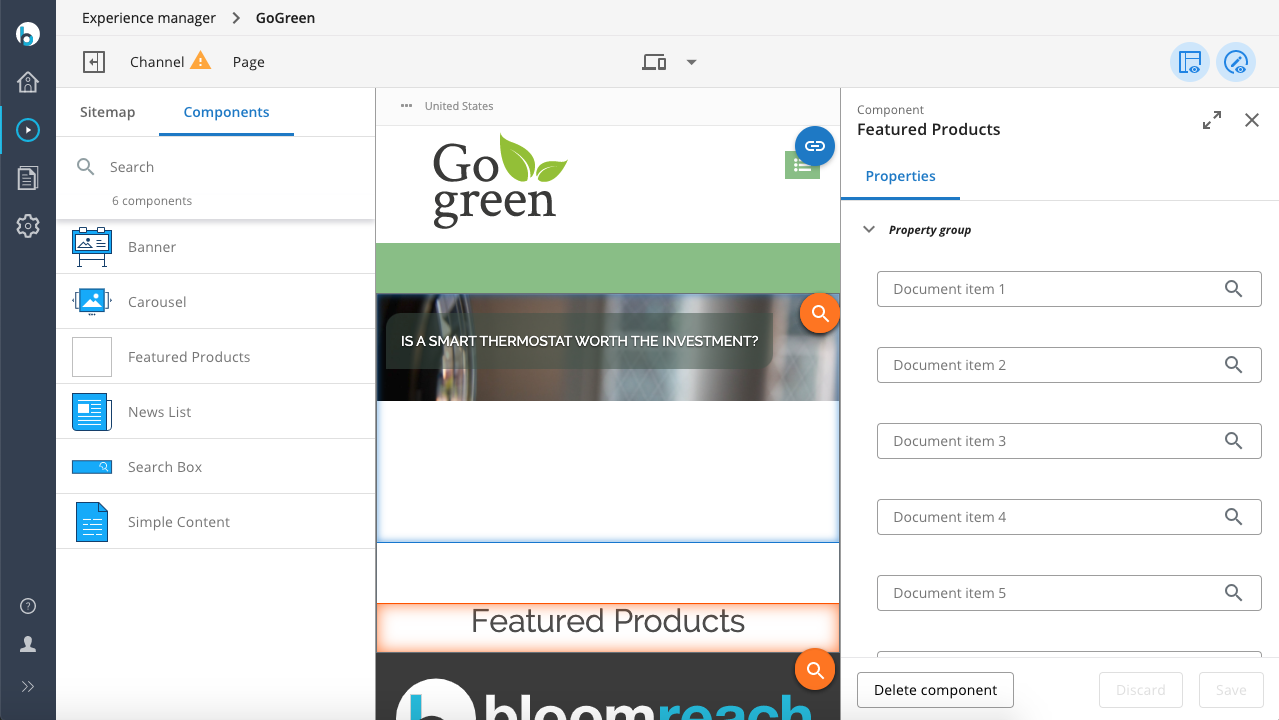
- For each of the three slots, select one of the products you created.
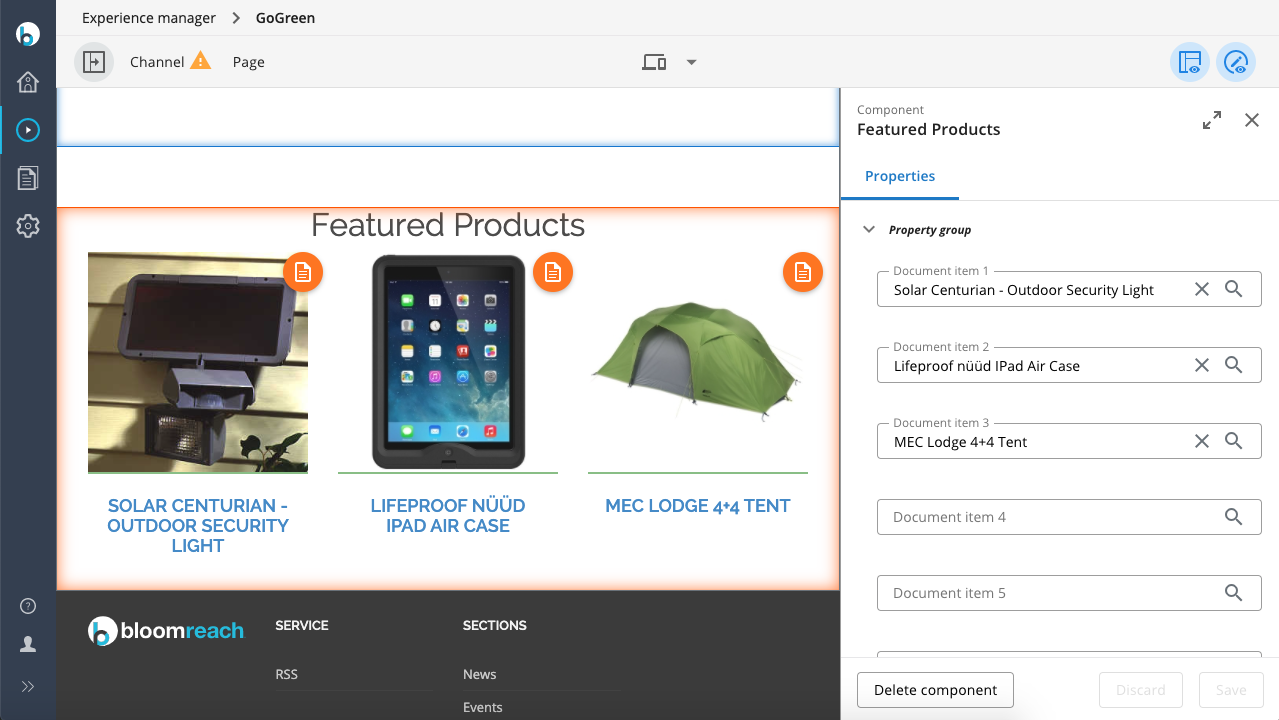
-
Click
Channel, thenPublishto publish your changes. -
Open http://localhost:8080/site/ in your browser. The Home Page now displays the Featured Products section.
Next Step
Add Faceted Navigation to the News Overview Page
Full Source Code
featured-products.ftl
<#include "../include/imports.ftl"> <#if pageable??> <div class="row"> <div class="col-md-12 col-sm-12"> <h2 class="h2-section-title">Featured Products</h2> </div> </div> <div class="container"> <div class="row"> <#list pageable.items as item> <@hst.link var="link" hippobean=item/> <div class="col-md-4 col-sm-4"> <div class="feature product-category"> <@hst.manageContent hippobean=item parameterName="document" + item?counter documentTemplateQuery="new-product-document" rootPath="products" /> <div class="feature-image"> <a href="${link}"> <#if item.images?? && item.images[0]??> <@hst.link var="img" hippobean=item.images[0].largesquare/> <img src="${img}" alt="${item.title?html}" /> </#if> </a> <div class="feature-content"> <h3 class="h3-body-title"> <a href="${link}">${item.title?html}</a> </h3> </div> </div> </div> </div> </#list> <#list [1, 2, 3] as i> <#if (pageable.total < i) > <div class="col-md-4 col-sm-4"> <div class="feature product-category"> <@hst.manageContent parameterName="document" + i documentTemplateQuery="new-product-document" rootPath="products" /> </div> </div> </#if> </#list> </div> </div> </#if>