Develop the Products Feature Part 3: Product Detail Page
Previous Step
Develop the Products Feature Part 2: Products Overview Page
This section describes how to implement the Product Detail page, including its configuration, business logic, and template, following the same approach as the Products Overview page.
Page Configuration
- Open the Console at http://localhost:8080/cms/console/ and log in as
admin(password:admin). - Navigate to
/hst:gogreen/hst:configurations/gogreen/hst:pages. This node contains the page configurations. - Add a new node named
productpageof typehst:component. - Set the property
hst:referencecomponenton theproductpagenode tohst:abstractpages/twocolumns.
/hst:gogreen/hst:configurations/gogreen/hst:pages/productpage: jcr:primaryType: hst:component hst:referencecomponent: hst:abstractpages/twocolumns
This configuration creates a new page, productpage, which extends the previously defined twocolumns abstract page. The content area will be defined in the next steps.
URL Configuration
- In the Console, go to
/hst:gogreen/hst:configurations/gogreen/hst:sitemap/products. This is the sitemap location for the Products Overview page. - Add a child node named
_any_.htmlof typehst:sitemapitemunder theproductsnode. The_any_string acts as a wildcard, similar to**in Unix, and enables dynamic URL patterns for product detail pages. - Set the property
hst:componentconfigurationidtohst:pages/productpage. - Set the property
hst:relativecontentpathto${parent}/${1}. This value combines the parent URL's relative content path with the value matched by the wildcard.
/hst:gogreen/hst:configurations/gogreen/hst:sitemap/products/_any_.html: jcr:primaryType: hst:sitemapitem hst:componentconfigurationid: hst:pages/productpage hst:relativecontentpath: ${parent}/${1}
This configuration generates URLs for all product documents in the products folder and maps them to the productpage configuration.
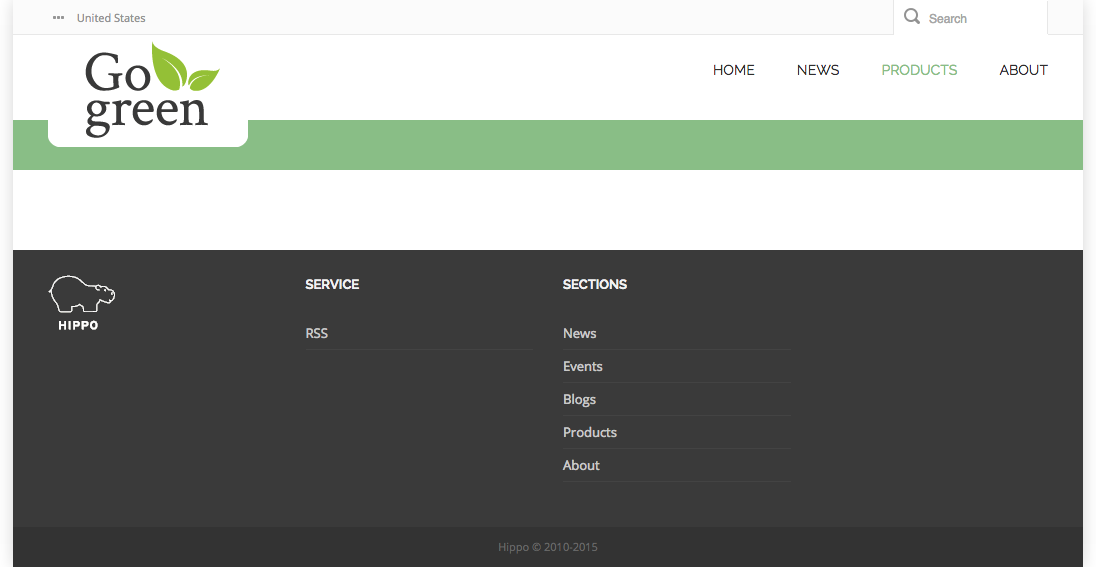
When you access a product link from the Products Overview page, the browser navigates to a unique URL for that product. The page displays the common layout elements, but the main content area remains empty at this stage.
Product Detail Business Logic
Use the Essentials Content Component to implement the business logic for the Product Detail component. This component retrieves a single document from the content repository and exposes it as a rendering attribute. It also provides exception handling if the document does not exist.
Key details:
- Java class:
org.onehippo.cms7.essentials.components.EssentialsContentComponent - The retrieved document is available as the rendering attribute
document.
Product Detail Template
- Open the
products-detail.htmlfile in your web design. Locate the<div class="col-md-9 col-sm-9">element, which contains the markup for the Product Detail page. - Identify CSS and JavaScript references specific to this page. These are marked with:
<!-- start page specific css --> <!-- end page specific css -->
and
<!-- start page specific js --> <!-- end page specific js -->
- Create the file
repository-data/webfiles/src/main/resources/site/freemarker/gogreen/productpage-main.ftlin your project. This Freemarker template will render the product document content. - Add the following line at the top of
productpage-main.ftl:
<#include "../include/imports.ftl">
You will implement the template logic in the next steps.
- In the Console, navigate to
/hst:gogreen/hst:configurations/gogreen/hst:templates. - Add a new node named
productpage-mainof typehst:template. - Set the property
hst:renderpathtowebfile:/freemarker/gogreen/productpage-main.ftl.
/hst:gogreen/hst:configurations/gogreen/hst:templates/productpage-main: jcr:primaryType: hst:template hst:renderpath: webfile:/freemarker/gogreen/productpage-main.ftl
- In the Console, go to
/hst:gogreen/hst:configurations/gogreen/hst:pages/productpage. - Add a new node named
mainof typehst:component. - Under
main, add a child node namedleftof typehst:component. - Set the property
hst:componentclassnameon theleftnode toorg.onehippo.cms7.essentials.components.EssentialsContentComponent. - Set the property
hst:templateon theleftnode toproductpage-main.
/hst:gogreen/hst:configurations/gogreen/hst:pages/productpage: /main: jcr:primaryType: hst:component /left: jcr:primaryType: hst:component hst:componentclassname: org.onehippo.cms7.essentials.components.EssentialsContentComponent hst:template: productpage-main
Implement the Product Detail Template
Edit productpage-main.ftl to render the product document using Freemarker syntax. Follow these guidelines:
- Refer to
repository-data/webfiles/src/main/resources/site/freemarker/hstdefault/newspage-main.ftlfor structure and logic examples. - Access the product document using the
documentvariable. - Product ratings are out of scope for this sprint. Comment out the related markup using
<#-- ... -->. - The product document type supports multiple images.
- Add head contributions for CSS and JavaScript files specific to this page.
- Include an edit button in the channel preview using the
<@hst.manageContent>tag.
A sample implementation is shown below:
<#include "../include/imports.ftl"> <#if document??> <@hst.link var="link" hippobean=document/> <div class="blog-post"> <div class="blog-post-type"> <i class="icon-shop"> </i> </div> <div class="blog-span"> <h2>${document.title?html}</h2> <@hst.manageContent hippobean=document /> <#if document.images??> <div class="blog-post-featured-img img-overlay"> <div class="cycle-slideshow frame1" data-cycle-slides="> .slider-img" data-cycle-swipe="true" data-cycle-prev=".cycle-prev" data-cycle-next=".cycle-next" data-cycle-overlay-fx-out="slideUp" data-cycle-overlay-fx-in="slideDown" data-cycle-timeout="0"> <div class="fa fa-chevron-right cycle-next"></div> <div class="fa fa-chevron-left cycle-prev"></div> <div class="cycle-pager"></div> <#list document.images as item> <@hst.link var="img" hippobean=item/> <div class="slider-img"> <img src="${img}" alt="${document.title?html}"> <div class="item-img-overlay"> <a class="portfolio-zoom icon-zoom" href="${img}" data-rel="prettyPhoto[portfolio]" title="${document.title?html}"></a> </div> </div> </#list> </div> </div> </#if> <div class="blog-post-body"> <p>${document.introduction?html}</p> <@hst.html hippohtml=document.description/> </div> <div class="blog-post-details"> <div class="blog-post-details-item blog-post-details-item-left"> <img src="<@hst.webfile path="/images/icon-banknote.png"/>" class="icon"> <span class="price"><@fmt.formatNumber value="${document.price}" type="currency" /></span> </div> <#-- <div class="blog-post-details-item blog-post-details-item-left rating-info"> <span id="document-rating" data-score="3.5"></span> </div> --> </div> </div> </div> <@hst.headContribution category="htmlHead"> <link rel="stylesheet" href="<@hst.webfile path="/css/prettyPhoto.css"/>" /> </@hst.headContribution> <@hst.headContribution category="htmlHead"> <link rel="stylesheet" href="<@hst.webfile path="/css/jquery.raty.css"/>" /> </@hst.headContribution> <@hst.headContribution category="htmlBodyEnd"> <script type="text/javascript" src="<@hst.webfile path="/js/jquery.raty.js"/>"></script> </@hst.headContribution> <@hst.headContribution category="htmlBodyEnd"> <script type="text/javascript" src="<@hst.webfile path="/js/jquery.cycle.js"/>"></script> </@hst.headContribution> <@hst.headContribution category="htmlBodyEnd"> <script type="text/javascript" src="<@hst.webfile path="/js/jquery.prettyPhoto.js"/>"></script> </@hst.headContribution> <@hst.headContribution category="htmlBodyEnd"> <script type="text/javascript"> jQuery(document).ready(function($) { /* Portfolio PrettyPhoto */ $("a[data-rel^='prettyPhoto']").prettyPhoto({ animation_speed: 'fast', /* fast/slow/normal */ slideshow: 5000, /* false OR interval time in ms */ autoplay_slideshow: false, /* true/false */ opacity: 0.80 /* Value between 0 and 1 */ }); }); $( '#comments .comment-rating > div, #document-rating') .raty( { score : function() { return $(this).attr('data-score'); }, readOnly : true, half : true, starType : 'i' }); $('#rating-field') .raty( { targetText : 0, target : '#rating', targetType : 'score', targetKeep : true, starType : 'i' }); </script> </@hst.headContribution> </#if>
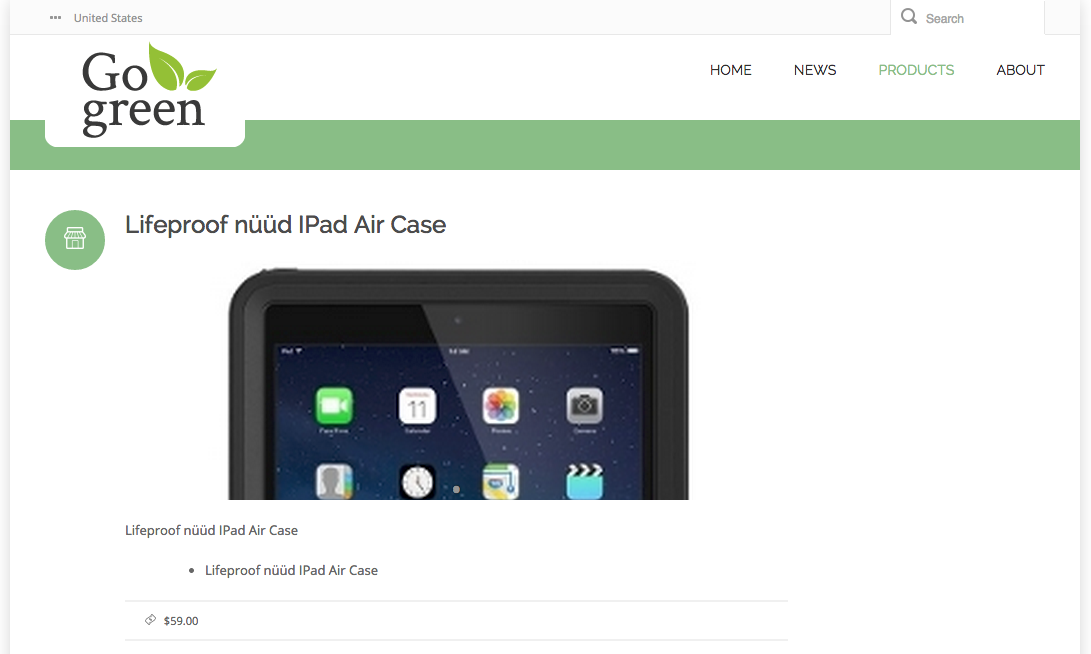
Open your site in a browser and navigate to a product. The Product Detail page now displays the product document content according to the web design.
Next Step
Add Featured Products to the Home Page
Full Source Code
productpage-main.ftl
<#include "../include/imports.ftl"> <#if document??> <@hst.link var="link" hippobean=document/> <div class="blog-post"> <div class="blog-post-type"> <i class="icon-shop"> </i> </div> <div class="blog-span"> <h2>${document.title?html}</h2> <@hst.manageContent hippobean=document /> <#if document.images??> <div class="blog-post-featured-img img-overlay"> <div class="cycle-slideshow frame1" data-cycle-slides="> .slider-img" data-cycle-swipe="true" data-cycle-prev=".cycle-prev" data-cycle-next=".cycle-next" data-cycle-overlay-fx-out="slideUp" data-cycle-overlay-fx-in="slideDown" data-cycle-timeout="0"> <div class="fa fa-chevron-right cycle-next"></div> <div class="fa fa-chevron-left cycle-prev"></div> <div class="cycle-pager"></div> <#list document.images as item> <@hst.link var="img" hippobean=item/> <div class="slider-img"> <img src="${img}" alt="${document.title?html}"> <div class="item-img-overlay"> <a class="portfolio-zoom icon-zoom" href="${img}" data-rel="prettyPhoto[portfolio]" title="${document.title?html}"></a> </div> </div> </#list> </div> </div> </#if> <div class="blog-post-body"> <p>${document.introduction?html}</p> <@hst.html hippohtml=document.description/> </div> <div class="blog-post-details"> <div class="blog-post-details-item blog-post-details-item-left"> <img src="<@hst.webfile path="/images/icon-banknote.png"/>" class="icon"> <span class="price"><@fmt.formatNumber value="${document.price}" type="currency" /></span> </div> <#-- <div class="blog-post-details-item blog-post-details-item-left rating-info"> <span id="document-rating" data-score="3.5"></span> </div> --> </div> </div> </div> <@hst.headContribution category="htmlHead"> <link rel="stylesheet" href="<@hst.webfile path="/css/prettyPhoto.css"/>" /> </@hst.headContribution> <@hst.headContribution category="htmlHead"> <link rel="stylesheet" href="<@hst.webfile path="/css/jquery.raty.css"/>" /> </@hst.headContribution> <@hst.headContribution category="htmlBodyEnd"> <script type="text/javascript" src="<@hst.webfile path="/js/jquery.raty.js"/>"></script> </@hst.headContribution> <@hst.headContribution category="htmlBodyEnd"> <script type="text/javascript" src="<@hst.webfile path="/js/jquery.cycle.js"/>"></script> </@hst.headContribution> <@hst.headContribution category="htmlBodyEnd"> <script type="text/javascript" src="<@hst.webfile path="/js/jquery.prettyPhoto.js"/>"></script> </@hst.headContribution> <@hst.headContribution category="htmlBodyEnd"> <script type="text/javascript"> jQuery(document).ready(function($) { /* Portfolio PrettyPhoto */ $("a[data-rel^='prettyPhoto']").prettyPhoto({ animation_speed: 'fast', /* fast/slow/normal */ slideshow: 5000, /* false OR interval time in ms */ autoplay_slideshow: false, /* true/false */ opacity: 0.80 /* Value between 0 and 1 */ }); }); $( '#comments .comment-rating > div, #document-rating') .raty( { score : function() { return $(this).attr('data-score'); }, readOnly : true, half : true, starType : 'i' }); $('#rating-field') .raty( { targetText : 0, target : '#rating', targetType : 'score', targetKeep : true, starType : 'i' }); </script> </@hst.headContribution> </#if>