Add Faceted Navigation to the News Overview Page
Previous Step
Add Featured Products to the Home Page
In this step, you will enhance the News Overview page by adding faceted navigation to the right column. This navigation allows users to filter news articles using multiple properties.
Warning:
Before proceeding, use the Console to delete the following node from the content repository:
/hst:gogreen/hst:configurations/gogreen-previewThis node was created by the Experience manager in the previous step. To avoid configuration conflicts, do not modify your configuration using both the Experience manager and the Console at the same time.
Review the Web Design
Open the web design in your browser and navigate to the News Overview page. The right column displays the faceted navigation.
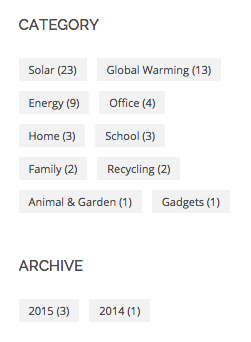
The faceted navigation includes several filters, such as Period, Category, and Year.
Users can select one or more facet values to filter the news articles. For example, a user can filter for news articles from 2010 in the "Politics" category.
For this sprint, use the following fields from the News document type as facets:
- Location
- Author
- Date (year only)
You can add more fields, such as Category, to the document type and configure them as facets later.
Create the Faceted Folder Structure in the Content Repository
In Bloomreach Content, faceted navigation is defined as a virtual node structure in the content repository. Each possible filter combination is represented by a virtual node containing the documents that match the selected criteria. By mapping the News Overview URL to this virtual faceted node structure, the delivery tier can display filtered news articles.
To configure this:
- In the Console, navigate to
/content/documents/gogreen/news. This folder contains the news documents. - In the properties pane, locate the UUID for this node. For example, the UUID might be
5f23ded9-d96b-420d-821a-2fd807062693. Copy the UUID.

- Go to
/content/documents/gogreen. - Add a new node named
newsfacetsof typehippofacnav:facetnavigation. - Set the following properties on the
newsfacetsnode:hippo:docbase: Set this to the UUID of/content/documents/gogreen/news.hippofacnav:filters: Set this tojcr:primaryType=gogreen:newsdocument.hippofacnav:facets: Set these values:gogreen:locationgogreen:authorgogreen:date$year
hippofacnav:facetnodenames: Set these values:LocationAuthorYear
/content/documents/gogreen/newsfacets: jcr:primaryType: hippofacnav:facetnavigation hippo:docbase: a112e83b-2904-410b-972d-620b6d7b8df1 hippofacnav:facetnodenames: [Location, Author, Year] hippofacnav:facets: ['gogreen:location', 'gogreen:author', 'gogreen:date$year'] hippofacnav:filters: ['jcr:primaryType=gogreen:newsdocument']
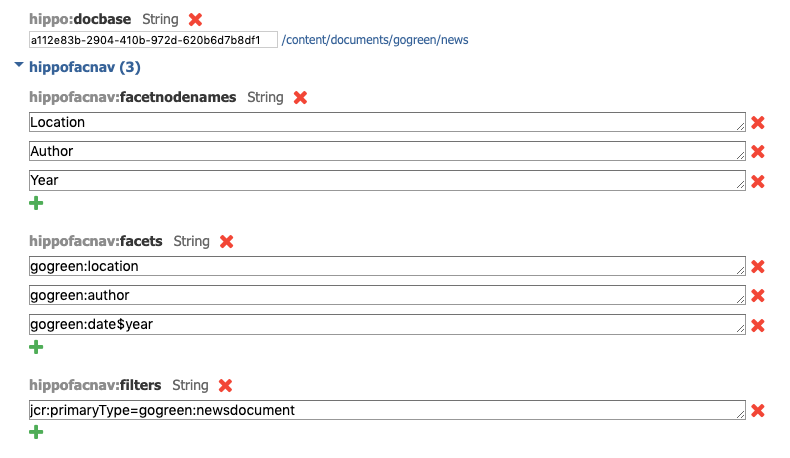
This configuration creates a virtual node structure that supports browsing news documents by their properties. Explore the node structure in the Console to see how it organizes the documents.
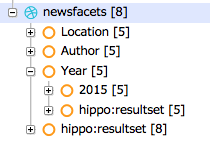
Next, update the News Overview page's URL configuration:
- In the Console, go to
/hst:gogreen/hst:configurations/gogreen/hst:sitemap/news. - Change the
hst:relativecontentpathproperty fromnewstonewsfacets.
/hst:gogreen/hst:configurations/gogreen/hst:sitemap/news: jcr:primaryType: hst:sitemapitem hst:componentconfigurationid: hst:pages/newslist hst:relativecontentpath: newsfacets
To ensure News Detail pages continue to render the actual news documents:
- In the Console, go to
/hst:gogreen/hst:configurations/gogreen/hst:sitemap/news/_any_.html. - Change the
hst:relativecontentpathproperty from${parent}/${1}tonews/${1}.
/hst:gogreen/hst:configurations/gogreen/hst:sitemap/news/_any_.html: jcr:primaryType: hst:sitemapitem hst:componentconfigurationid: hst:pages/newspage hst:relativecontentpath: news/${1}
Leave the /hst:gogreen/hst:configurations/gogreen/hst:sitemap/news/_any_ node (without the .html suffix) unchanged.
At this stage, both the News Overview and News Detail pages will continue to work as before. The News Overview now uses the virtual node structure and displays an unfiltered list of news articles.
Component
Next, implement the faceted navigation component in Java. Bloomreach provides a Facets Component in the standard component library:
- The Java class is
org.onehippo.cms7.essentials.components.EssentialsFacetsComponent. - The component exposes the faceted navigation via the
facetsrendering attribute.
Template
Create a template to render the faceted navigation.
- Open the
news-facet.htmlfile from the web design. - Locate the
<div class="col-md-3 col-sm-3">element. This section contains the faceted navigation markup. - In your project, create the file
repository-data/webfiles/src/main/resources/site/freemarker/gogreen/faceted-navigation.ftl. This Freemarker template will render the faceted navigation in the right column.
To implement the template:
- Use Freemarker syntax and the HTML markup from
news.htmlandnews-facet.html. - The
foldersattribute on a facet navigation node contains its child nodes. - A leaf node (with no children) has the
leafattribute set totrueand represents a selected facet value. - Use
<@hst.link>to generate links for adding a facet value. - Use
<@hst.facetnavigationlink>to generate links for removing a facet value.
A typical implementation looks like this:
<#include "../include/imports.ftl"> <#if facets??> <div class="hst-container"> <div class="hst-container-item"> <#list facets.folders as facet> <div class="sidebar-block"> <h3 class="h3-sidebar-title sidebar-title">${facet.name?html}</h3> <div class="sidebar-content tags"> <#list facet.folders as value> <#if value.count > 0> <#if value.leaf> <@hst.facetnavigationlink var="link" remove=value current=facets /> <a href="${link}" class="remove">${value.name?html}<i class="fa fa-times"> </i></a> <#else> <@hst.link var="link" hippobean=value /> <a href="${link}">${value.name?html} (${value.count})</a> </#if> </#if> </#list> </div> </div> </#list> </div> </div> </#if>
Next, register the template in the delivery tier configuration:
- In the Console, navigate to
/hst:gogreen/hst:configurations/gogreen/hst:templates. - Add a new node named
faceted-navigation:
/hst:gogreen/hst:configurations/gogreen/hst:templates/faceted-navigation: jcr:primaryType: hst:template hst:renderpath: webfile:/freemarker/gogreen/faceted-navigation.ftl
Page Configuration
With the virtual node structure, Java component, and Freemarker template in place, add the faceted navigation to the right column of the newslist page configuration.
- In the Console, go to
/hst:gogreen/hst:configurations/gogreen/hst:pages/newslist/main. - Add a new node named
right:
/hst:gogreen/hst:configurations/gogreen/hst:pages/newslist/main/right: jcr:primaryType: hst:component hst:componentclassname: org.onehippo.cms7.essentials.components.EssentialsFacetsComponent hst:template: faceted-navigation
Open the News Overview page in your browser. The faceted navigation now appears in the right column, and you can select facet values to filter the news articles.
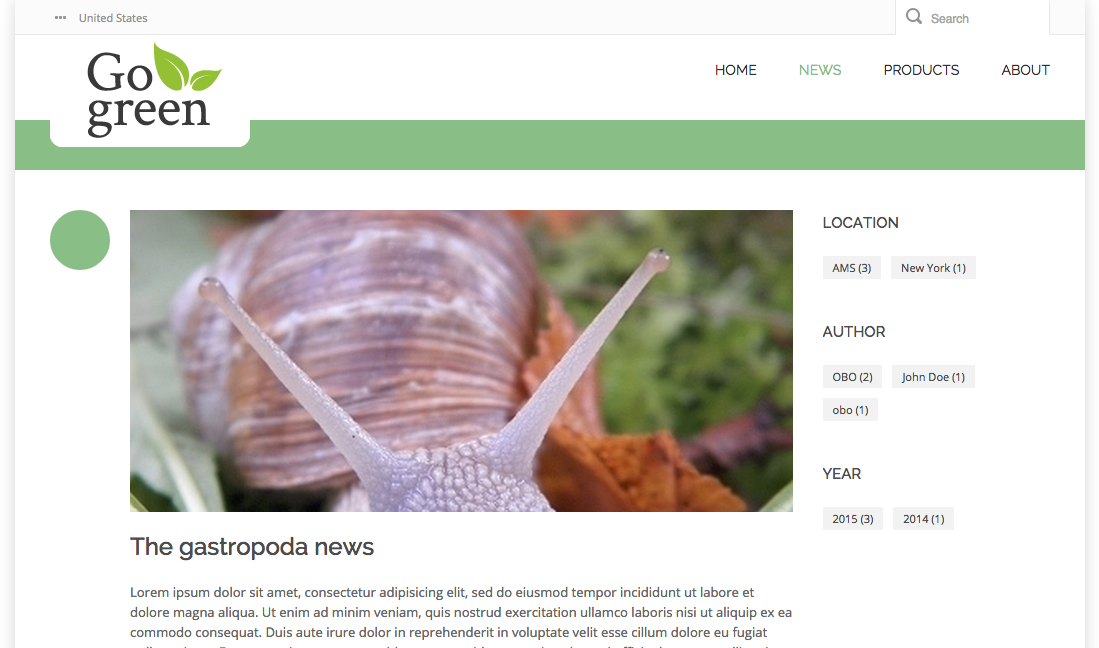
You can edit news documents in the CMS to set different dates, locations, and authors. After publishing changes, the faceted navigation updates automatically.
Iteration Complete
You have now added faceted navigation to the News Overview page, completing the second iteration. The GoGreen website now includes all features defined for this iteration.
Info:
The full deliverable for this iteration is available on GitHub for brXM 14, brXM 15, and brXM 16. Use these repositories to compare your implementation.
Hint:
Next Steps
This is the final step in the developer trail. To further expand your Bloomreach Content skills, consider implementing additional features from the web design, such as:
- Events
- Products
- Contact Form
- RSS Feed
- News comments
- French channel
If you need help or have questions, visit the Developer Forum to connect with the community.
Bloomreach also offers a comprehensive training program covering advanced development topics.
Full Source Code
faceted-navigation.ftl
<#include "../include/imports.ftl"> <#if facets??> <div class="hst-container"> <div class="hst-container-item"> <#list facets.folders as facet> <div class="sidebar-block"> <h3 class="h3-sidebar-title sidebar-title">${facet.name?html}</h3> <div class="sidebar-content tags"> <#list facet.folders as value> <#if value.count > 0> <#if value.leaf> <@hst.facetnavigationlink var="link" remove=value current=facets /> <a href="${link}" class="remove">${value.name?html}<i class="fa fa-times"> </i></a> <#else> <@hst.link var="link" hippobean=value /> <a href="${link}">${value.name?html} (${value.count})</a> </#if> </#if> </#list> </div> </div> </#list> </div> </div> </#if>