Develop with IntelliJ
This page describes how to use IntelliJ IDEA with Bloomreach Content projects. Bloomreach maintains this documentation on a best-effort basis and does not guarantee it is current with the latest IntelliJ releases. For up-to-date installation, configuration, and usage details, refer to the official IntelliJ IDEA documentation.
Introduction
Goal
Configure and use IntelliJ IDEA for Bloomreach Content development.
Background
After you set up and build your project, you can use IntelliJ IDEA to edit source files and debug your site. This guide outlines the steps required to configure IntelliJ IDEA for these tasks.
IntelliJ Plugins
Shared Lib Plugin for IntelliJ
The Shared Lib Plugin allows you to deploy Bloomreach Content projects to an external Tomcat instance directly from IntelliJ IDEA. It manages deployment of shared dependencies to Tomcat's shared library directory.
Import an Existing Project
- In the "File" menu, select "Open...".
- Choose the folder containing your project and click OK.
- In the "File" menu, select "Project Structure...".
- Set the Project SDK to 1.8 (Java 8) and click OK.
Enable Code Completion for FreeMarker Templates
IntelliJ IDEA supports code completion for FreeMarker templates. The default module for these templates is repository-data/webfiles. Adding the "Web Application" framework to this module enables code completion for typed variables and HST tags.
To enable code completion for the HST tag library and HST content beans:
- Add Web Application framework support to the
repository-data/webfilessubproject:- Right-click the
repository-data/webfilesfolder in the project structure. - Select "Add Framework Support".
- Choose "Web Application" and clear the "Create web.xml" option.
- IntelliJ IDEA creates a "web" folder with a sample JSP file; you can delete both.
- Right-click the
- Create a new FreeMarker template, for example at
repository-data/webfiles/src/main/resources/site/helloworld.ftl, and add the following content:
IntelliJ IDEA will now provide code completion for HST tags and for the<#assign hst=JspTaglibs["http://www.hippoecm.org/jsp/hst/core"] > <@hst.defineObjects /> <#-- @ftlvariable name="document" type="org.example.beans.BaseDocument" --> <a href="<@hst.link hippobean=document />">${document.path}</a>documentvariable, based on the specified content bean class.
Debug Your Project
Debugging is enabled by default when you run your project with:
mvn -P cargo.run
You can attach the IntelliJ IDEA debugger to the running application and set breakpoints.
To attach a debugger to a running Bloomreach Content project:
- In the "Run" menu, select "Debug..." or press Alt+Shift+F9.
- Choose "Edit configurations...".
- Click the "+" button in the top left corner of the dialog and select "Remote".
- Enter a name for the configuration and set the port number to 8000.
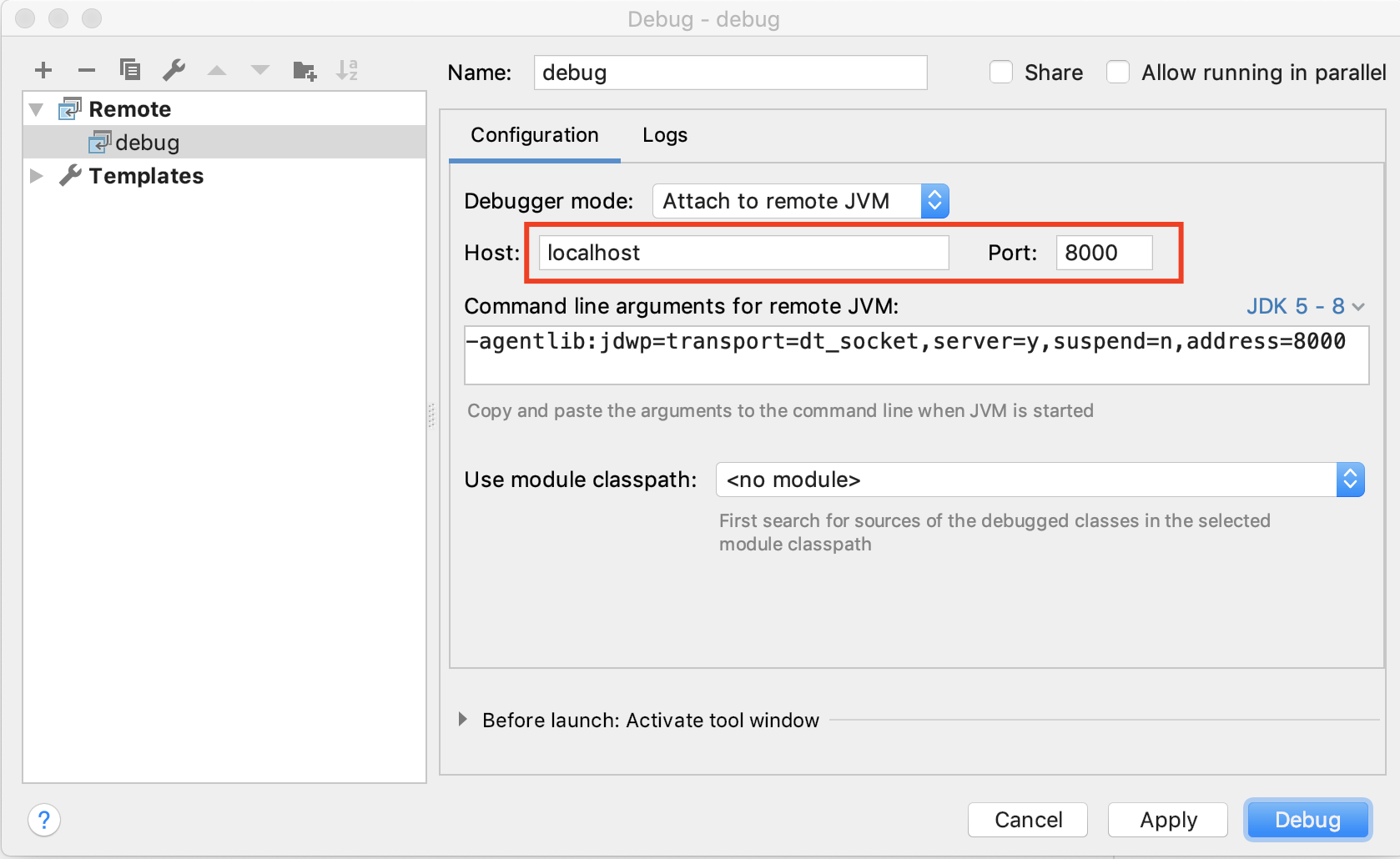
- Click "Apply", then "Debug" to attach the debugger to your running project.
If the debugger cannot connect and times out, try using 127.0.0.1 as the host.
This documentation was created using IntelliJ IDEA version 2018.3.