Visual Editor
Overview
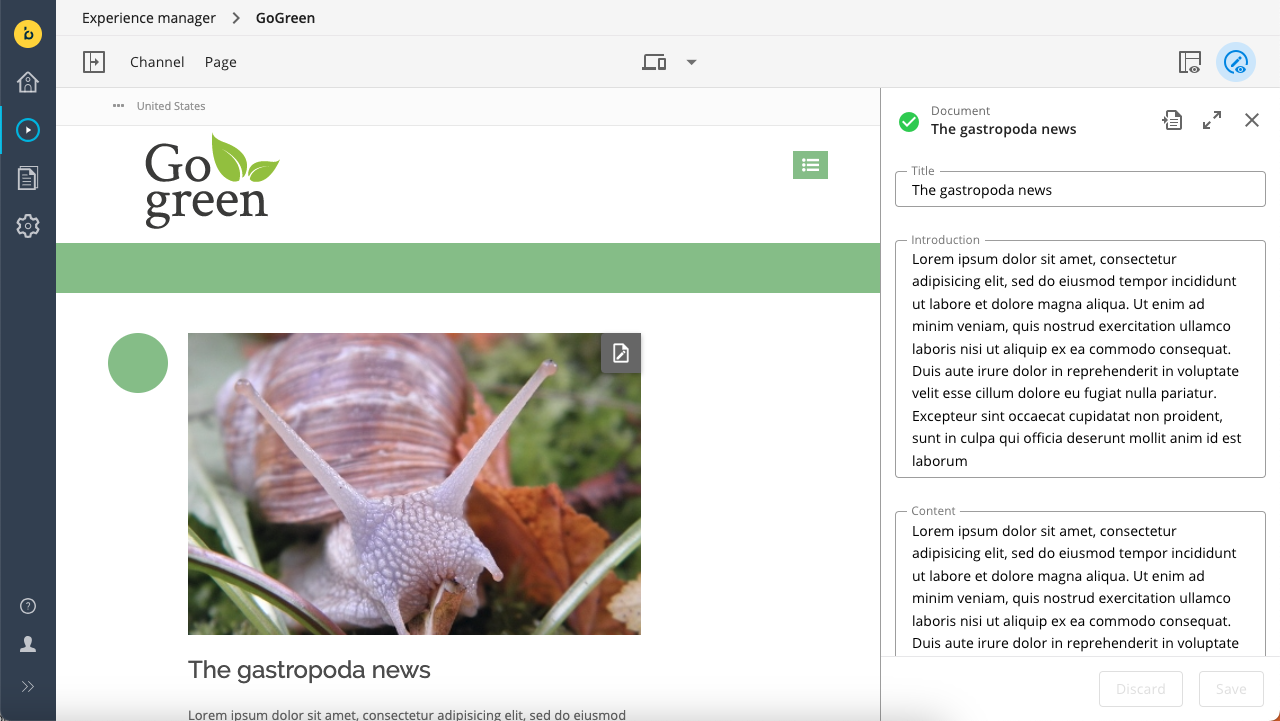
The Visual Editor allows users to edit content directly within the channel preview in the Experience manager application. This approach eliminates the need to navigate to the Content application to make changes. Any updates made in the Visual Editor are immediately reflected in the channel preview.
The Visual Editor is designed for quick, in-page text edits. It does not replace the full document editor in the Content application. Users can switch to the full document editor at any time to access additional field types or advanced editing features.
Technical Details
Document Type Definitions
The Visual Editor renders an editing form based on the document type definition stored in the repository. The relevant path is:
/hippo:namespaces/[namespace]/[document_type]
Here, [namespace] refers to the JCR namespace prefix, and [document_type] is the JCR node type for the document type.
Any changes made to a document type using the Document Type Editor are applied to both the full document editor and the Visual Editor.
Supported Field Types
The Visual Editor supports the following field types:
- Primitive types:
- Boolean
- Boolean Radio Group
- CalendarDate
- Date
- Decimal Number
- Docbase*
- DynamicDropdown
- Dynamic Multi-select*
- Html
- Integer Number
- Radio Group
- StaticDropdown
- String
- Text
- Compound types:
- Image Link
- Link
- Rich Text Editor
* Docbase and Dynamic Multi-select are supported starting from brXM 15.4.0.
Other field types available in the Document Type Editor can only be edited using the full document editor in the Content application.
Supported Validators
The Visual Editor supports all validators provided by the validation service. Validators that are specific to Wicket are only supported in the full document editor. Fields using Wicket-only validators must be edited in the Content application.
Field Order
The order of fields in the Visual Editor matches the order of the corresponding frontend:plugin nodes in the template definition:
/hippo:namespaces/[namespace]/[document_type]/editor:templates/_default_
Manage Content Button
The Manage Content button in the channel preview opens the associated document in the Visual Editor. Within the Visual Editor, users can follow a link to switch to the full document editor if needed.
Currently, the Manage Content button cannot open the full document editor directly.