Configure the Project
Previous: Rebuild & Restart the Project
Info: Adjust your project’s functionality to meet your requirements.
After you added the basic features to your new Bloomreach Content project, you can further configure and customize the project as needed.
Tools
The Essentials setup application does not support advanced customization of features. To modify features beyond the default options, use your integrated development environment (IDE). However, Essentials provides a set of tools designed to assist with common development tasks in Bloomreach Content projects. These tools help streamline configuration and ongoing maintenance.
Access these tools from the Tools page in the Essentials application.
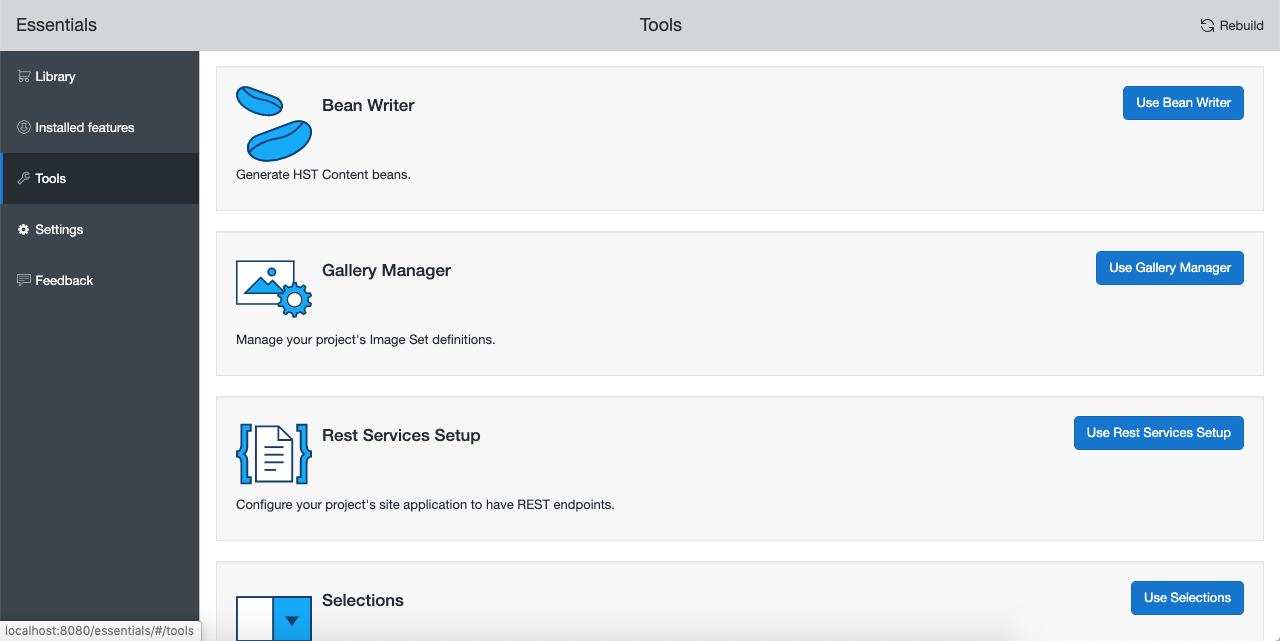
Info: Setup tools in Essentials are implemented as plugins. Essentials includes several tools by default. You can add more tools from the Marketplace, or develop custom tools as needed.
Feature Configuration
Some features include a configuration screen that allows you to adjust settings for your project. When a feature supports configuration, Essentials displays a Configure button on the Installed features page. Each feature can provide its own configuration interface. Configuration takes place after the feature installation completes.
This trail concludes here. For more details about the Essentials setup application and its plugins, review the Essentials documentation. For guidance on integrating custom features into your Bloomreach Content project, refer to the technical documentation or visit the community forum. To learn how to build a complete website using Essentials, follow the Build a Website tutorial.