Configure a Documentation Link for a Document Type
Info: This feature is available in brXM 15.5.0 and later.
Overview
You can add a link to external documentation in a document type's editing template. This link appears as a "?" icon in both the content editor (Content application) and the visual editor (Experience manager application). When users click the icon or link, the configured URL opens in a new browser tab. You can also define custom link text, which appears as a tooltip and as visible text in the content editor.
| Experience manager (visual editor) | Content application (content editor) |
|---|---|
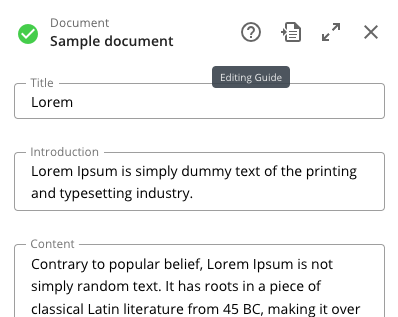 | 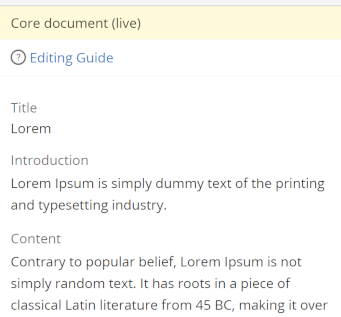 |
Info: Documentation links cannot be configured for compound types.
When to Use
Configure a documentation link when you want editors to have quick access to external guides or reference material relevant to a specific document type.
Prerequisites
- Access to the Console
- The document type you want to configure
Implementation Steps
-
In the Console, navigate to the editing template node for the target document type:
/hippo:namespaces/[namespace]/[document_type]/editor:templates/_default_Replace
[namespace]and[document_type]with your project's values. For example:/hippo:namespaces/myproject/contentdocument/editor:templates/_default_ -
Add the following String properties to the
_default_node:documentation.link: The full URL to the external documentation.documentation.link.text: The text to display as a tooltip and in the content editor.
Example:
/hippo:namespaces/myproject/contentdocument/editor:templates/_default_: documentation.link: https://xmdocumentation.bloomreach.com/library/end-user-manual/editing-a-document.html documentation.link.text: Editing Guide -
Save your changes to the repository.
Internationalization (i18n) Support
To localize the documentation link and link text based on the CMS user's locale, add the documentation.link and documentation.link.text properties as keys in a Repository Resource Bundle:
/hippo:configuration/hippo:translations/hippo:types/[namespace]:[document_type]/[language]
Example for French localization:
/hippo:configuration/hippo:translations/hippo:types/myproject:contentdocument: jcr:primaryType: hipposys:resourcebundles /fr: jcr:primaryType: hipposys:resourcebundle documentation.link: https://xmdocumentation.bloomreach.com/library/end-user-manual/editing-a-document.html documentation.link.text: Guide d'édition
For more details, see Add Internationalization (i18n) To Document Types.
Verification
- Open the document type in the Content or Experience manager application.
- Confirm that the "?" icon or link appears above the document fields.
- Hover over the icon to see the tooltip.
- Click the icon or link to verify that the external documentation opens in a new browser tab.