Develop a Custom Page Tool Tutorial
A page tool is an external web application displayed alongside a page in the Experience manager. Page tools extend Bloomreach Content with third-party functionality.
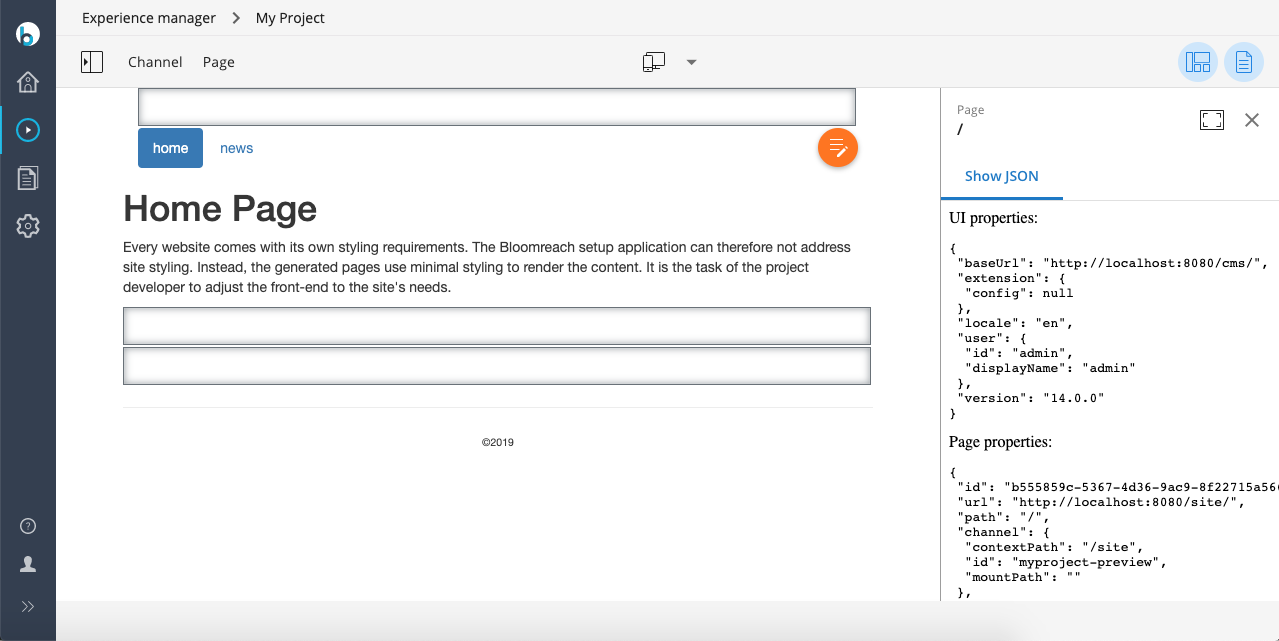
This tutorial demonstrates how to add a page tool that displays the JSON data provided by the Experience manager. The tool will be named "Show JSON." The final result appears as follows:
Page Tool Project Setup
The "Show JSON" page tool is a standalone project built with Webpack. This tutorial assumes that NodeJS and NPM are installed.
- Create a new project directory and initialize it:
mkdir show-json && cd show-json
npm init -y
npm install --save-dev webpack webpack-cli webpack-dev-server
- Add an
index.htmlfile in the project root:
<!doctype html> <html> <head> <title>Show JSON</title> </head> <body> <script src="main.js"></script> </body> </html>
- Create a directory for JavaScript source files:
mkdir src
- Create the JavaScript source file
src/index.jswith initial test output:
document.write('Hi!');
- Update the
"scripts"section inpackage.json:
"scripts": { "start": "webpack-dev-server --port 9000 --mode development --watch-content-base" },
- Start the Webpack development server:
npm start
You can now access the "Show JSON" extension at http://localhost:9000.
Integrate the Page Tool with brXM
-
Follow the Get Started steps to create a new archetype project.
-
Install Essentials features to set up a working site. For example, install the "News" feature.
-
To register the "Show JSON" extension, open http://localhost:8080/cms/console and navigate to
/hippo:configuration/hippo:frontend/cms/ui-extensions. Add the following node:
/hippo:configuration/hippo:frontend/cms/ui-extensions/showJson: jcr:primaryType: frontend:uiExtension frontend:displayName: Show JSON frontend:extensionPoint: channel.page.tools frontend:url: http://localhost:9000
- Log in to the CMS as an admin or editor. Go to
Experience manager>My Project>Page>Tools. TheShow JSONtab now displays "Hi!".
Display JSON Data from the Experience Manager
To display the JSON data provided by the Experience manager, update the "Show JSON" extension as follows. This example uses plain HTML and JavaScript, but you can use any framework.
- Install the Bloomreach JavaScript client library:
npm install @bloomreach/ui-extension
- Update
index.htmlto include two<pre>tags for displaying data and two buttons for refreshing:
<!doctype html> <html> <body> UI properties: <pre id="ui"></pre> Page properties: <pre id="page"></pre> <button id="refreshChannel">Refresh Channel</button> <button id="refreshPage">Refresh Page</button> <script src="main.js"></script> </body> </html>
The Webpack development server automatically reloads the extension in the Experience manager when you save changes.
- Update
src/index.jswith the following code:
import UiExtension from "@bloomreach/ui-extension"; document.addEventListener('DOMContentLoaded', () => { UiExtension.register().then((ui) => { showUiProperties(ui); ui.channel.page.get().then(showPageProperties); ui.channel.page.on('navigate', showPageProperties); onClick('refreshChannel', () => ui.channel.refresh()); onClick('refreshPage', () => ui.channel.page.refresh()); }); }); function showUiProperties(ui) { const properties = pluck(ui, ['baseUrl', 'extension', 'locale', 'timeZone', 'user', 'version']); showJson(properties, 'ui'); } function showPageProperties(page) { showJson(page, 'page'); } function showJson(json, id) { document.getElementById(id).innerHTML = JSON.stringify(json, null, ' '); } function onClick(id, listener) { document.getElementById(id).addEventListener('click', listener); } function pluck(object, properties) { return Object.keys(object) .filter(key => properties.includes(key)) .reduce((result, key) => { result[key] = object[key]; return result; }, {}); }
Code Explanation
- The code listens for the
DOMContentLoadedevent to ensure the DOM is ready. UiExtension.register()registers the extension with the CMS and returns aPromisethat resolves with auiobject.- The
showUiProperties()function extracts and displays selected properties from theuiobject as JSON. - The
extension.configproperty is set to the value of the JCR property/hippo:configuration/hippo:frontend/cms/ui-extensions/showJson/frontend:config. If this property is not set, the JSON value isnull. The extension can interpret this value as needed (for example, by parsing it as JSON). - The
timeZoneproperty is available only if the time zone selector is enabled in the login screen. - The code retrieves and displays current page data using
ui.channel.page.get(). - The extension registers a
'navigate'event listener. When you navigate to another page in the Experience manager, the listener updates the displayed page data. - The two buttons allow you to refresh the channel and the page. Refreshing the page updates the displayed data. Refreshing the channel may not show immediate changes unless another user modifies the channel (for example, by adding a component). In that case, clicking
Refresh Channeldisplays the yellow changes indicator and synchronizes the site map in the left panel.
This completes the setup for a custom page tool that displays JSON data from the Experience manager.