Configure Open UI Pickers from Scratch
Info: This feature requires a standard or premium Bloomreach Content license. Contact Bloomreach for licensing details.
Overview
This guide describes how to configure Commerce Open UI Pickers in non-Bloomreach Commerce Accelerator projects using brXM version 14 or 15.
If you are working with Bloomreach Commerce Accelerator v14, refer to Configure Open UI Pickers in Bloomreach Commerce Accelerator.
Starting with version 14.6.1, you can use Commerce Open UI Pickers in non-Accelerator projects to associate documents with commerce categories, products, and accounts. The pickers interact with the optional brX GraphQL Service using its GraphQL API.
When to Use
Use this configuration to enable editors to select commerce categories, products, or product variants in any document type, integrating commerce data with your content.
Prerequisites
- brXM v14.6.1 or later
- Access to the brX GraphQL Service
- Project permissions to update dependencies and JCR configuration
Field Mapping Example
For demonstration purposes, this guide assumes that your document types use the following fields in the myproject: namespace to store commerce connector and product IDs:
| Commerce Open UI Picker | Extra Fields |
|---|---|
| Category Picker | myproject:connectorid for Connector ID |
| Product Picker | myproject:connectorid for Connector ID |
| Product Variant Picker | myproject:connectorid for Connector ID, myproject:productid for Product ID |
You can use different field names and namespaces as needed. If you do, update the field references in the configuration steps below.
Each picker retrieves data from the brX GraphQL Service. You must specify the GraphQL service URL in each picker configuration.
Add the Commerce Open UI Pickers Dependency
Add the Commerce Open UI Pickers module to your project.
-
In your root
pom.xml, define thestarterstore.versionproperty. Use a version in the 14.7.X range, even for brXM v15 projects.<properties> <!-- ... --> <starterstore.version>14.7.X</starterstore.version> <!-- ... --> </properties> -
In
cms-dependencies/pom.xml, add the Commerce Open UI Pickers module dependency:<dependencies> <!-- ... --> <dependency> <groupId>com.bloomreach.commercedxp</groupId> <artifactId>starterstore-frontend-ng</artifactId> <version>${starterstore.version}</version> </dependency> <!-- ... --> </dependencies>
Configure Commerce Open UI Pickers
Start your project and configure the pickers using the CMS Console.
Commerce Category Picker Configuration
Import the following YAML under /hippo:configuration/hippo:frontend/cms/ui-extensions:
/commerceCategoryPicker: jcr:primaryType: frontend:uiExtension frontend:extensionPoint: document.field frontend:displayName: Commerce Category Picker frontend:initialHeightInPixels: 80 frontend:url: angular/starterstore/index.html?id=categories frontend:config: "{\r\n \"apollo.server.url\": \"http://localhost:4000/graphql\"\ ,\r\n \"field.connector.id\": \"myproject:connectorid\"\r\n}"
Parameters in frontend.config:
| Parameter | Description |
|---|---|
apollo.server.url | URL of the brX GraphQL Service |
field.connector.id | JCR property name for the Commerce Connector ID |
default.connector.id | (Optional) Default connector ID header value (e.g., brsm) |
Update the field names if your project uses different properties.
Commerce Product Picker Configuration
Import the following YAML under /hippo:configuration/hippo:frontend/cms/ui-extensions:
/commerceProductPicker: jcr:primaryType: frontend:uiExtension frontend:extensionPoint: document.field frontend:displayName: Commerce Product Picker frontend:initialHeightInPixels: 300 frontend:url: angular/starterstore/index.html?id=products frontend:config: "{\r\n \"apollo.server.url\": \"http://localhost:4000/graphql\"\ ,\r\n \"field.connector.id\": \"myproject:connectorid\"\r\n}"
Parameters in frontend.config:
| Parameter | Description |
|---|---|
apollo.server.url | URL of the brX GraphQL Service |
field.connector.id | JCR property name for the Commerce Connector ID |
default.connector.id | (Optional) Default connector ID header value (e.g., brsm) |
Update the field names if your project uses different properties.
Commerce Product Variant Picker Configuration
Import the following YAML under /hippo:configuration/hippo:frontend/cms/ui-extensions:
/commerceProductVariantPicker: jcr:primaryType: frontend:uiExtension frontend:extensionPoint: document.field frontend:displayName: Commerce Product Variant Picker frontend:initialHeightInPixels: 300 frontend:url: angular/starterstore/index.html?id=product-variants frontend:config: "{\r\n \"apollo.server.url\": \"http://localhost:4000/graphql\"\ ,\r\n \"field.connector.id\": \"myproject:connectorid\",\r\n \"\ field.product.id\": \"myproject:productid\"\r\n}"
Parameters in frontend.config:
| Parameter | Description |
|---|---|
apollo.server.url | URL of the brX GraphQL Service |
field.connector.id | JCR property name for the Commerce Connector ID |
field.product.id | JCR property name for the Product ID |
default.connector.id | (Optional) Default connector ID header value (e.g., brsm) |
Update the field names if your project uses different properties.
Add the Category Picker Field to a Document
To add a Category Picker field to the news document type:
-
Edit the document type and add an Open UI String field.
-
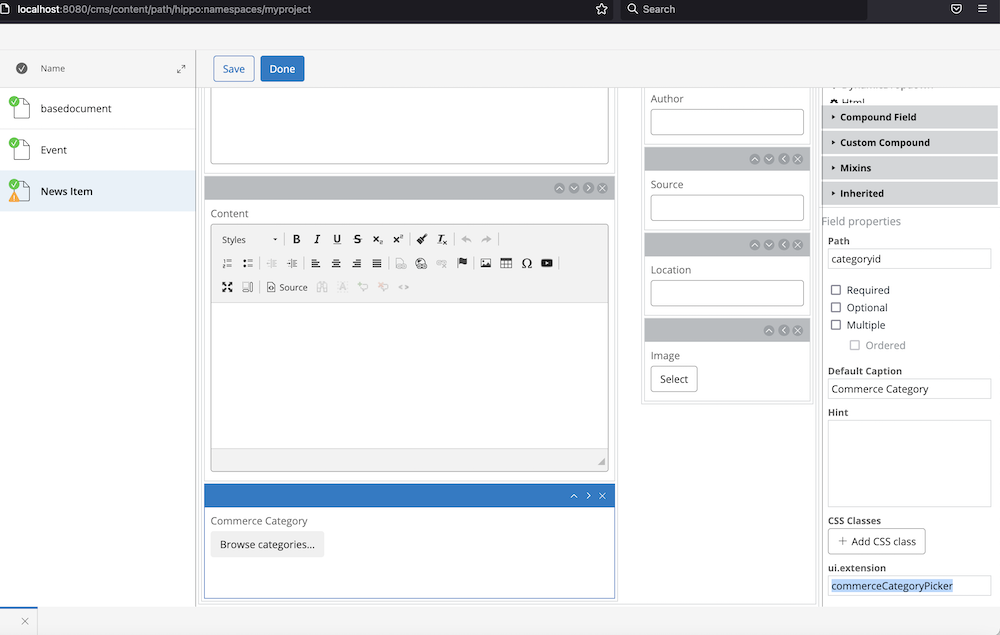
Set the
ui.extensionproperty of the field tocommerceCategoryPicker.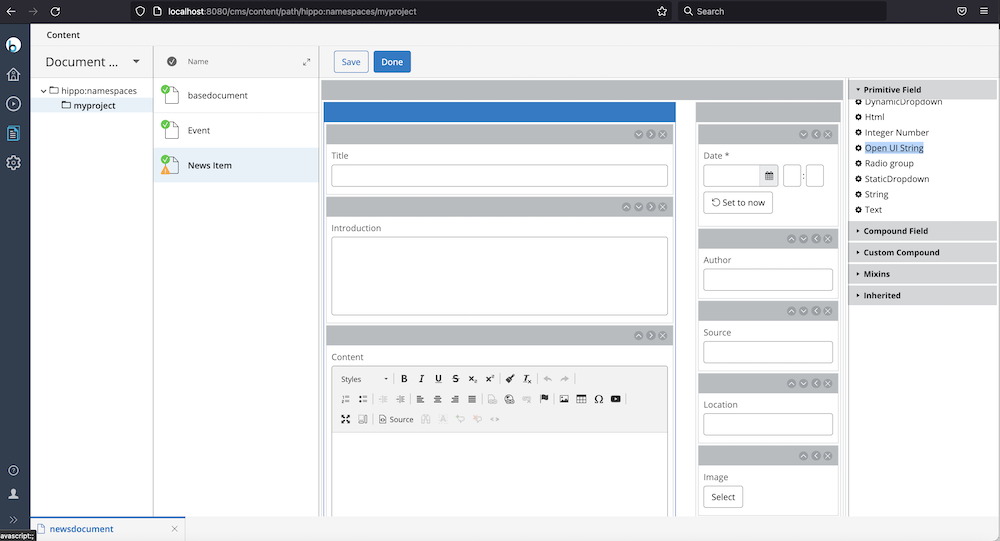
-
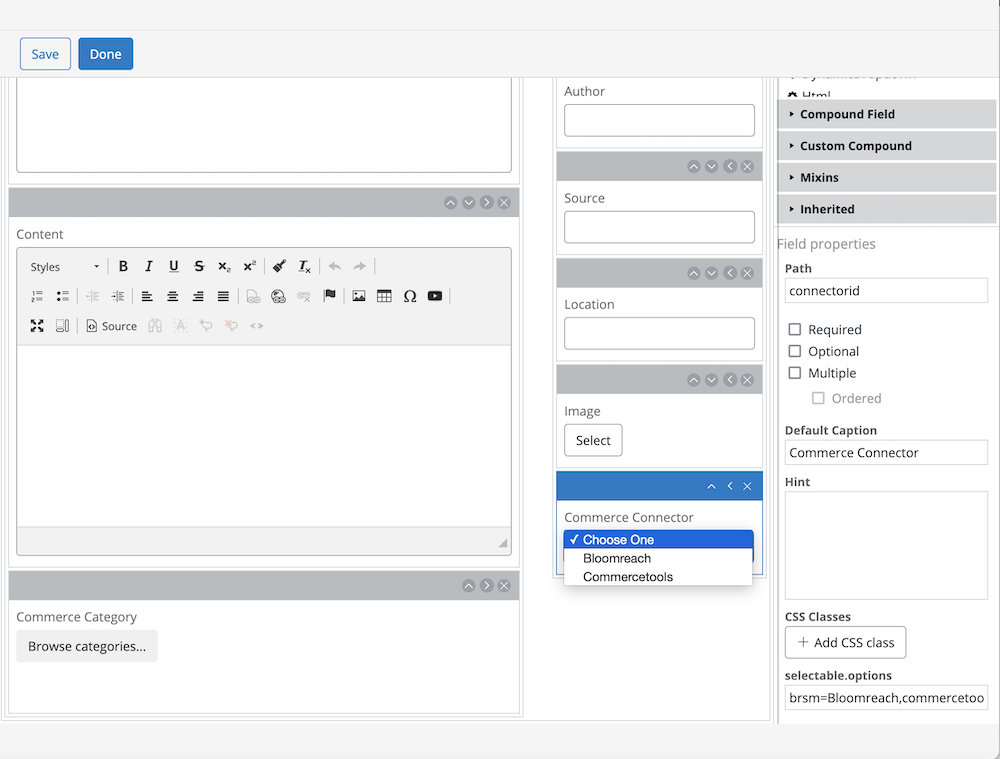
Add a Dropdown field to the document type. For demonstration, use a Static Dropdown with:
Path:connectoridselectable.options:brsm=Bloomreach,commercetools=Commercetools
-
Save and commit the document type changes.
Verification
-
Edit a news document.
-
Select a Commerce Connector in the dropdown field.
-
Click the
Browse categories...button.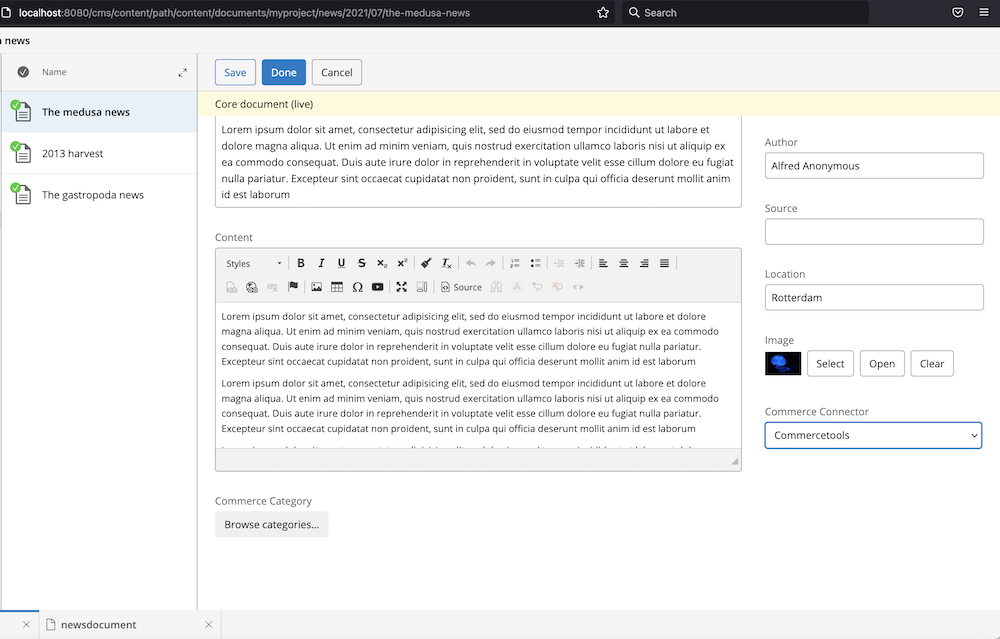
-
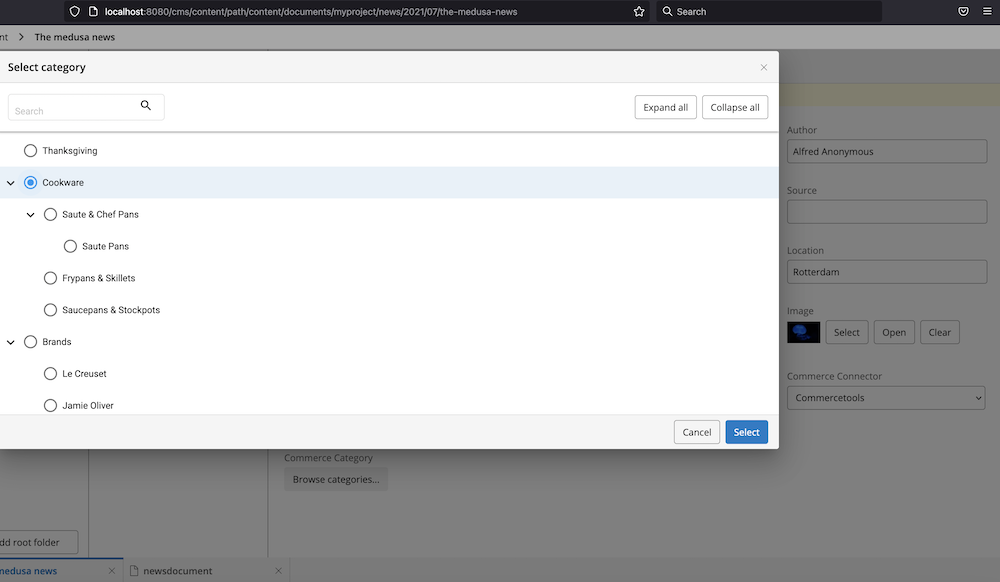
Browse the Commerce Categories tree and select a category.
-
Click
Selectand verify that the selected category appears in the document.
Add Product Picker and Product Variant Picker Fields to a Document
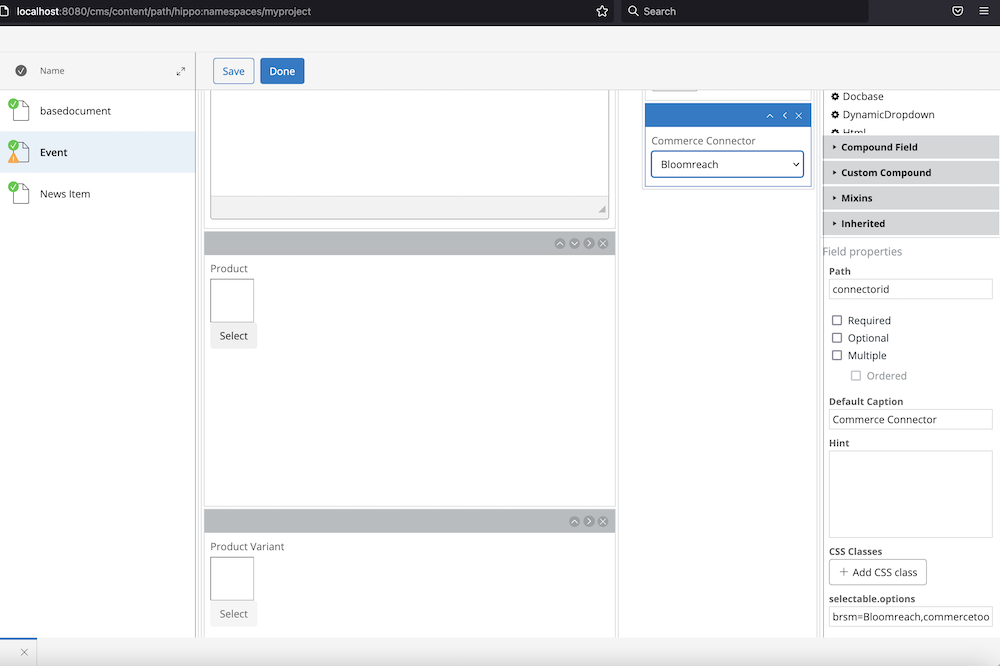
To add Product Picker and Product Variant Picker fields to the events document type:
-
Edit the events document type.
-
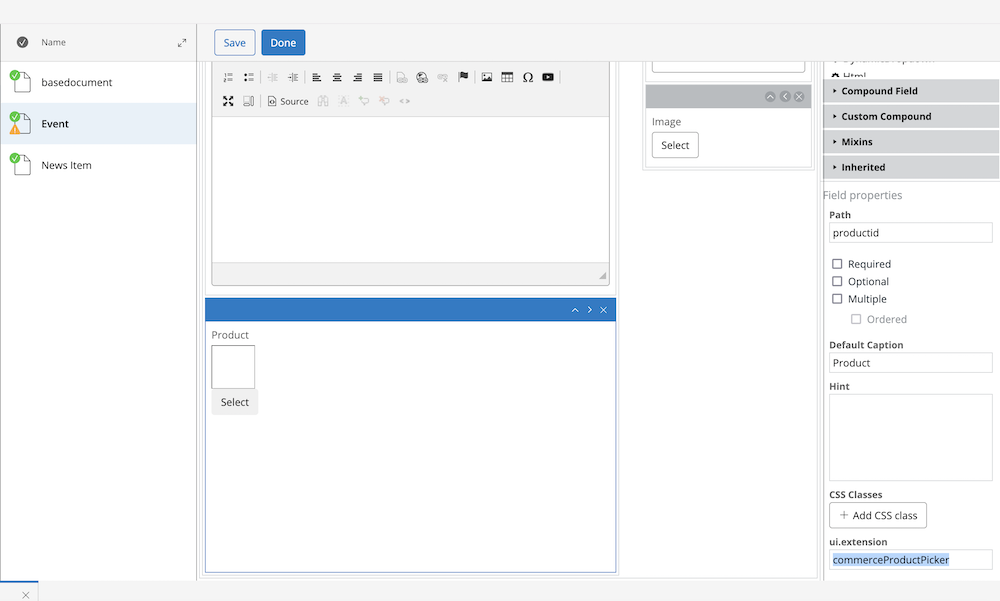
Add an Open UI String field and set
ui.extensiontocommerceProductPicker.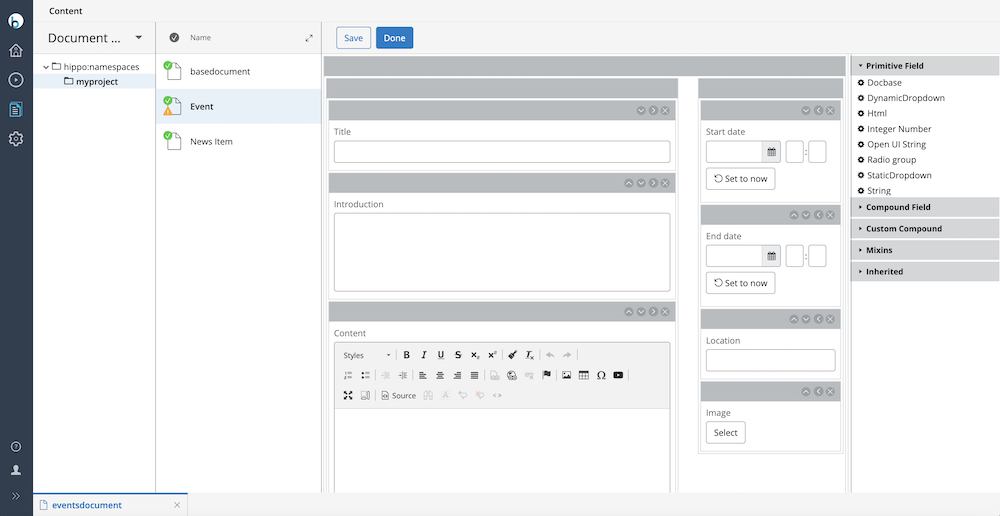
-
Add another Open UI String field and set
ui.extensiontocommerceProductVariantPicker.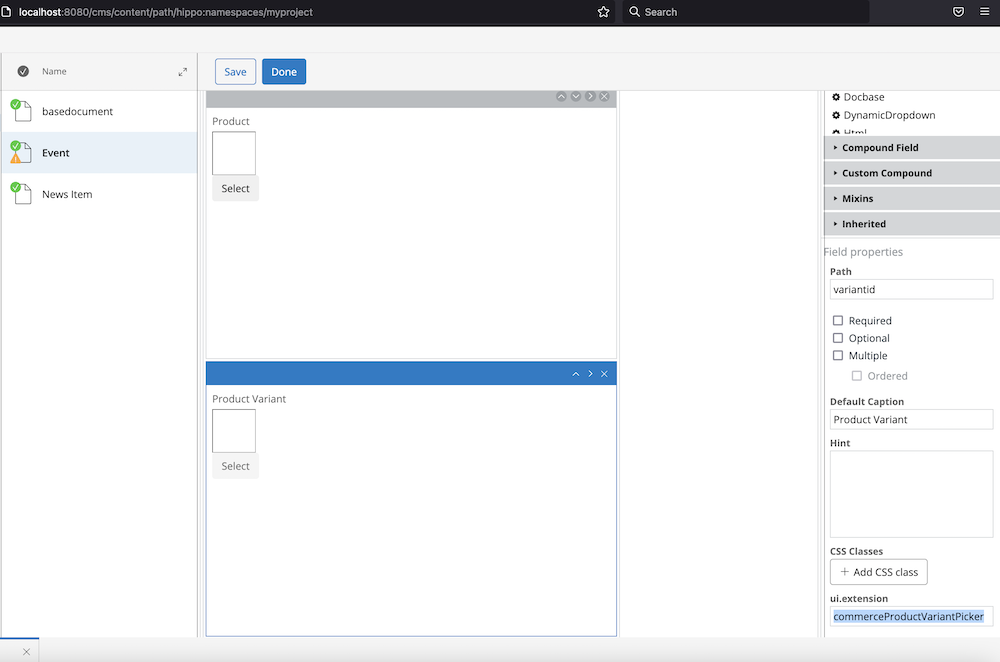
-
Add a Dropdown field to the document type. For demonstration, use a Static Dropdown with:
Path:connectoridselectable.options:brsm=Bloomreach,commercetools=Commercetools
-
Save and commit the document type changes.
Verification
-
Edit an events document.
-
Select a Commerce Connector in the dropdown field.
-
Use the
Selectbuttons for product or product variant fields.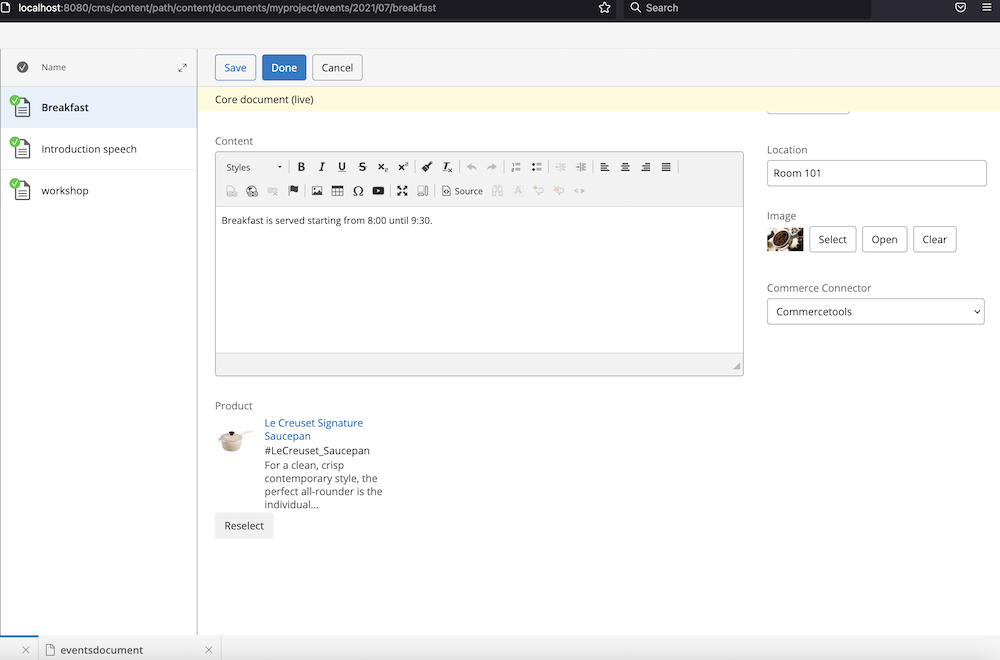
-
Search for and select a product or product variant.
-
Click
Selectand verify that the selection appears in the document.
For more details on the brX GraphQL Service or Open UI Pickers, refer to the Commerce GraphQL Service documentation.