Use Multiple Image Sets in One Project
Overview
This page explains how to configure and use multiple image sets within a single Bloomreach Content project.
When to Use Multiple Image Sets
Use multiple image sets when your project contains more than one channel, and each channel requires a distinct frontend design or content structure. For example, if channels A and B have different content types and frontend requirements, you may need separate image sets for each channel.
Project Structure Example
Consider a project with two channels:
- Channel A: Uses content types and content beans specific to its design.
- Channel B: Uses different content types and content beans.
- Image Set X: Used exclusively by channel A.
- Image Set Y: Used exclusively by channel B.
Each channel references its own image set and associated content beans.
Gallery Processor Configuration
To prevent conflicts in the gallery processor configuration:
- Use the same original thumbnail variant (
hippogallery:thumbnail) for both Image Set X and Image Set Y. Do not modify its dimensions. - Do not assign the same variant name to different dimensions across image sets. The gallery processor does not support identical variant names with different dimensions.
For more details, see Create a Custom Image Set.
Configure the Image Link Picker for ImageLink Fields
If a document type includes an ImageLink field that allows editors to select an image, configure the link picker to restrict selection to the correct image type. For example, documents for channel A should only allow selection of images from Image Set X.
- Configure the link picker to filter by image type. See Configure the Link Picker to Select Folders or Filter on Document Type.
- In the corresponding content bean, ensure the getter returns the correct Image Set Bean for the image type.
Configure the Image Link Picker for Rich Text Fields
To ensure editors can only insert images of the correct type in rich text fields:
- For all document types in channel A, configure the Rich Text Link Picker to allow only Image Set X.
- For all document types in channel B, configure the Rich Text Link Picker to allow only Image Set Y.
- Set the
included.image.variantsproperty in the configuration.
For configuration details, see Rich Text Link Picker Configuration Properties.
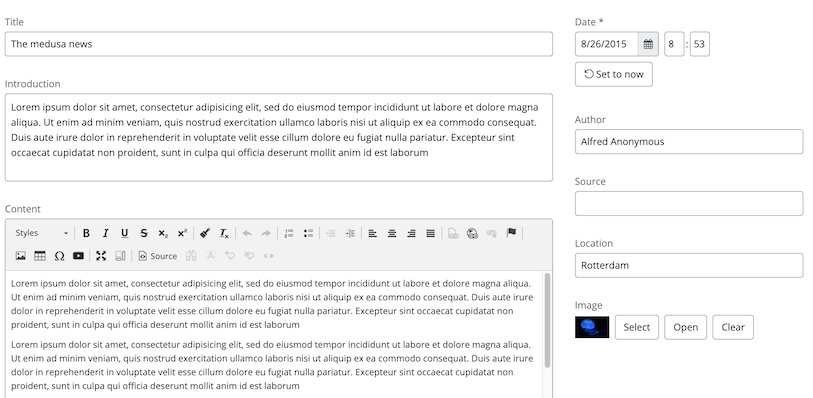
Example: Rich Text field (bottom left) and ImageLink field (bottom right) in the document editor.
Configure Queries on Image Folders
You can create separate folders for each image set to help editors organize images by type. For example, store images of type X in one folder and images of type Y in another. See Configuring the Queries for instructions on setting up folder queries.
Essentials Beanwriter Considerations
If you use the Beanwriter tool in Essentials to generate content beans, review the generated beans for image set handling. The Beanwriter does not support configuring different image sets for different content beans by default.
- Manually update the generated bean methods to return the correct ImageSetBean.
- To prevent Beanwriter from overwriting your manual changes, add the parameter
allowModifications=falseto the@HippoEssentialsGeneratedannotation on the edited method.
This ensures your custom method remains intact when regenerating the bean.