View Permissions of a User in the Console
Overview
The Console in Bloomreach Content includes a [View Permissions] menu item. This feature allows you to inspect permissions for users on specific JCR nodes.
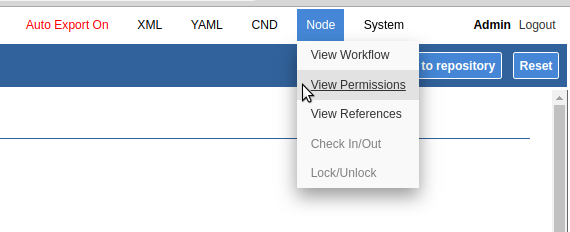
In earlier versions, this menu showed permissions only for the currently logged-in user on the selected JCR node.
Limitations in Previous Versions
Before brXM 14.0.0, the Permissions Dialog had the following limitations:
- It only displayed permissions for the currently logged-in Console user, who is typically an administrator.
- It did not indicate the origin of each permission.
Improvements in Version 14.0.0
Starting with brXM 14.0.0, the Permissions Dialog provides expanded functionality for testing and verifying custom Security Domains and user permissions. The dialog now displays:
- All permissions (privileges) on a JCR node, including the path to the Security Domain that grants each privilege.
- All Userroles assigned to the user.
- A search box that allows you to enter any user ID and view that user's permissions on the selected JCR node.
Using the View Permissions Dialog
To use the View Permissions Dialog:
- Log in to the Console as admin.
- Navigate to a JCR node, for example:
/content/documents/myproject/blog/2019/11/first-blog-post/first-blog-post. - Select the [View Permissions] menu item.
The dialog displays information similar to the following:
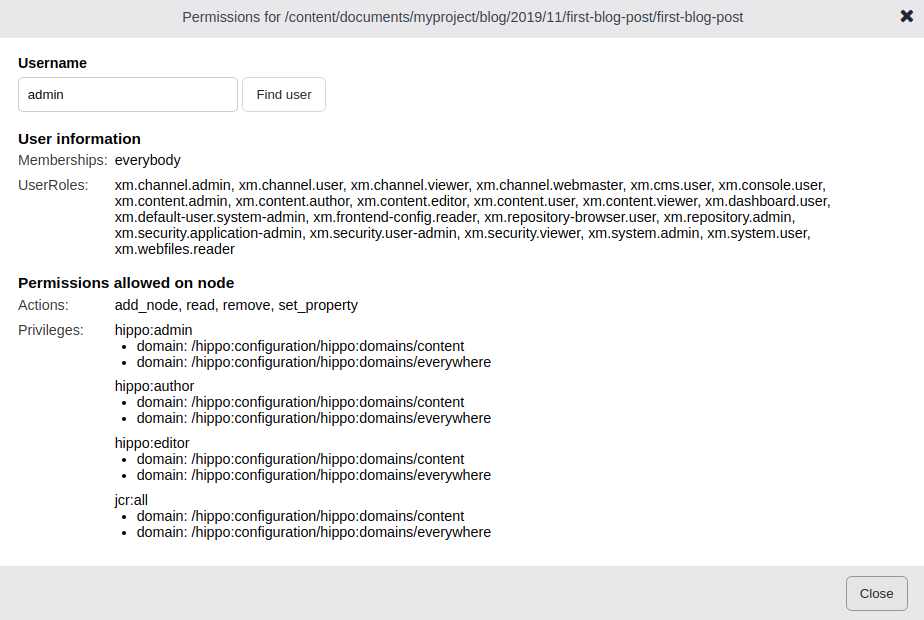
The dialog includes:
- The JCR node path in the top grey bar.
- The username for which permissions are displayed in the search box.
- User information, including group memberships and all Userroles assigned to the user.
- Permissions on the node, separated into JCR Session Actions and Privileges.
Dialog Field Descriptions
Username
The search box shows the user whose permissions are being checked. Enter a different user ID and click [find user] to display permissions for that user. If the user ID does not exist, an error message appears.
Memberships
Lists all groups the user is a member of.
Userroles
Displays all Userroles assigned to the user. These roles are shown regardless of the selected JCR node.
Actions
Shows JCR specification permissions (see section 16.6.2 Permissions in JCR 283). These actions can be difficult to interpret. For most use cases, refer to Privileges for a clearer understanding of user permissions.
Privileges
Lists all privileges the user has on the selected JCR node. For each privilege, the dialog shows the Security Domain that grants it. If multiple domains grant the same privilege, all contributing domains are listed.
Example: Viewing Permissions for the Author User
When you open the View Permissions Dialog and select the author user (available in the local archetype development data), the dialog appears as follows:
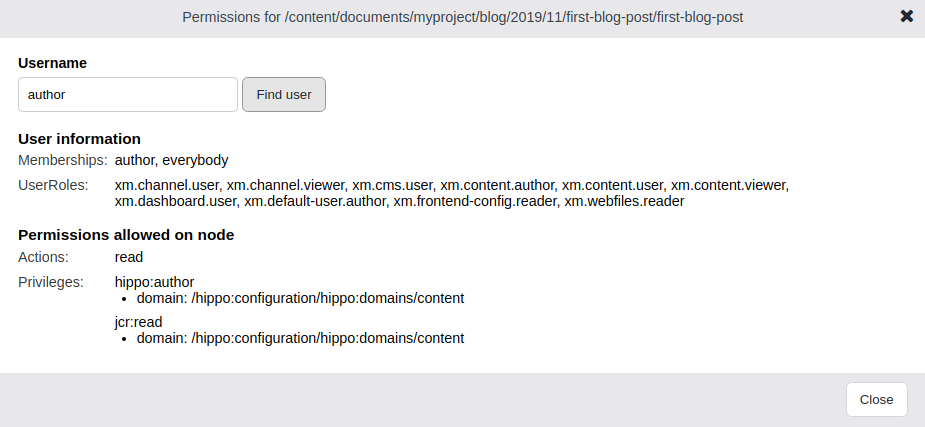
In this example, the author user has the hippo:author privilege on /content/documents/myproject/blog/2019/11/first-blog-post/first-blog-post, granting the author workflow role on the node. The user also has jcr:read, which provides read access.
Special Case: Implicit Read Access
The Security Domains documentation describes Implicit Read Access to Ancestors. In these cases, the dialog may display the Action read or the Privilege jcr:read without specifying which Security Domain granted the privilege. This occurs because the system cannot always attribute implicit ancestor read access to a specific domain.