SPA Integration Troubleshooting
This page addresses common issues encountered when integrating Single-Page Applications (SPA) with Bloomreach Content using the @bloomreach/spa-sdk and @bloomreach/react-sdk libraries. If you are using bloomreach-experience-react-sdk with CMS version 14, refer to this troubleshooting page.
Each section below describes a specific problem, its likely cause, and steps to resolve it.
Overlays Are Not Displayed
Symptom
Overlay controls and content management buttons do not appear, even when overlay controls are enabled.
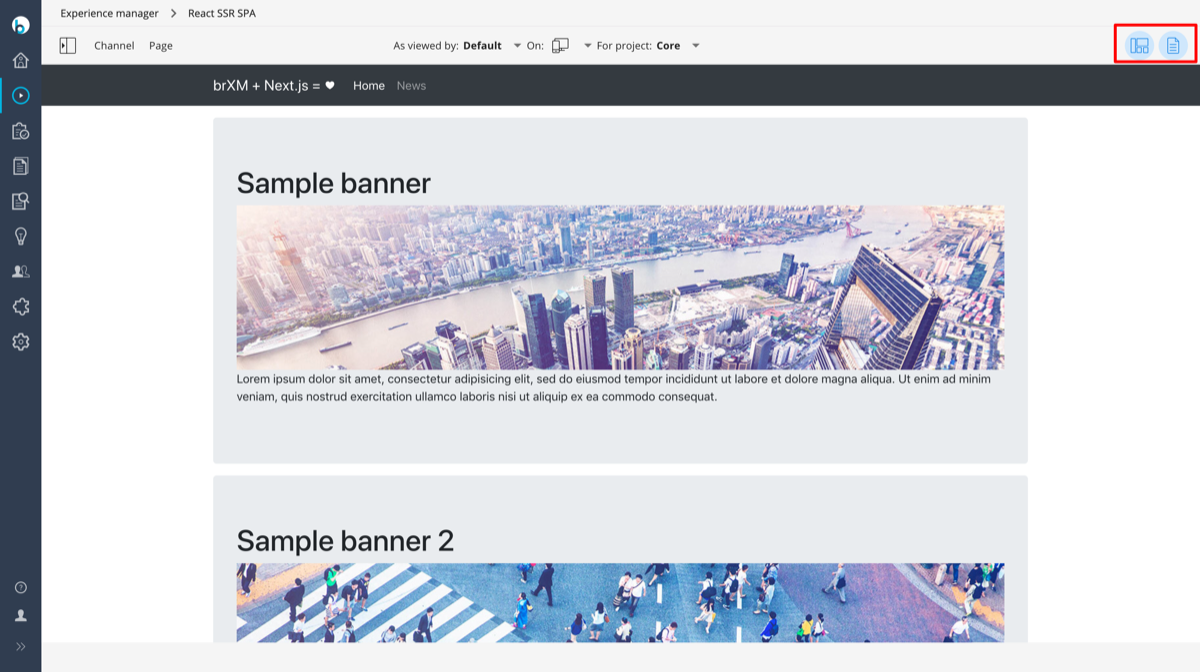
Image 1. Overlays are not showing up
Cause
Possible causes include:
- Incorrect preview base path configuration in the SPA. The value of
options.preview.spaBaseUrldoes not match the SPA preview URL. - Outdated reverse proxy setup used with a newer SPA configuration.
- Incompatible Bloomreach Content version. The
@bloomreach/react-sdkand@bloomreach/spa-sdklibraries require version 14 or higher. - Mismatched plugin versions. The page model addon version does not match the Bloomreach Content version.
- Experience manager features (such as drag-and-drop, component configuration, and visual content editing) for SPAs are only available in the enterprise edition.
- The CMS (Bloomreach Content) and Site (Delivery API) run on different hosts, but the SPA does not set the
originparameter as required.
Resolution
-
For reverse proxy-based setups prior to brXM 14.2, set
[options.preview.spaBaseUrl](https://www.npmjs.com/package/@bloomreach/spa-sdk#configuration)to the correct base path and preview query parameter:const page = await initialize({ // ... options: { live: { cmsBaseUrl: 'http://localhost:8080/site', spaBaseUrl: '', }, preview: { cmsBaseUrl: 'http://localhost:8080/site/_cmsinternal', spaBaseUrl: '/site/_cmsinternal?bloomreach-preview=true', }, }, });For
@bloomreach/react-sdk, set the following environment variables:REACT_APP_LIVE_BR_BASE_URL=http://localhost:9080/site REACT_APP_LIVE_SPA_BASE_URL= REACT_APP_PREVIEW_BR_BASE_URL=http://localhost:9080/site/_cmsinternal REACT_APP_PREVIEW_SPA_BASE_URL=/site/_cmsinternal?bloomreach-preview=true -
For setups without a reverse proxy (supported from brXM 14.2), configure
cmsBaseUrlandspaBaseUrlwith the correct values:const page = await initialize({ cmsBaseUrl: 'http://localhost:8080/site', spaBaseUrl: '', });For
@bloomreach/react-sdk:REACT_APP_CMS_BASE_URL=http://localhost:9080/site REACT_APP_SPA_BASE_URL= -
Verify that you are using brXM version 14 or newer.
-
Ensure that the
hippo-enterprise-package-site-dependenciesversion matches thehippo-cmsversion. -
Confirm you are running the enterprise edition of Bloomreach Content.
-
Set the
originparameter in your SPA to the CMS domain used for preview in the Experience manager. See the SPA SDK documentation for details.
SPA Is Not Displayed in Experience Manager
Symptom
Some SPA pages are not visible in the Experience manager or display a Server Error, but are accessible outside the CMS.
Image 2. The Experience manager displays a blank page
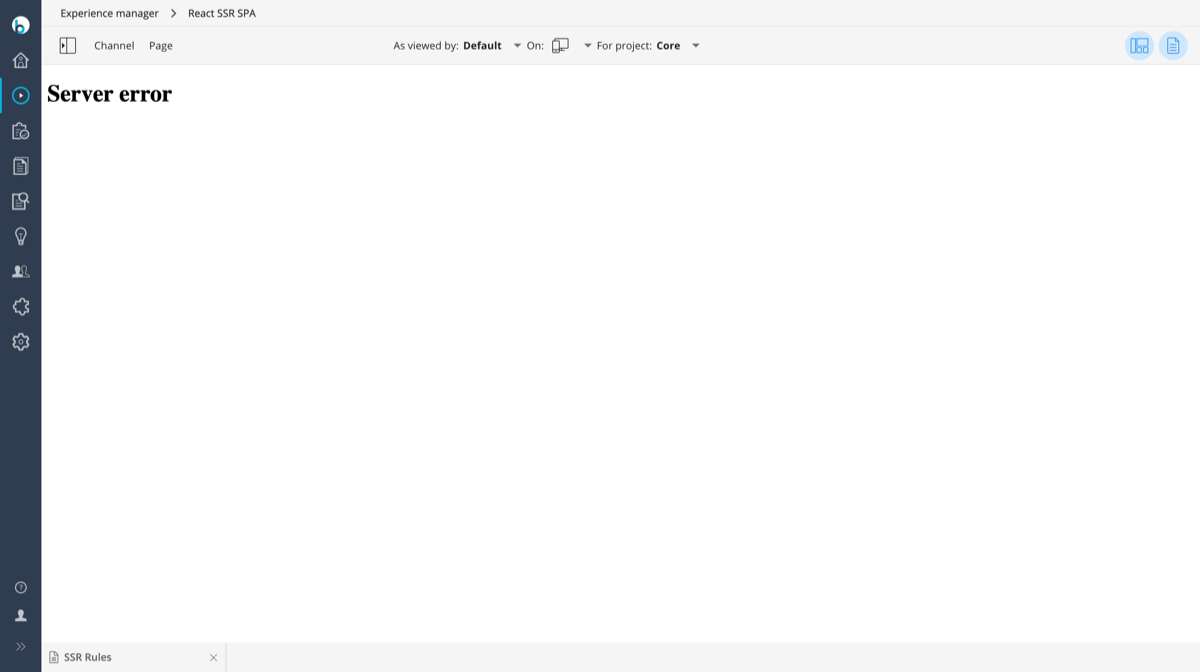
Image 3. The Experience manager displays “Server Error”
Cause
This issue is typically caused by a misconfigured reverse proxy:
- The reverse proxy does not correctly route requests to the SPA.
- The SPA host or upstream is incorrectly configured or unreachable.
Resolution
- Verify that the SPA host is running and accessible from your browser. The URL configured in the channel's
org.hippoecm.hst.configuration.channel.PreviewURLChannelInfo_urlproperty must be reachable.
For brXM 14.2 and Earlier
-
Test your reverse proxy rule using a Java Regular Expression tester such as this one. Test the rule against the URL path after the hostname. For example, if the Experience manager iframe uses
http://localhost:9080/site/_cmsinternal/channel/news, test the path/site/_cmsinternal/channel/news. The following rule:<rule> <from>^(?:/[^\/]+)?(?:/_cmsinternal)?(?:/spa-ssr)([\?/].*)?$</from> <to type="proxy" last="true">http://localhost:3000$0</to> </rule>uses the regular expression
^(?:/[^\/]+)?(?:/_cmsinternal)?(?:/spa-ssr)([\?/].*)?$, which does not match/site/_cmsinternal/channel/newsif the channel differs. -
Confirm that the SPA host is accessible from the CMS host. The URL in the
<to>element must be reachable from the CMS server.
SPA Fails with an Error
Symptom
The SPA displays a 404 or 500 error, or a JavaScript stack trace.
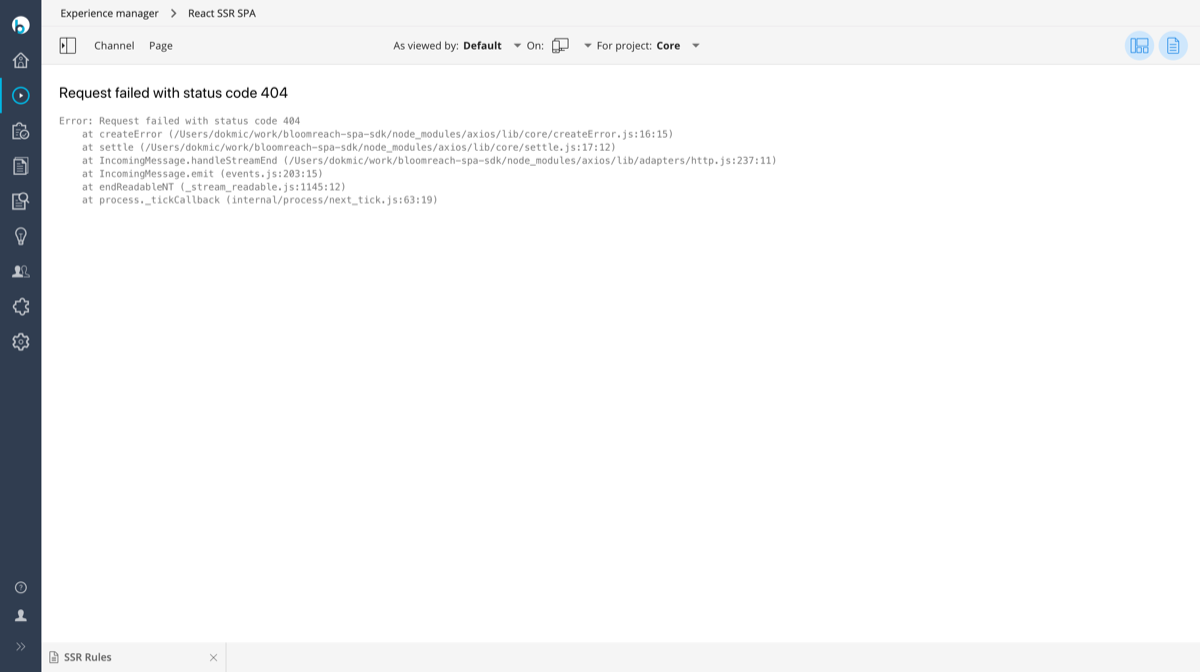
Image 4. 404 error
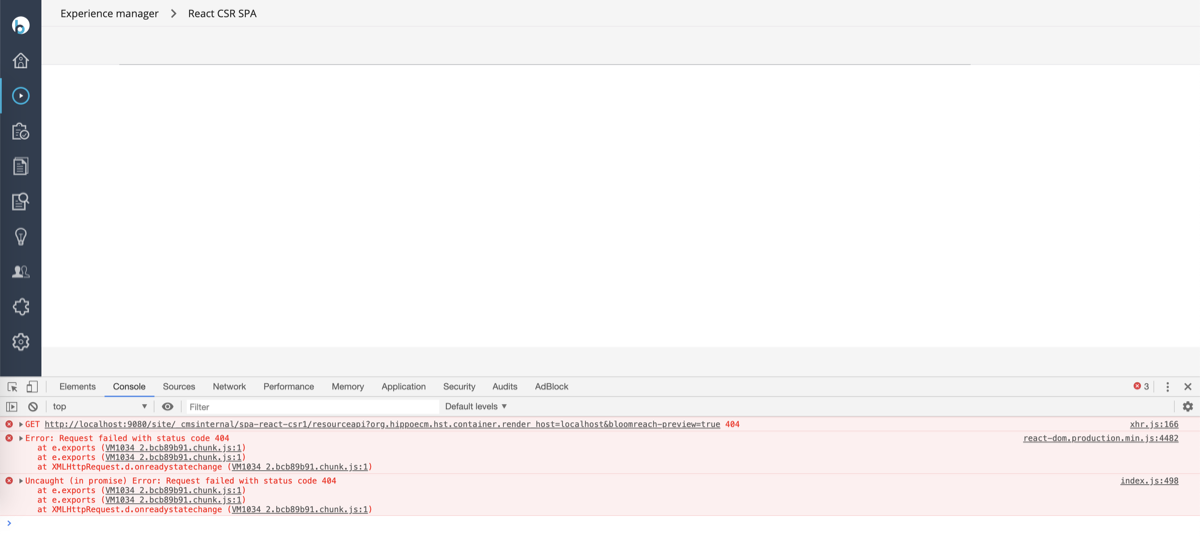
Image 5. 404 JavaScript error
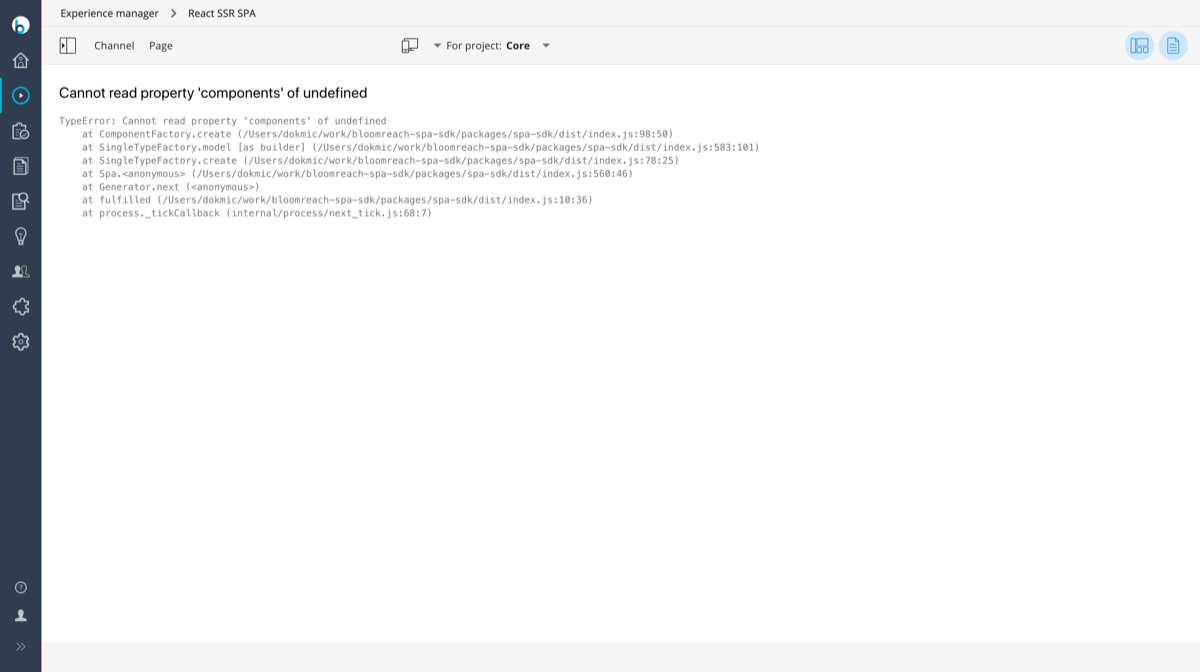
Image 6. 500 error
Cause
This issue is typically due to incorrect configuration of options or cmsBaseUrl, resulting in requests to an invalid Delivery API URL.
Resolution
-
Check the
optionsandcmsBaseUrlconfiguration (for brXM 14.2 and above). -
Ensure the preview query parameter is present in
options.preview.spaBaseUrl. -
Confirm that the Delivery API is enabled.
-
Verify that the Delivery API is accessible at the URL used by the SPA.
-
Ensure UrlRewriter is configured as described here:
<rule> <from>^(?:/[^\/]+)?(?:/_cmsinternal)?(?:/spa)([\?/].*)?$</from> <to type="proxy" last="true">http://localhost:3000$0</to> </rule> -
Confirm that the
urlrewriter:skippedprefixesproperty includes_cmssessioncontext.
Overlays Disappear After Navigation
Symptom
After navigating to another page within the SPA, Experience manager controls disappear.
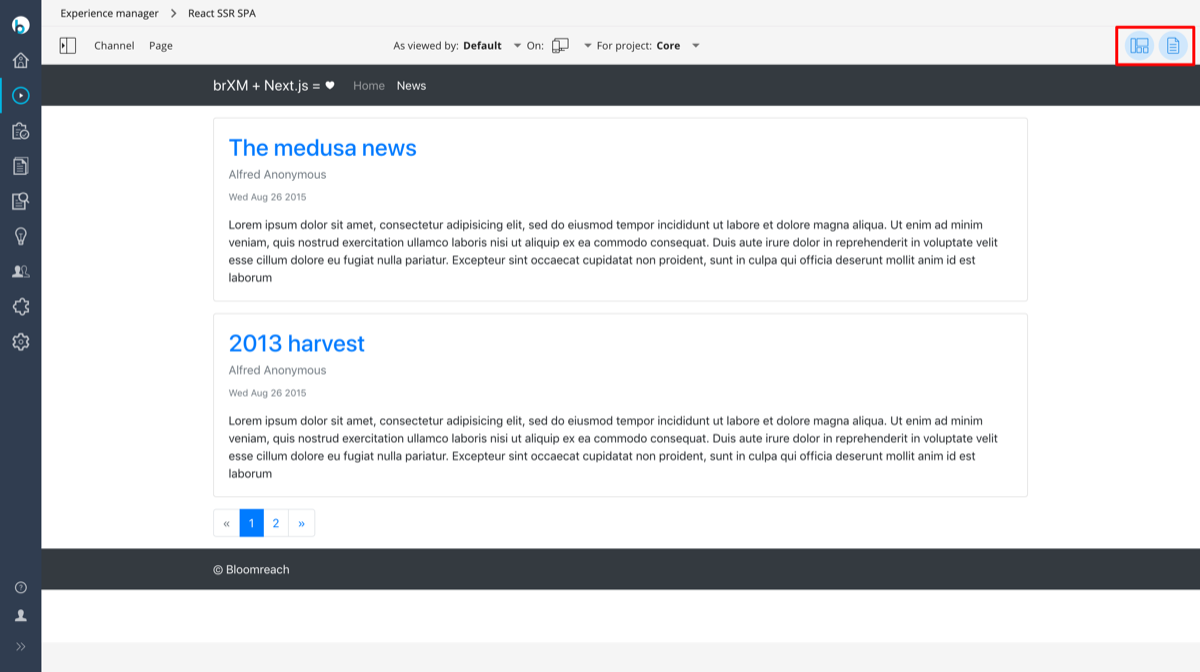
Image 7. Controls disappeared
Cause
The SPA navigates to a page hosted on a different domain. Experience manager controls only work for pages served from the same host.
Resolution
- Ensure navigation links point to the same host as the SPA.
- Do not include a hostname in internal links.
- Remove any
<base href="..."/>elements from your page code.
SPA Fails to Load Some Static Resources
Symptom
The SPA cannot load certain static resources (such as JavaScript or CSS files) or cannot access external APIs.
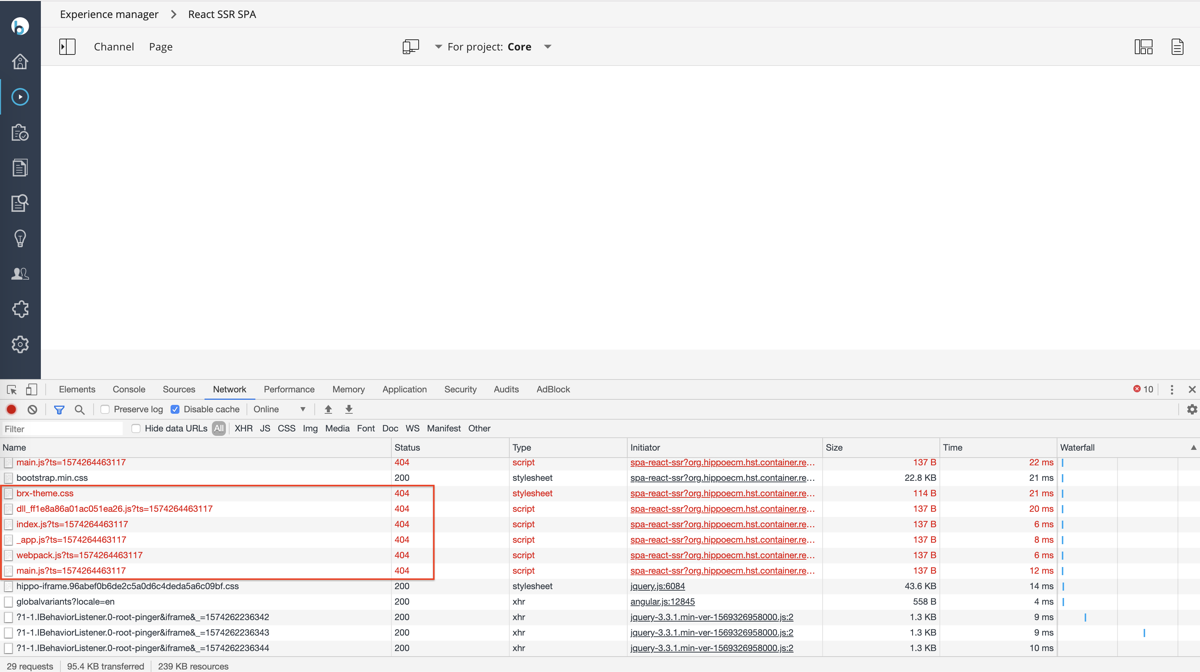
Image 8. SPA is not loading static resources
Cause
The SPA is served by the CMS host, and resource links lack a hostname. The browser attempts to load resources from the current host, resulting in 404 errors.
Resolution
-
Use the
PUBLIC_URLenvironment variable to set the asset prefix for your SPA.- For server-side rendered apps with Next.js, this option is available.
- With React-scripts,
PUBLIC_URLworks for production builds. For development mode, see this issue.
-
Reference this variable in your resource or API paths. For example, in JSX:
<link rel="stylesheet" href={'${process.env.PUBLIC_URL}/static/custom.css'} />
See Adding Custom Environment Variables for more details.
SPA Encounters CORS Policy Errors
Symptom
The SPA does not function correctly, and the browser console shows CORS-related errors.

Image 9. CORS-related errors
Cause
- The SPA is running on a different host than the CMS and tries to access the Delivery API, which is blocked by Cross-Origin Resource Sharing (CORS) policies.
- The SPA's HTTP client overrides default headers (such as
server-idorendpoint) set by the SDK.
Resolution
- Enable your SPA origin to access the Delivery API by setting the
Access-Control-Allow-Originresponse header or by configuring allowed hosts in thehst:allowedoriginsproperty. Update the host configuration for the channel where the Delivery API is enabled. See Configure the Delivery API for CORS configuration guidance. - When setting additional HTTP headers in your SPA's HTTP client, append them to the default headers added by the SDK. Do not overwrite the default headers.
Info: If you experience intermittent CORS errors in a clustered environment, see Channel preview in the Experience manager works intermittently in a clustered environment.
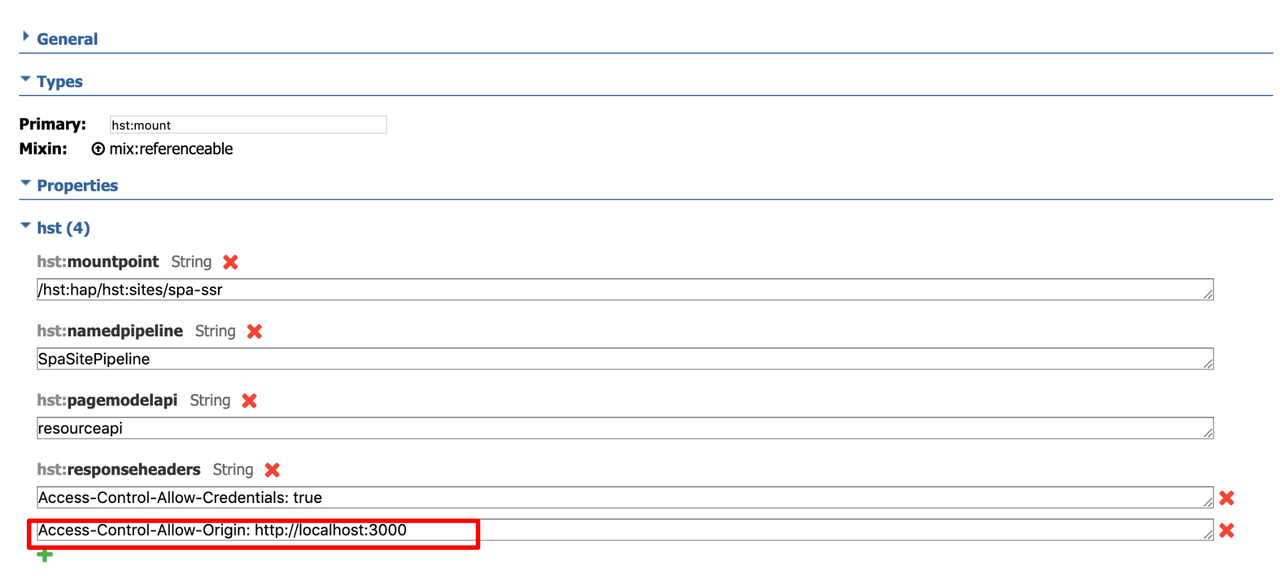
Image 10. Setting header to enable the SPA origin
SPA Fails to Load Some CMS Resources
Symptom
The SPA cannot load CMS resources such as images.
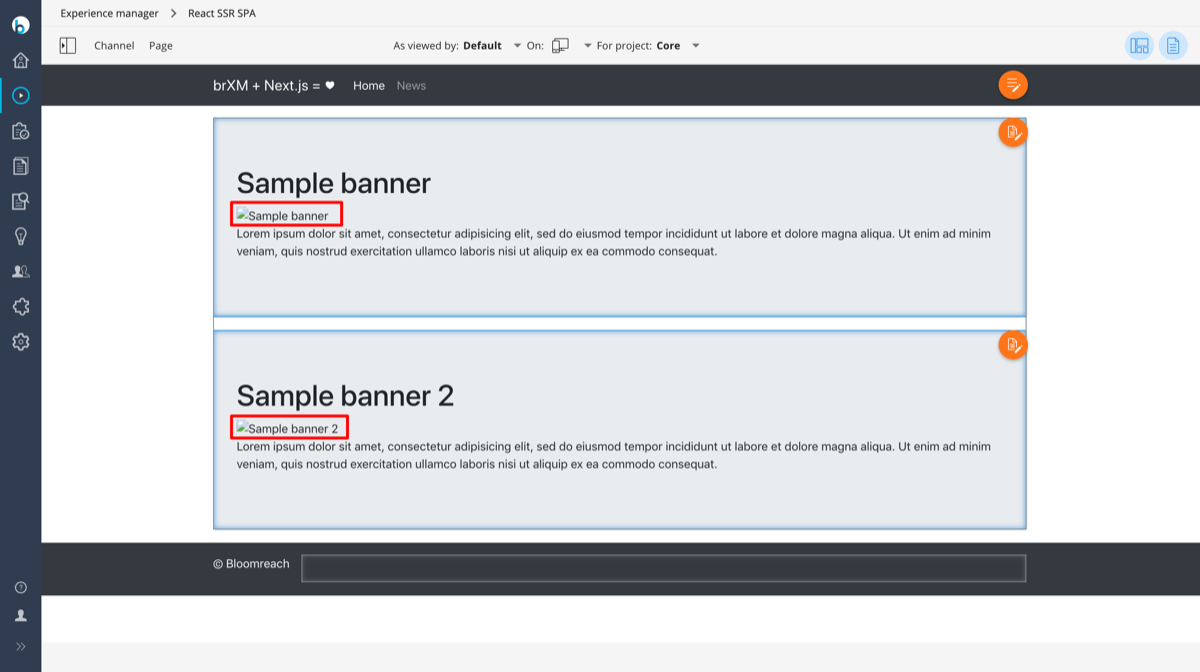
Image 11. SPA is not loading CMS resources
Cause
The value of options.preview.cmsBaseUrl is incorrect or points to a CMS host that is not accessible from the browser.
Resolution
- Set
options.preview.cmsBaseUrlto the correct base URL. - Verify that the CMS is accessible at the URL used by the SPA.
- Use the
getUrlmethod to generate resource URLs. - Check that browser extensions (such as ad blockers) are not blocking these resources.
SPA Fails with DOMException on History Object
Symptom
The SPA fails to update the browser history state due to a DOMException when the origin differs from the CMS host.
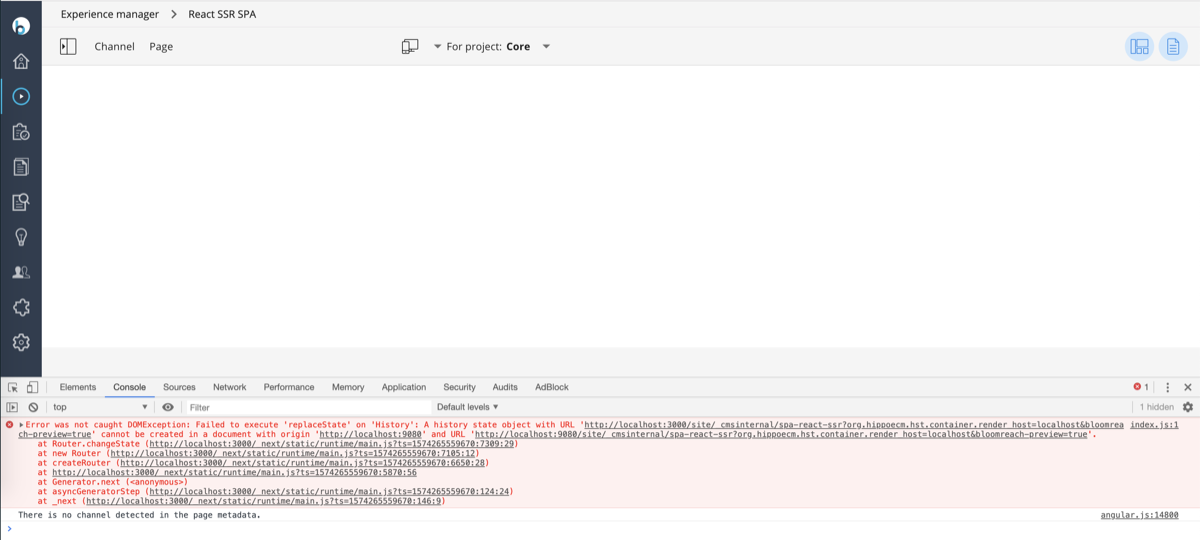
Image 12. SPA is failing with DOMException on History object
Cause
A <base href="..."/> element is present in the page code, causing origin conflicts.
Resolution
Remove any <base href="..."/> elements from your page code.
Some Internal Links Are Incorrectly Treated as External
-
Some internal SPA links are incorrectly recognized as external within Bloomreach Content.
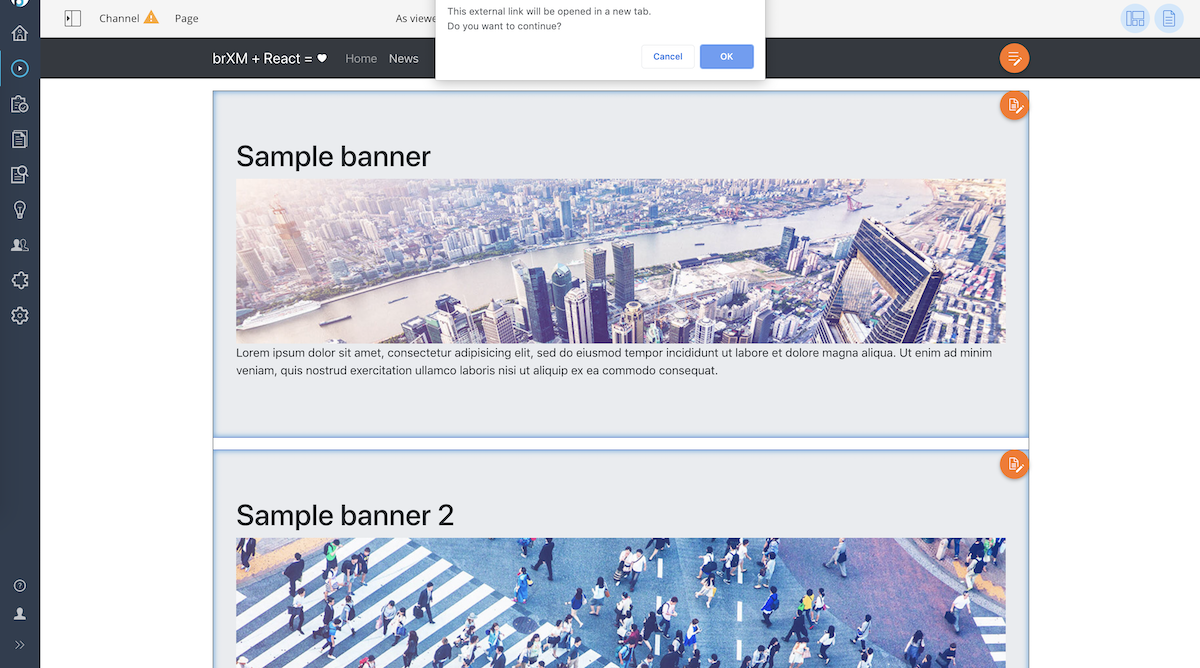
Image 13. Some of the links recognized as external.
-
Client-side navigation fails for certain links in isomorphic applications.
Cause
A bug in Bloomreach Content caused this behavior.
Resolution
Update Bloomreach Content to the latest version.
Channel Toolbar Does Not Appear
When using brXM 14.2 or later with an updated HST configuration for the SPA, the channel toolbar does not appear, although the SPA functions correctly.
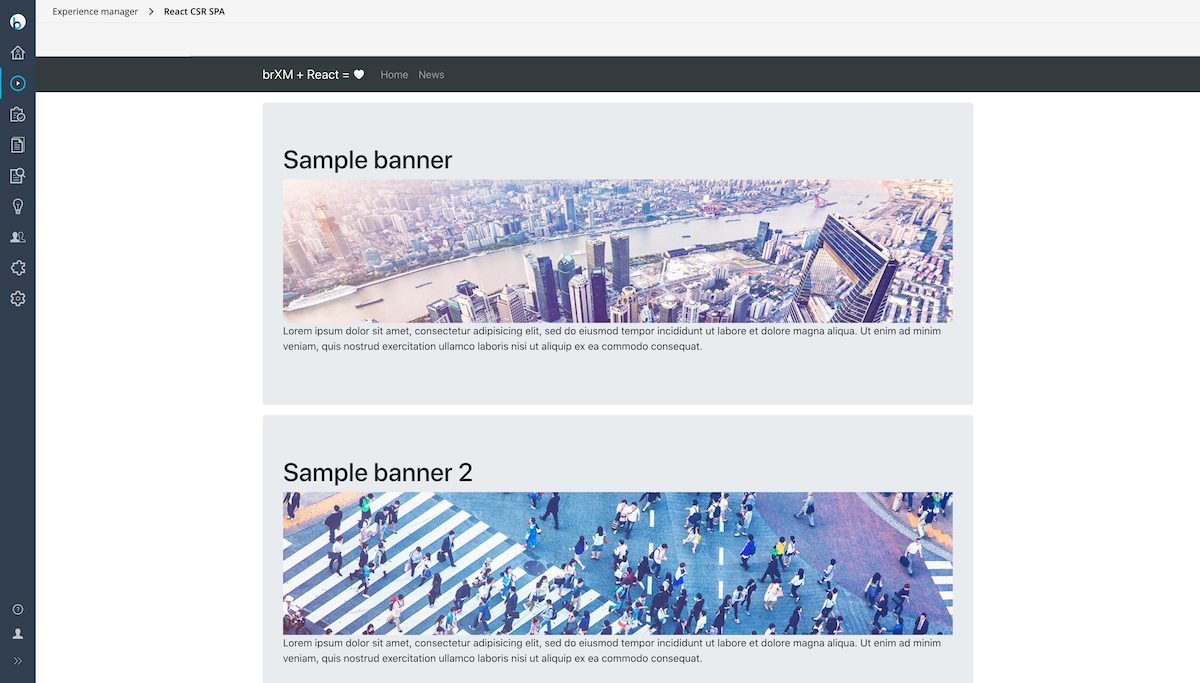
Image 14. Channel toolbar is not initialized.
Cause
- Deprecated SPA configuration is in use.
- Both
optionsandcmsBaseUrlare configured, but these options are mutually exclusive. - The SPA loads components asynchronously but does not call the
.sync()function after loading. - The Delivery API request from the Experience manager is missing required headers (
AuthorizationandReferer).
Resolution
- Remove the deprecated
optionsparameter from the SPA configuration. - Use only the
cmsBaseUrlparameter in SPA configuration (required as of brXM 14.2). - If the SPA loads components asynchronously, call the
.sync()function after the page loads. See SPA SDK Page interface documentation for details. - Ensure the
requestoption in the SPA configuration does not contain a hardcodedpath(e.g.,request: { path: '/' }).
Channel Preview in Experience Manager Is Intermittent in a Clustered Environment
When running brXM 14.2 or later in a clustered environment, SPA channel preview in Experience manager works inconsistently. Sometimes the channel loads correctly; other times, it fails with a CORS error about the Access-Control-Allow-Origin header.
Cause
Session affinity between CMS cluster nodes relies on a server-id query parameter passed from Bloomreach Content during the redirect to the SPA. The SPA SDK retrieves this parameter and includes it as a Server-id header in subsequent requests. Bloomreach Content uses this header to route the request to the correct cluster node.
If the SPA omits the server-id parameter, the SDK does not include the Server-id header, and requests are distributed round-robin. As a result:
- Requests routed to the correct cluster node succeed, and the SPA loads with full editing capabilities.
- Requests routed to a node without the user's session fail with status 401 or 500, and the Experience manager toolbar does not load. A CORS error may appear in the browser console.
See Load Balancing Requirements for more details.
Resolution
Always include the full requested path, including all parameters, in the request.path property of the configuration object passed to the SDK.
Mixed Content Warnings or Errors in Experience Manager
When viewing an SPA channel in Experience manager, the channel does not display or the browser shows "mixed content" warnings. This occurs when Bloomreach Content uses HTTPS but the SPA uses HTTP.
Cause
Modern browsers block or warn about loading insecure (HTTP) content within secure (HTTPS) pages.
This is common in development environments where the Experience manager uses HTTPS and the SPA uses HTTP.
Resolution
Ensure your SPA uses HTTPS if your Bloomreach Content instance uses HTTPS.
Most frontend frameworks support HTTPS in development:
- React: Set the
HTTPS=trueenvironment variable. See Using HTTPS in Development. - Angular: Use the
--sslflag. See ng serve. - Vue CLI: Use the
--httpsflag. See vue-cli-service serve.
Info: Always use HTTPS in production environments.
Previous Versions of an Experience Page Do Not Load in Channel Preview
Cause
When selecting a specific version from an Experience page's version history in Experience manager, a version identifier (br_version_uuid) is sent as a request parameter to the frontend application. The frontend must forward this parameter to the Delivery API's Pages endpoint to retrieve the correct page version. The SPA SDK handles this automatically.
If you use a custom frontend integration (not the SPA SDK) and do not forward the br_version_uuid parameter, the Delivery API returns the latest page version instead.
Monitor requests to the frontend and Delivery API while selecting page versions to confirm this behavior.
Resolution
In custom frontend integrations, always check for the br_version_uuid request parameter and forward it to the Delivery API's Pages endpoint if present.
Chrome 142+ CORS Error: Access Denied for 'Unknown' Address Space
When using Chrome 142 or later, the SPA fails to load in Experience Manager, and the browser console displays:
Access to XMLHttpRequest at <URL> has been blocked by CORS policy: Permission was denied for this request to access the 'unknown' address space
Cause
Chrome 142 and newer enforce stricter CORS rules for local network access.
Resolution
-
Enable Local Network Access in CMS:
- Open the CMS Console (usually at
/cms/console). - Navigate to
/hst:hst/hst:configurations/*channel-name*/hst:workspace/hst:channel. - Add a new property to the
hst:channelnode:- Name:
hst:localnetworkaccessenabled - Type: Boolean
- Value:
true
- Name:
- Save the changes.
The
hst:localnetworkaccessenabledproperty is available in versions 15.7.6 and 16.6.5 and later. - Open the CMS Console (usually at
-
Grant Browser Permission:
- When the SPA tries to connect, Chrome may prompt you to allow local network access. Click "Allow" to grant permission.