Initialize and Configure the AI Content Assistant via Essentials
This guide describes how to set up and configure the AI Content Assistant using the Essentials application.
Important: When you configure the AI Content Assistant through Essentials, API keys are stored in plain text in the JCR configuration. This approach is not secure for production environments.
Configuring the Content Assistant with Essentials will:
- Add new dependencies to your
cms-dependenciesPOM file. - Add JCR configuration under
/hippo:configuration/hippo:modules/ai-service/hipposys:moduleconfig.
Note: If you are upgrading to version 16.6 or 16.8, review the AI Module upgrade instructions.
Initialize and Configure Using Essentials
To initialize and configure the AI Content Assistant with the Essentials application:
- Open the Essentials application.
- Navigate to Library. Ensure that Enterprise features are enabled.
- Locate Content AI and select Install feature.
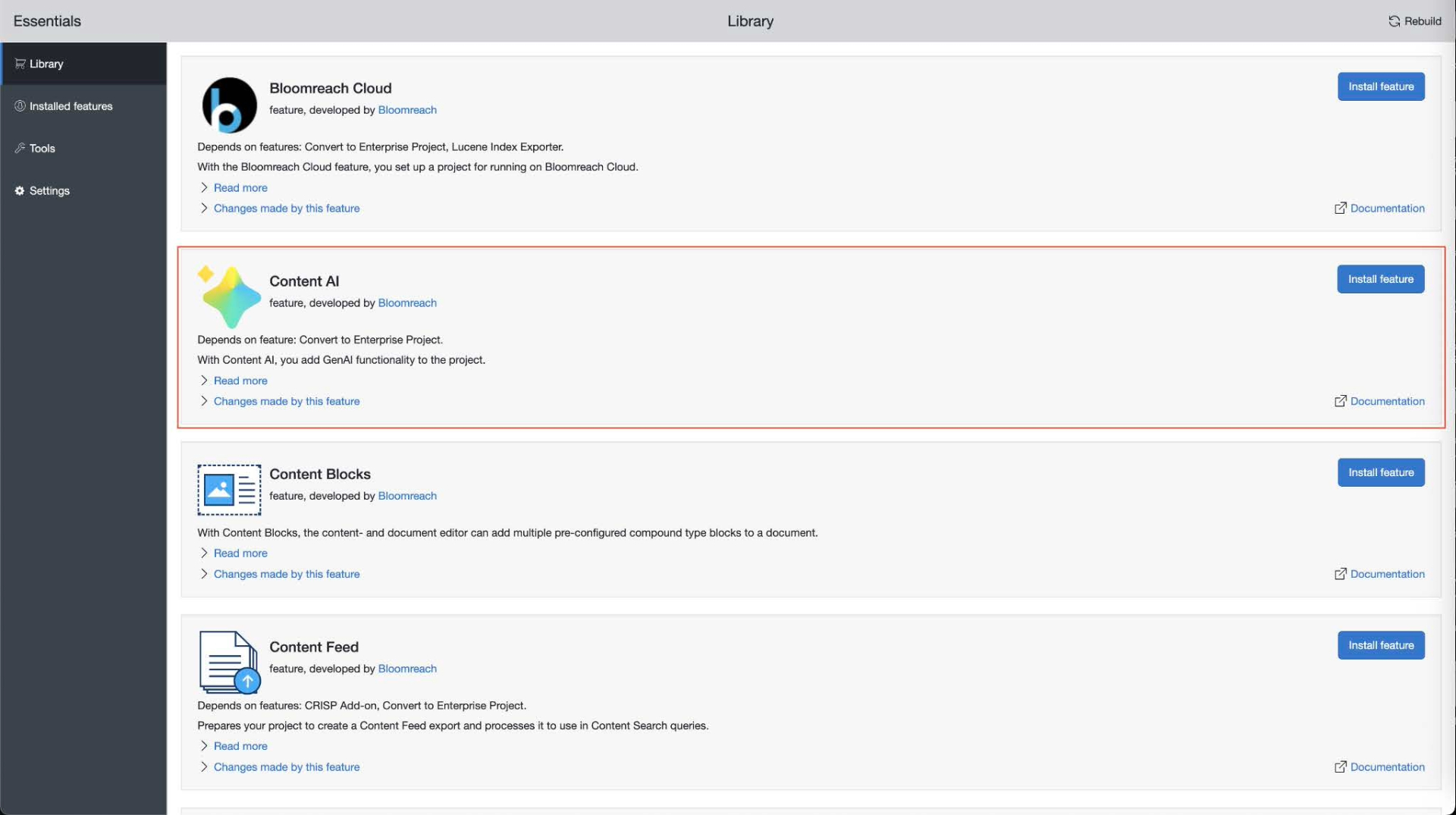
- Rebuild and restart your project.
- After the project restarts, go to Installed features.
- Find Content AI and select Configure.
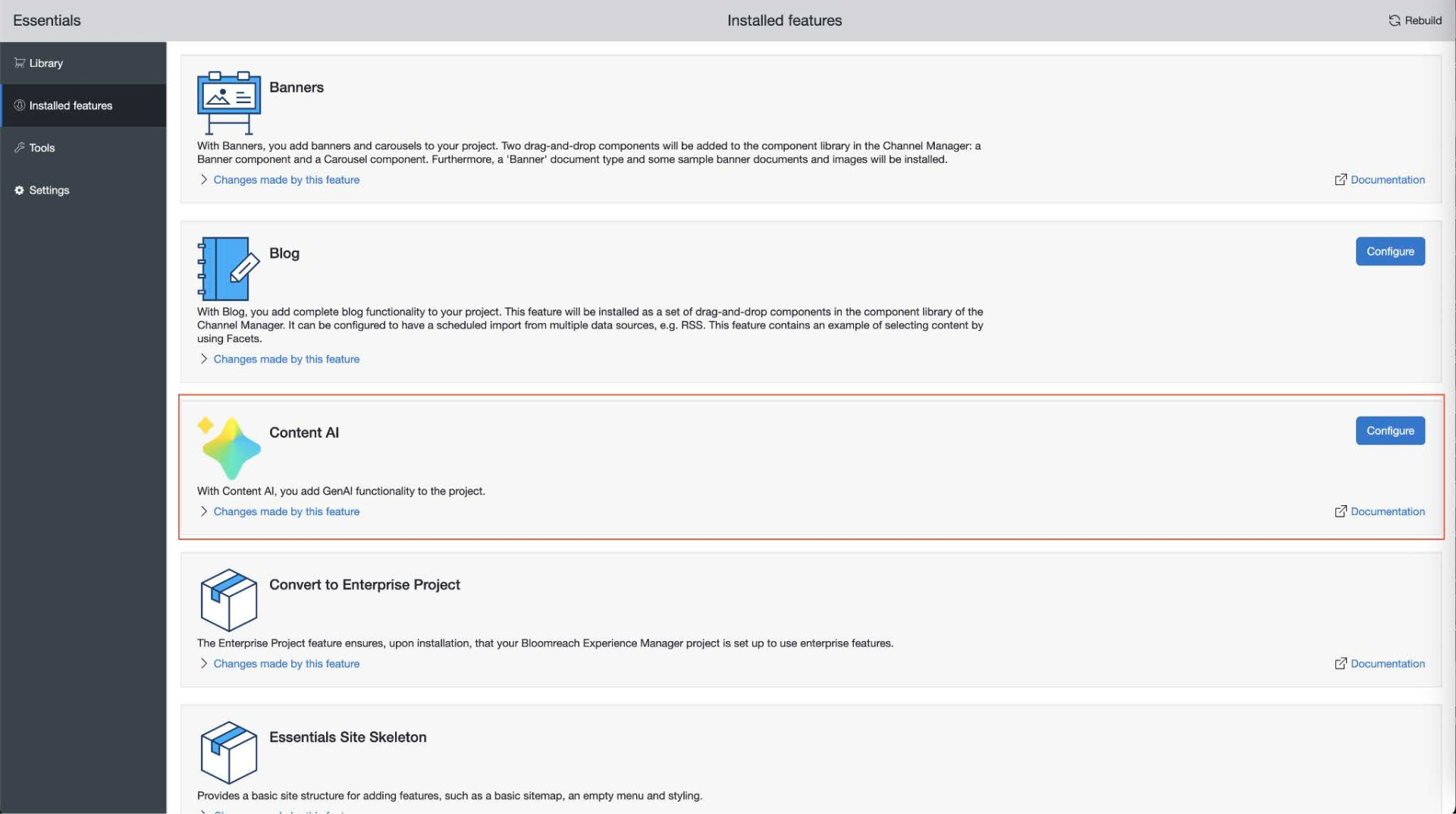
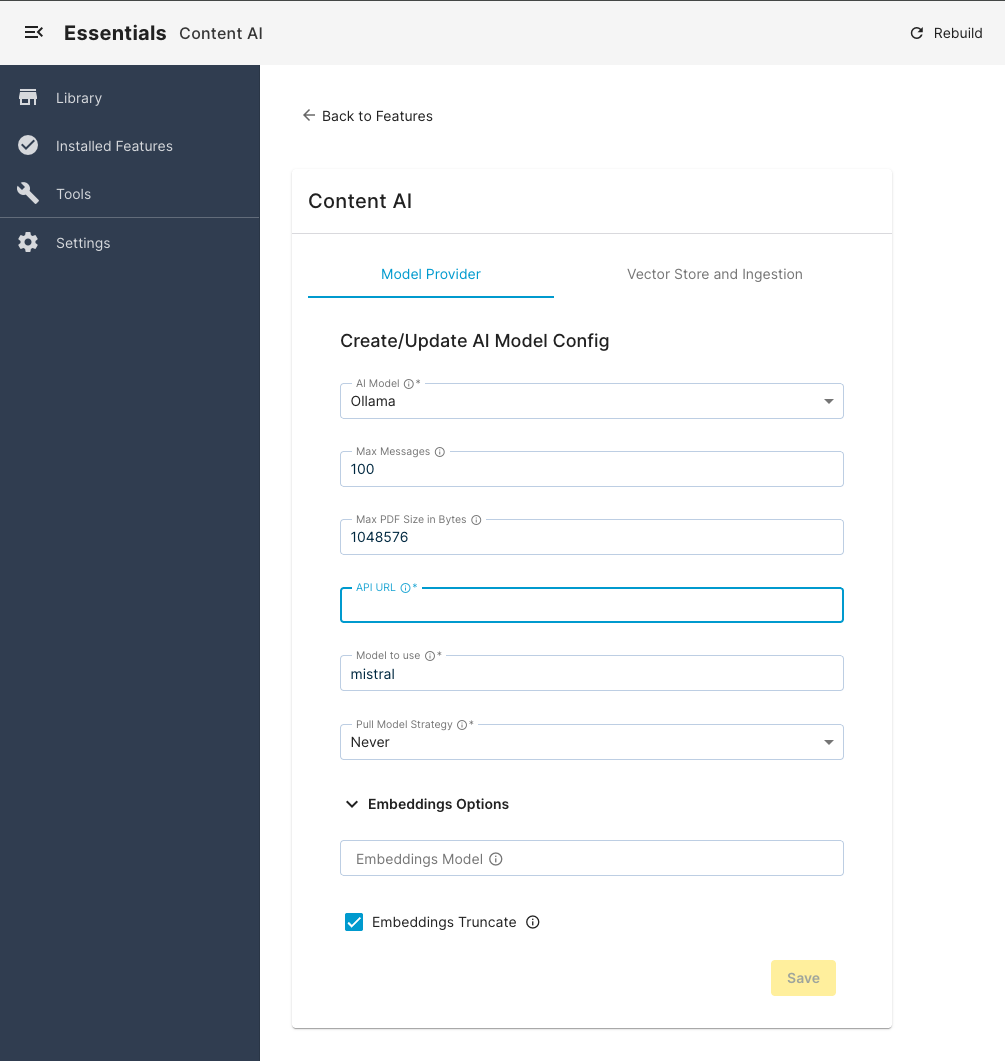
- Open the Model Provider tab.
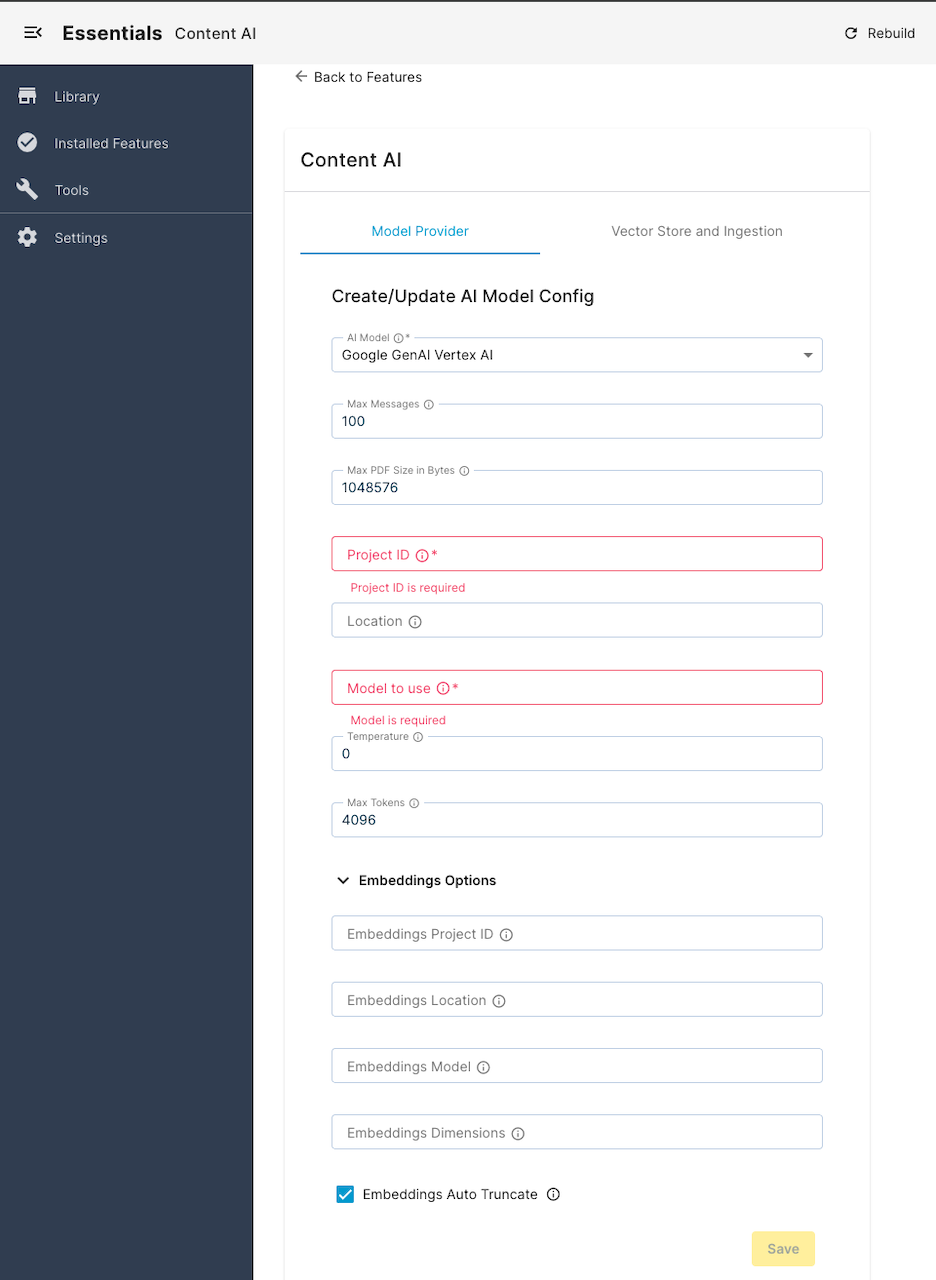
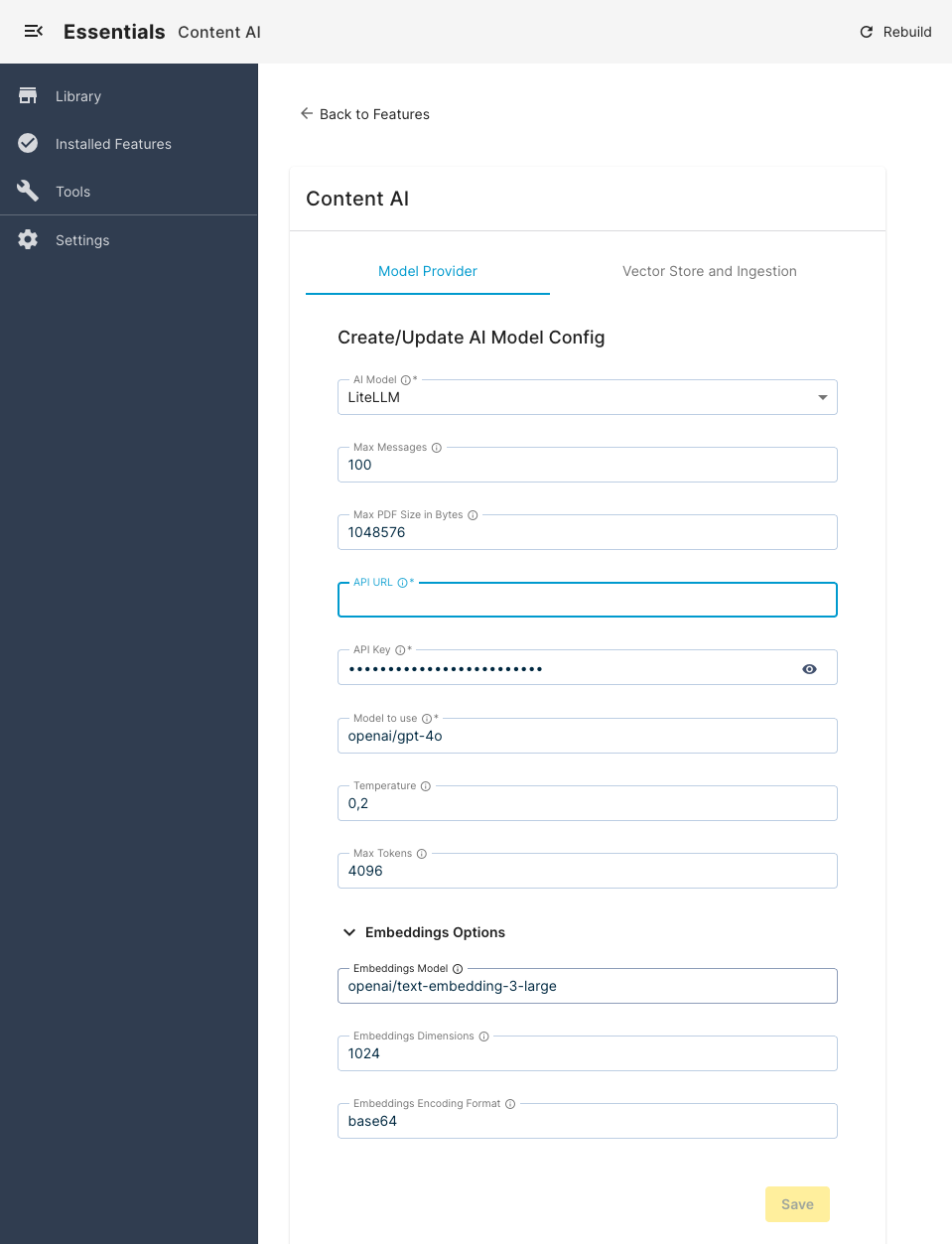
- Select the required AI Model from the available supported providers.
- Configure the required details such as API URL (endpoint), API key, and other provider-specific options. For details, see the Model Provider Configuration Options section below.
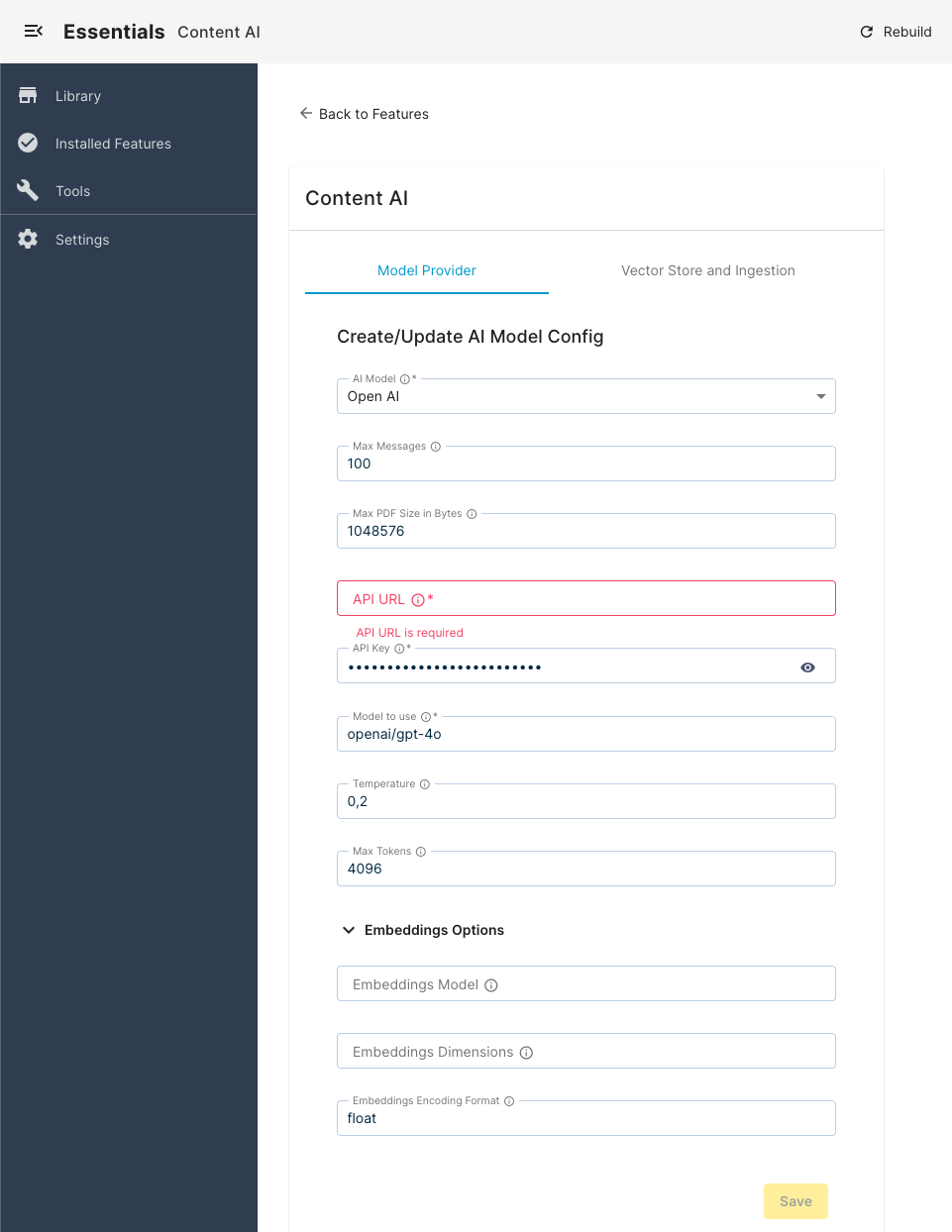
- When configuration is complete, select Save.
- If you do not need to configure an external vector database, proceed to step 15.
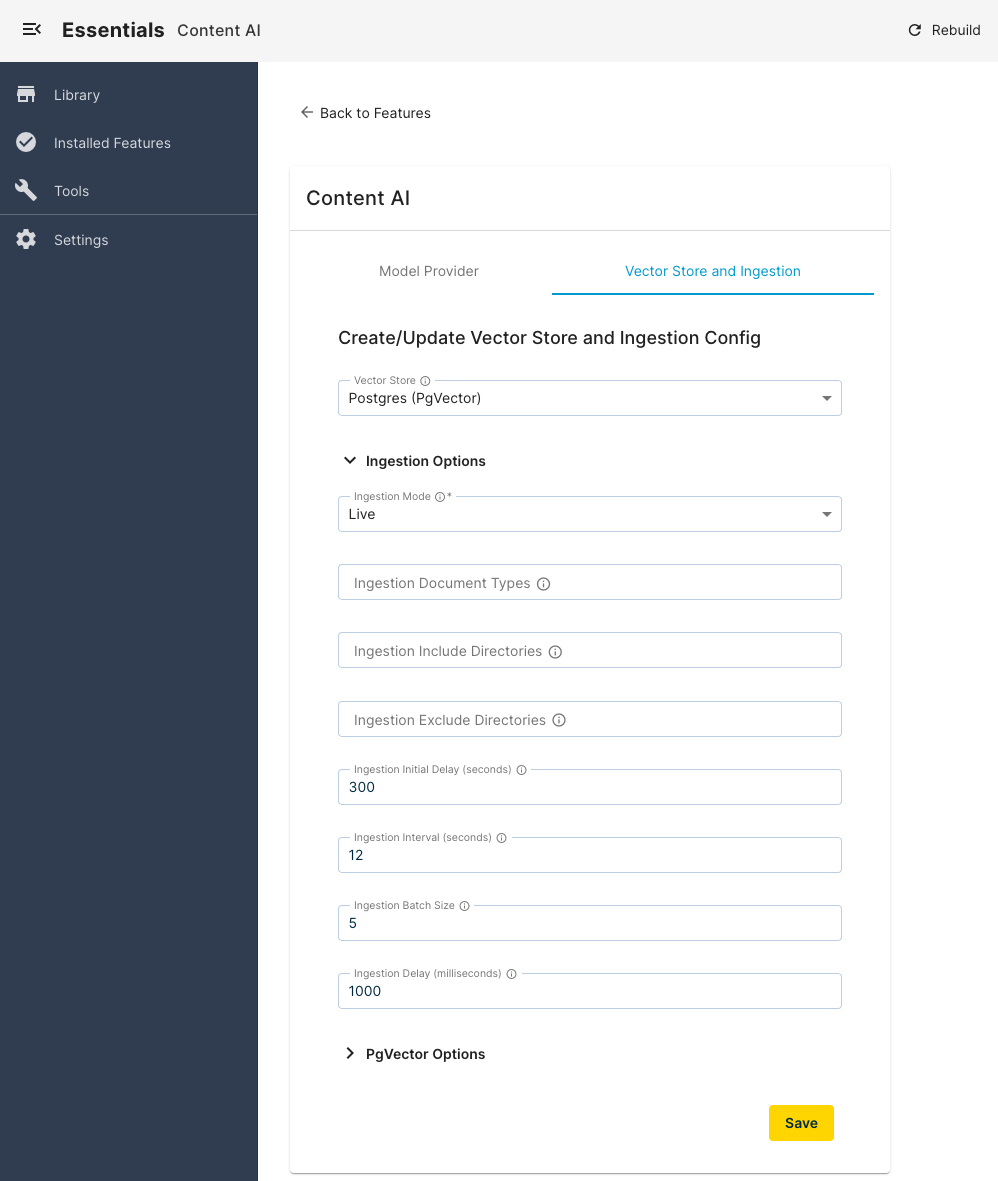
- (Optional) Open the Vector Store and Ingestion tab.
- (Optional) Select your configured Vector Store (Redis or Postgres).
- (Optional) Configure Ingestion Options and other settings for your selected vector store. For details, see the Vector Store and Ingestion Configuration Options section below.
- (Optional) When finished, select Save.
- Rebuild and restart your project again.
Model Provider Configuration Options
Note: Only users with the
xm.chatbot.userrole can access the AI Content Assistant.
Model provider configuration options may include:
- API key/project ID: Enter the API key or project ID required by your model provider.
- Model to use: Specify the model name and version for the AI Assistant. This allows you to select a model suitable for your use case.
- Temperature: Set the model temperature to control the creativity, depth, and randomness of AI responses.
- Max tokens: Define the maximum number of tokens allowed per conversation to manage token usage within your provider limits.
- Max messages: Set the maximum number of messages allowed in a conversation. Users cannot send more messages after reaching this limit.
- Max PDF Size in Bytes: Specify the maximum file size (in bytes) for PDF documents that can be added as references in a conversation.
- Embedding Options: Configure options for the embedding model, which are required for the Vector Store and Ingestion process.
Reference: For a full list of available properties, see Initialize and configure via Properties.
Vector Store and Ingestion Configuration Options
After selecting a vector database, you can configure its connection options (such as connection URL, username, password) and ingestion settings:
- Ingestion Mode: Determines ingestion behavior. In preview mode, unpublished content is indexed on save, rename, copy, or move. In live mode, only published content is indexed during publication or scheduled publication.
- Ingestion Document Types: Comma-separated list of fully qualified document types. Only content of these types will be indexed. If not specified, no content is ingested.
- Ingestion Include Directories: Comma-separated list of absolute paths. Only documents under these paths are ingested. Leave empty to allow ingestion from any directory.
- Ingestion Exclude Directories: Comma-separated list of absolute paths. Documents under these paths are excluded from ingestion.
- Ingestion Initial Delay (seconds): Time (in seconds) to wait after system startup before starting the ingestion process.
- Ingestion Interval (seconds): Frequency (in seconds) at which the ingestion process runs.
- Ingestion Batch Size: Number of documents processed and sent to the vector store in each batch.
- Ingestion Delay (milliseconds): Back-off time (in milliseconds) after processing each batch.
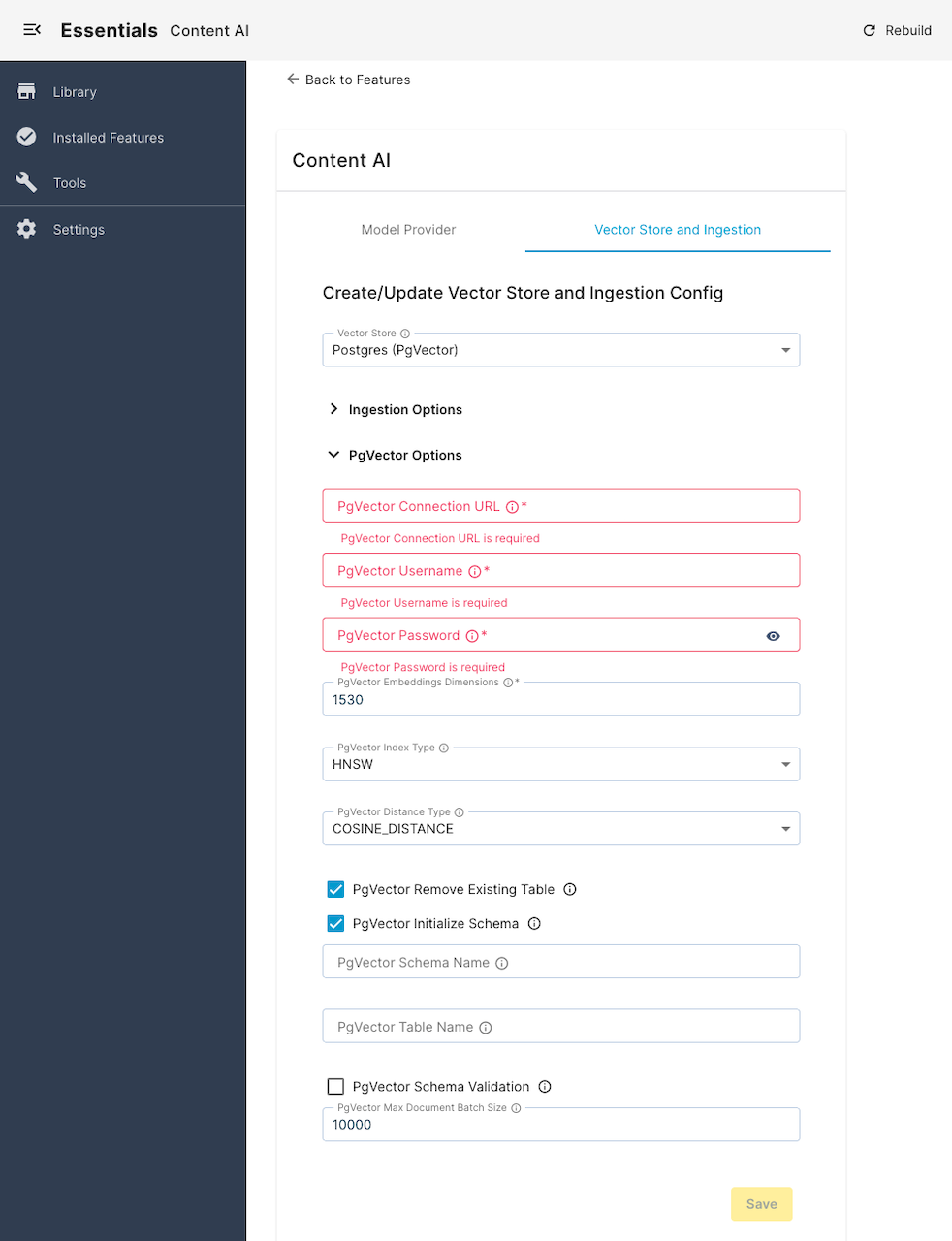
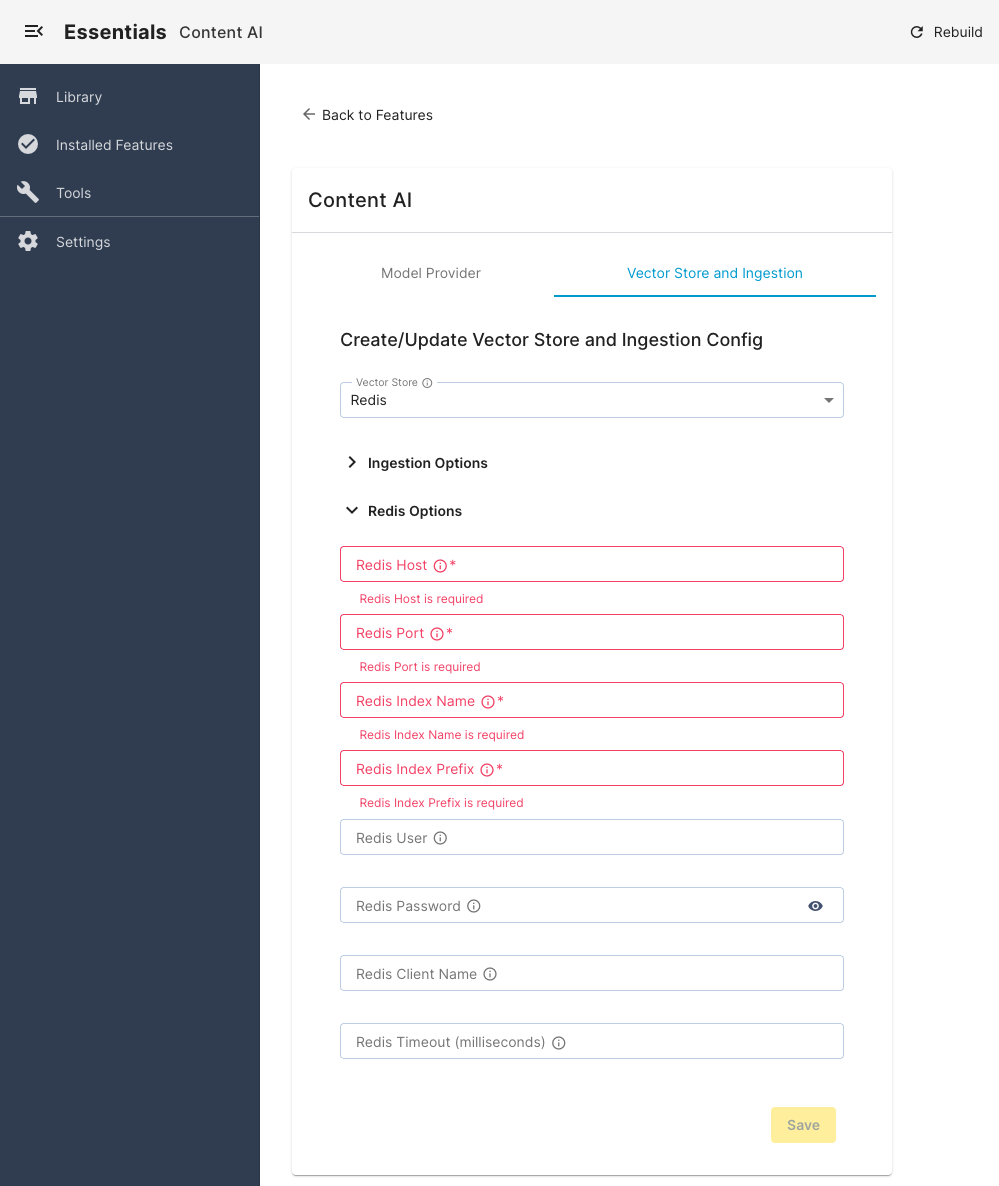
The ingestion process remains disabled unless a vector store is configured. Ensure that a running instance of your chosen vector database is accessible.
Reference: For all available options, see Initialize and configure the Vector Store and Ingestion process.
Maintenance Scripts
The AI module provides Groovy scripts for maintaining your vector store. For details, see Maintenance Groovy Scripts.