AI Perspective
AI Perspective is a dedicated AI workspace in Bloomreach Content that uses CMS Agent to find and edit content across your repository. You describe what you're looking for, or what you'd like changed, in everyday language, and CMS Agent does it for you — searching, previewing, and editing documents, all from one workspace.
Why Use AI Perspective
-
Go from prompt to a reviewed, ready-to-publish document.
-
Find any document in your repository in everyday language, no need for guessing keywords and titles.
-
Fix a translation, update a paragraph, or adjust a value — described once, done automatically.
-
Review every change before it's saved, so you always have the final say.
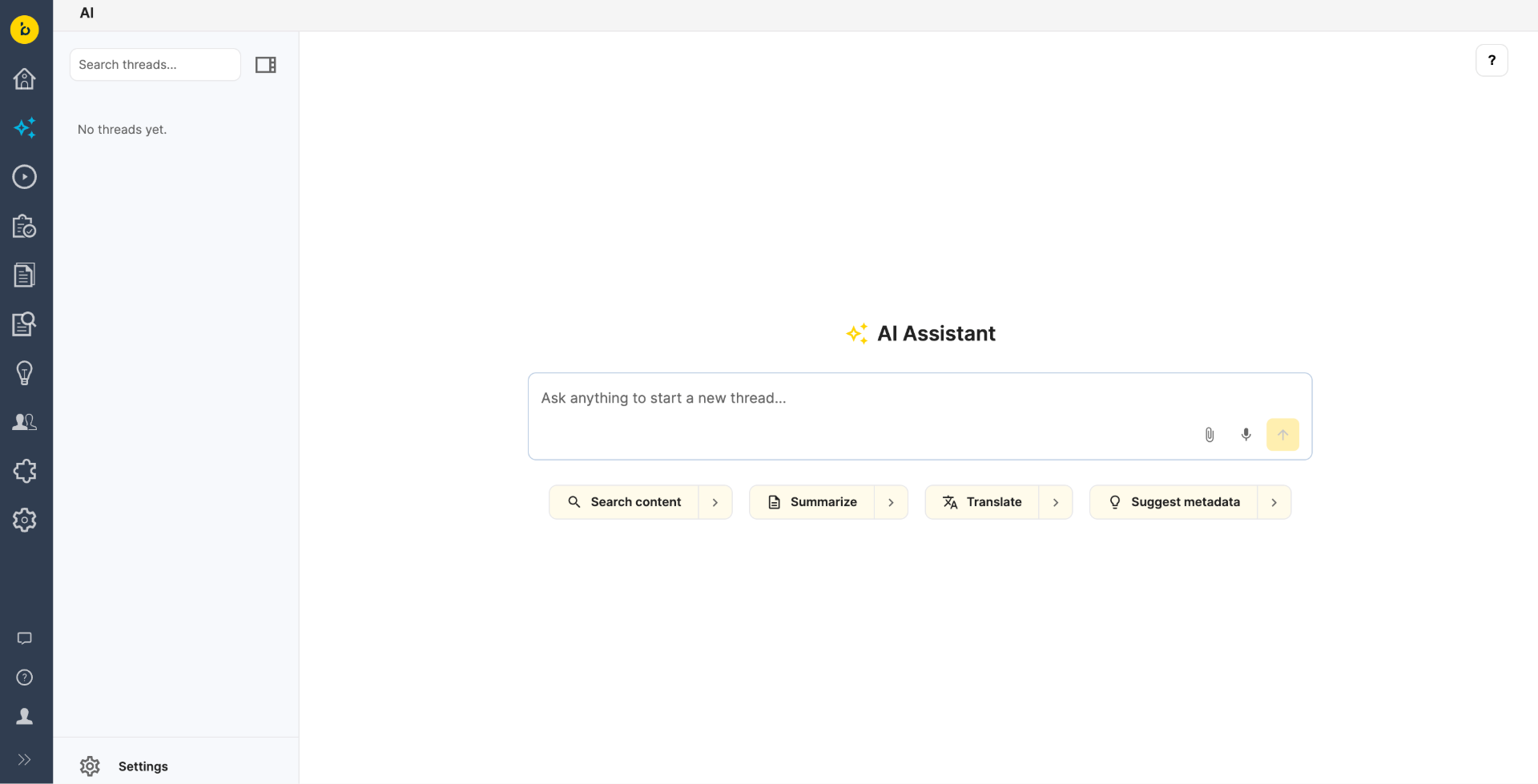
AI Perspective Overview
Info: AI Perspective is available in Bloomreach Content version 17.3.0 and later. It's gated by the same
xm.chatbot.userrole that already controls AI Content Assistant access — no separate license or role is required if AI Content Assistant is already enabled in your project.
Note: If the new AI perspective is not visible in the CMS, your administrator must enable and configure the feature. Refer to the Developer Guide or contact your administrator for setup instructions.
Bloomreach Content includes CMS Agent in two places: AI Content Assistant, in the document editor, which suggests content for you to review and apply yourself; and AI Perspective, its own dedicated workspace, where CMS Agent creates and edits content for you directly — still fully reviewable, still your call to save.
CMS Agent's Tools in AI Perspective
Navigator (formerly known as Search Agent)
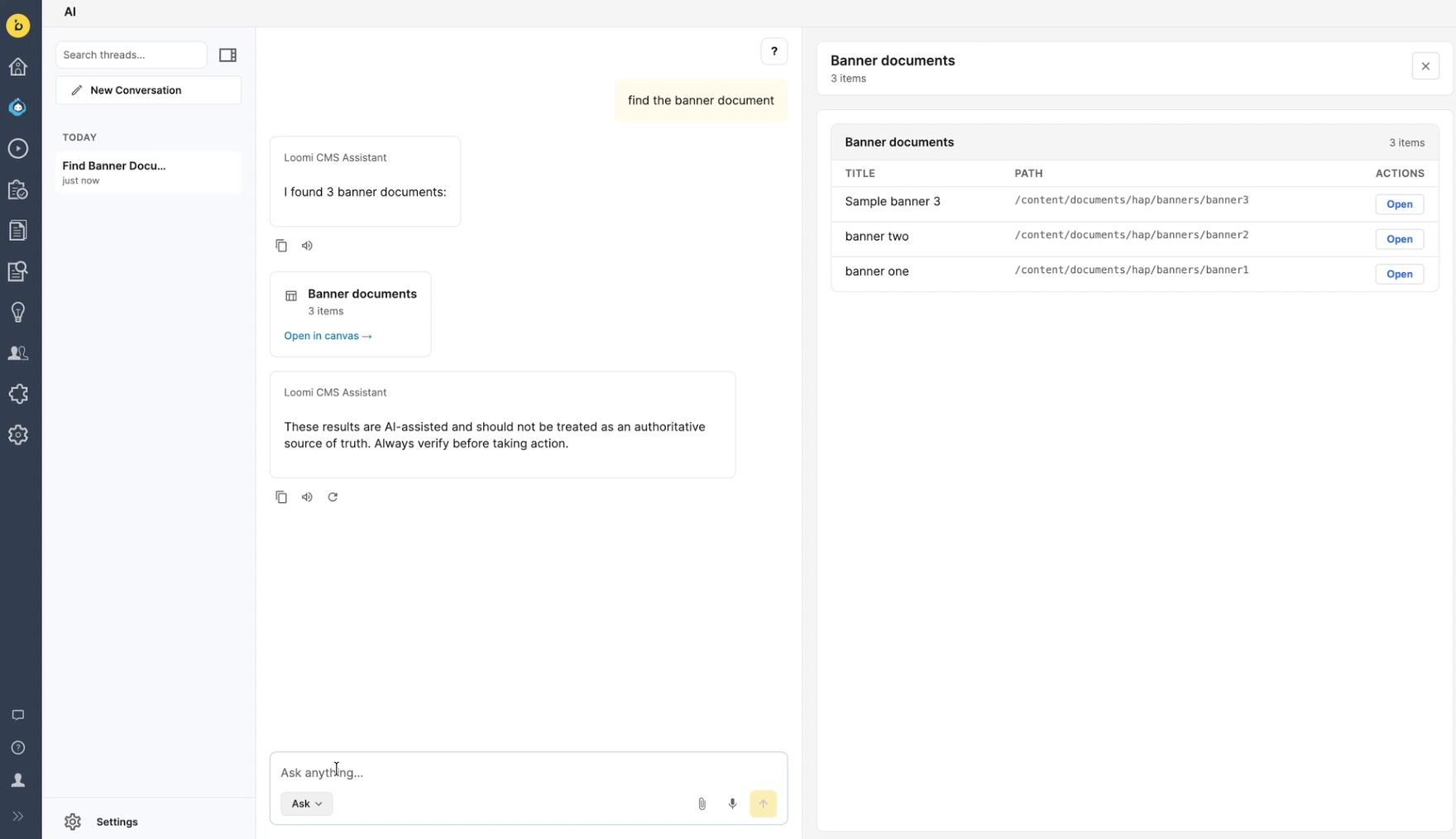
Navigator is CMS Agent's search tool. You describe what you're looking for in everyday language, and Navigator finds the documents for you across your repository.
-
Ask a question — "find pages mentioning our loyalty programme" — and get matching results back immediately, ranked by meaning rather than exact keyword match.
-
Read any result in full, right there in the workspace, without opening it in the editor first.
-
From a result, either open it in the normal editor to make a change by hand, or ask CMS Agent to make the change for you, right from the same conversation, without switching screens.
Results respect your CMS permissions and are drawn from indexed content (published by default, or unpublished if preview mode is enabled — check with your administrator).
Composer
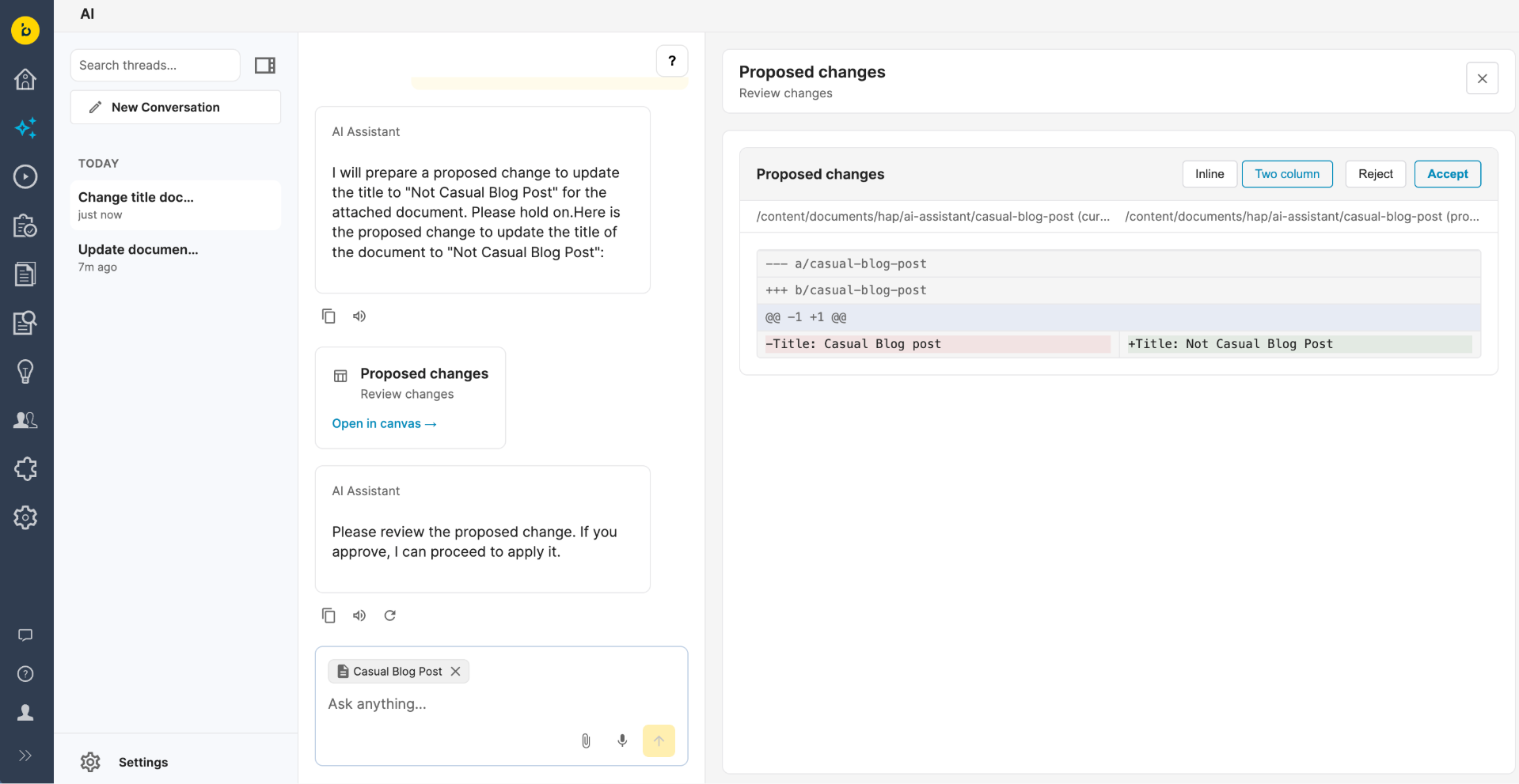
Composer is CMS Agent's content editing tool. You describe the change you want in everyday language, and Composer edits the documents for you — ready to review before it's saved.
-
Describe what you want. For example: "Update the introduction paragraph to mention our new store hours," or "Fix the German translation for the 'checkout' label."
-
CMS Agent writes the change. It shows you exactly what changed, as a clear before/after, right in the conversation.
-
You have the final say. Ask for a different version if it's not quite right. The change is only saved once you explicitly confirm.
Once you confirm, the change is saved as a normal working-copy revision, exactly as if you had typed it into the editor yourself. Publishing is still a separate, manual step, through the normal editor.
What this covers today: adding or changing content within a document or resource bundle that already exists. It doesn't cover pages, images, assets, or taxonomy items, and it can't create a brand-new document for you yet — see Limitations below.
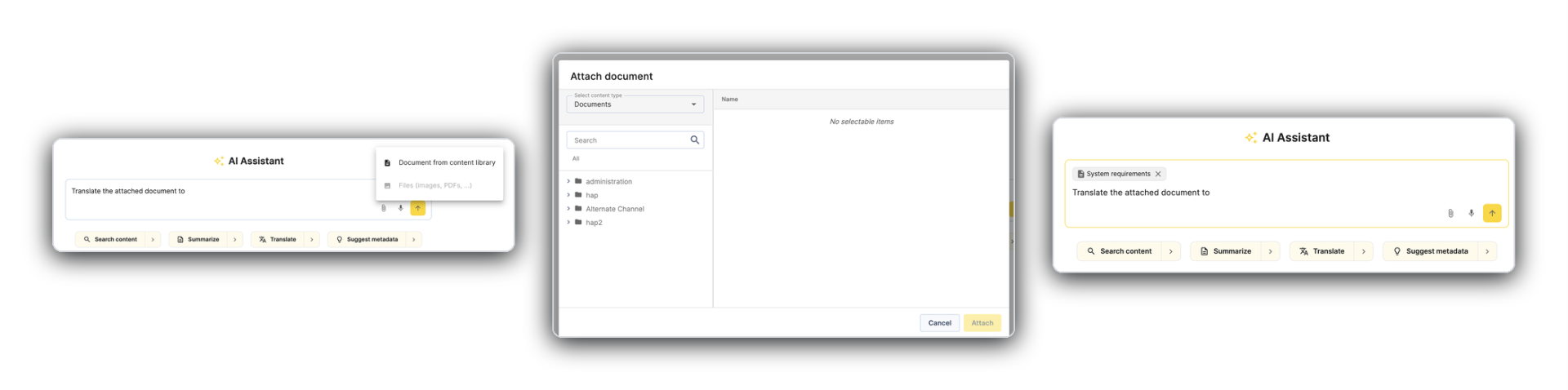
Pick a Document Directly
Already know which document you want to work with? Open the document picker to browse your repository's folder structure directly, or search from inside the picker, and select it. Then ask CMS Agent to find related content or make a change.
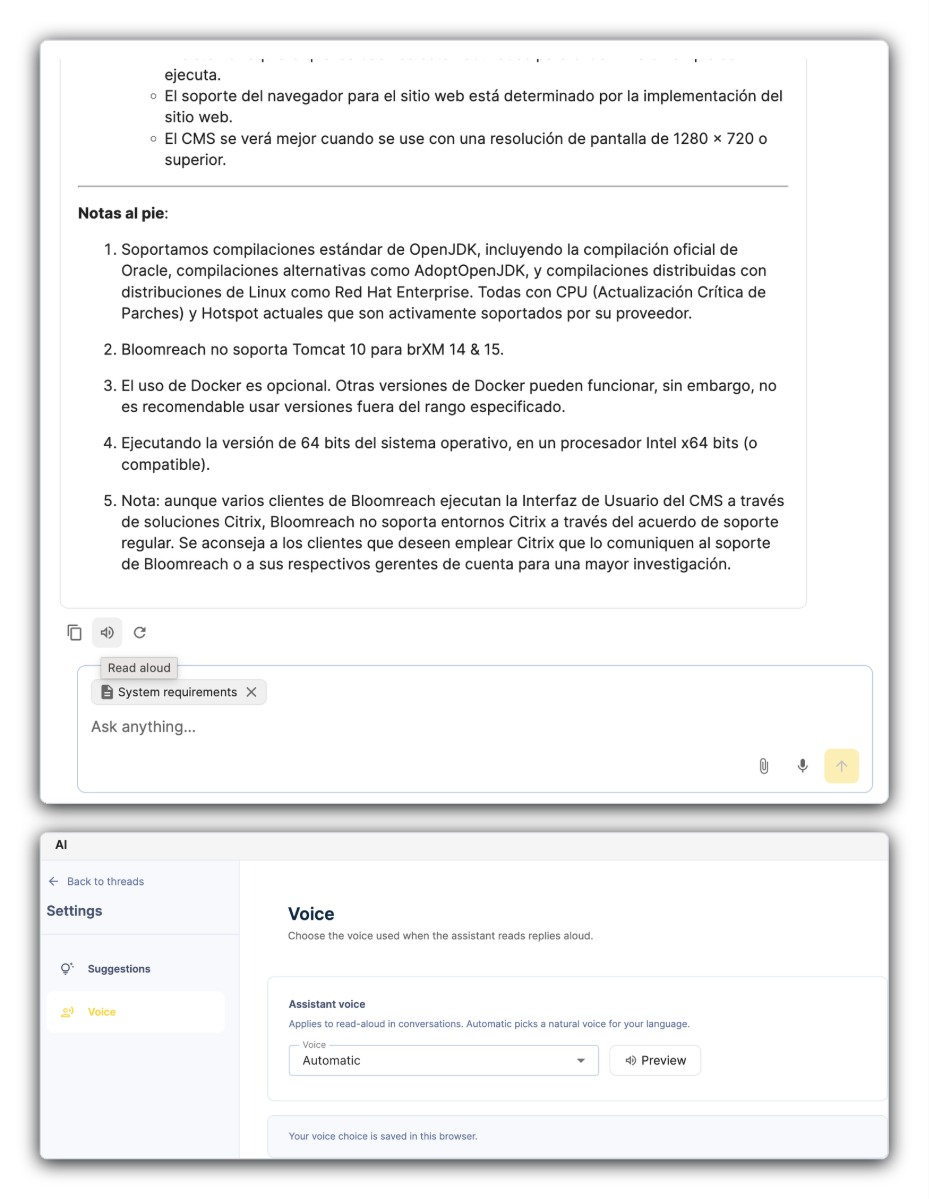
Voice Input and Read-Aloud
-
Dictate instead of typing: use the microphone button in the chat input to speak your request.
-
Have a response read aloud: each response has a read-aloud toggle. Choose which voice reads it from Settings > Voice.
One-Click Shortcuts
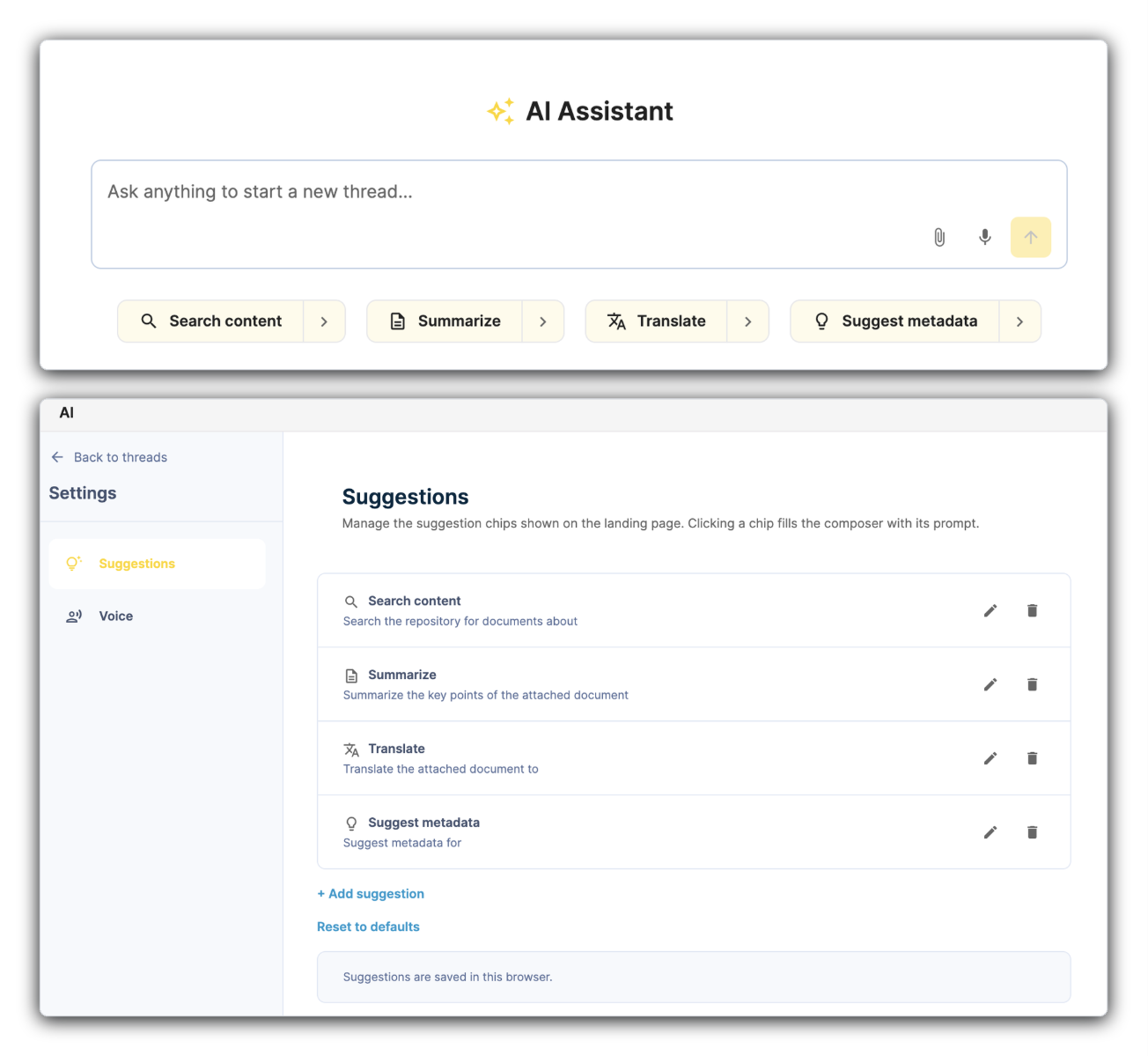
A few ready-made shortcuts fill in a common prompt for you, so you're not retyping it every time:
-
Search content — starts a search.
-
Summarize — asks CMS Agent to summarize a document you attach to the conversation.
-
Translate — asks CMS Agent to translate a document you attach to the conversation.
Go to Settings > Suggestions to edit these, add your own, or remove the ones you don't use.
Note: Shortcuts are currently personal to you and your browser (stored in local storage) — not yet shared across your team.
Accessing and Using AI Perspective
-
Open AI Perspective: Select it from the CMS navigation, alongside Documents, Projects, and Assets.
-
Find or pick your document: Ask in plain language, or use the document picker if you already know what you want.
-
Ask CMS Agent to make a change, or make it yourself: Describe the edit you want and let CMS Agent make it, or open the document in the normal editor to make the change by hand.
-
Review before it's saved: A proposed change is shown as a before/after. Confirm to save it as a working-copy revision, or ask for changes first.
Limitations
-
Composer edits content within a document or resource bundle that already exists — it can't create a brand-new document for you yet. "Create content" here means adding or changing content inside an existing document, not originating a new one from scratch.
-
Composer's edits are limited to documents and resource bundles — not pages, images, assets, or taxonomy items.
-
Confirming a change saves it as a working-copy revision. It doesn't publish the change — publishing remains a manual step through the normal editor.
-
A save can never do more than the signed-in user could already do by hand — it runs in your own CMS session, with your own permissions.
-
One-click shortcuts are personal to your browser today, not yet shared across a team or centrally managed.
-
Navigator's search results are ranked by meaning, not exact match; they're not exhaustive, and aren't suitable for tasks that require complete or verifiable output.