Shopify Connector Configuration
Info: This feature in Bloomreach Content requires a standard or premium license. Contact Bloomreach for licensing details.
Overview
The Shopify connector integrates Bloomreach Content with Shopify using connection settings defined in the .env file. For general information on configuring the brX GraphQL Service, see Configure brX GraphQL Service.
Configuration Options
Configure the following environment variables in your .env file to connect to Shopify:
| Property Name | Description | Example Value(s) | Default Value |
|---|---|---|---|
| SHOPIFY_STOREFRONT_API_BASE_URL | Base URL for the Shopify Storefront API. | https://yourstore.myshopify.com/api/2020-07 | |
| SHOPIFY_STOREFRONT_API_ACCESS_TOKEN | Access token for the Shopify Storefront API. Use this token when creating a ShopifyBuy client with the Shopify Storefront API Javascript SDK, or set it in the X-Shopify-Storefront-Access-Token header for GraphQL requests. | 12345678901234567890123456789012 | |
| SHOPIFY_STOREFRONT_DOMAIN | Merchant domain name for the ShopifyBuy client. | yourstore.myshopify.com | |
| SHOPIFY_ADMIN_API_URL | Base URL for the Shopify Admin API. This API provides access to advanced field data not available through the Storefront API. | https://********:********@yourstore.myshopify.com/admin/api/2020-07 | |
| SHOPIFY_MULTIPASS_SECRET | Secret used to generate Shopify Multipass tokens for federated checkout. | 00123456789012345678901234567890 |
Shopify Private App Setup
The brX GraphQL Service requires access to both the Shopify Storefront API and the Shopify Admin API. To provide these credentials, create a Shopify Private App.
To configure a Private App:
- Enable private app development in the Shopify admin. In the Storefront API section, select Allow this app to access your storefront data using the Storefront API.
- Generate credentials in the Shopify admin.
After creating the private app, store administrators can access the required configuration values and provide the Storefront access token and Admin API URL to system integrators.
Admin API Permission
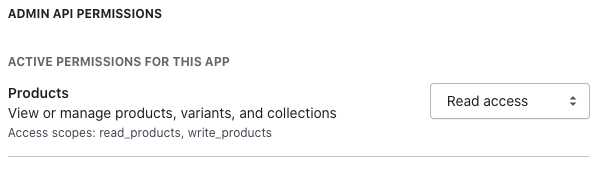
The Shopify connector requires read access to the Products resource in the Admin API. To configure this permission:
- In the Private App configuration, go to the Admin API section.
- Click "Show inactive API Permission".
- Locate the Products entry.
- Set the permission to "Read access".
- Save the configuration.
The Admin API Permissions section should appear as shown below:
Federated Checkout
Info: Federated Checkout is available only to Shopify Plus merchants.
By default, when using the Online Store Sales Channel, customers complete payment on the Shopify storefront checkout page (e.g., https://mystore.myshopify.com/1234567890/checkouts/). Customer login sessions are not shared between your SPA and the Shopify storefront, so customers must log in again on the checkout page. The Accelerator supports "Federated Checkout" using the Shopify Plus Multipass API to enable single sign-on.
To use Federated Checkout:
- Enable Multipass login in your shop admin.
- Set the
SHOPIFY_MULTIPASS_SECRETproperty in your.envfile to the Multipass secret obtained from Shopify.
The checkout process is illustrated below:
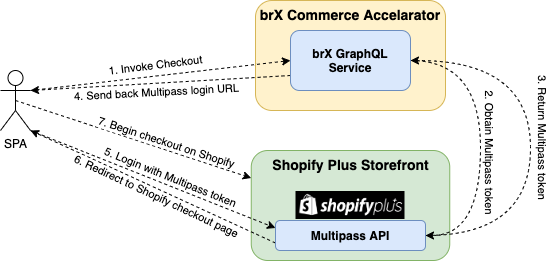
Diagram: The diagram shows the checkout and login flow among three components: an SPA, the brX Commerce Accelerator with the brX GraphQL Service, and the Shopify Plus Storefront with the Multipass API. The sequence is: the SPA calls checkout on the GraphQL service, which requests and receives a Multipass token from Shopify, then returns a Multipass login URL to the SPA. The SPA redirects the customer to Shopify, which authenticates the customer and starts the checkout process.
Federated Checkout Flow
Assuming the customer is already logged into the SPA:
- The SPA initiates checkout by calling the
checkOutmutation on the brX GraphQL Service. - The brX GraphQL Service requests a Multipass token from Shopify using the customer's account information, the configured
SHOPIFY_MULTIPASS_SECRET, and areturn_toURL pointing to the Shopify storefront checkout page. - If the request is valid, Shopify returns a Multipass token.
- The brX GraphQL Service constructs a Multipass login URL (e.g.,
https://mystore.myshopify.com/account/login/multipass/1234567abcdefg) and returns it in thecheckOutmutation response. - The SPA redirects the customer to the Multipass login URL.
- On successful login, Shopify redirects the customer to the configured
return_tocheckout URL. - The customer completes checkout on the Shopify storefront. Cart contents and account information are preserved.
Redirecting from the Shopify "Order Status" Page
After checkout, Shopify displays the Order Status page:
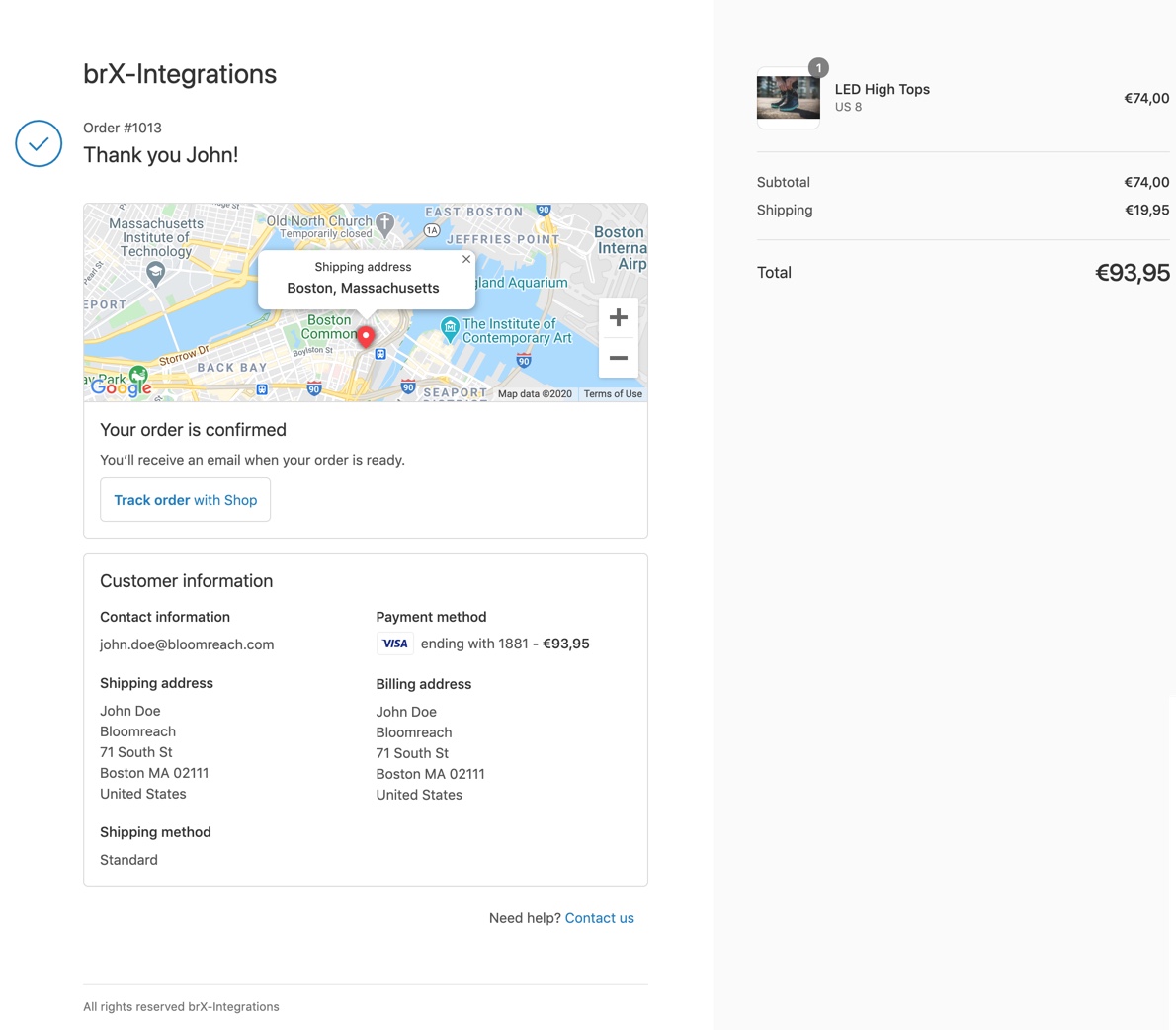
To redirect customers back to your SPA from the Order Status page:
- Add HTML or JavaScript in the Additional scripts field to insert a button or automatic redirect to your front-end.
- If you are a Shopify Plus merchant, you can modify the checkout.liquid template to customize the entire checkout process, including the Order Status page. Note that the checkout and Order Status are part of the same template.