GraphQL Schema of brX GraphQL Service
Info: This feature requires a standard or premium Bloomreach Content license. Contact Bloomreach for details.
Overview
You can review the brX GraphQL Service schema using the GraphQL Playground or by browsing the generated HTML schema documentation.
The brX GraphQL Service is built on Apollo Server, which includes the GraphQL Playground. The Playground provides an interactive browser-based IDE for exploring the schema, running queries, and testing mutations.
Developers can use these tools to inspect available types, queries, and mutations, and to execute requests against the brX GraphQL Service.
Exploring the GraphQL Schema with GraphQL Playground
Enabling GraphQL Playground
To enable the GraphQL Playground for the brX GraphQL Service during development, set the following environment variables in your .env file:
NODE_ENV=development
APOLLO_INTROSPECTION=true
APOLLO_PLAYGROUND=true
For details about each environment variable, see Configure GraphQL Service.
Accessing the GraphQL Playground
After updating the environment variables and restarting the brX GraphQL Service, access the GraphQL Playground at /graphql (for example, http://localhost:4000/graphql):
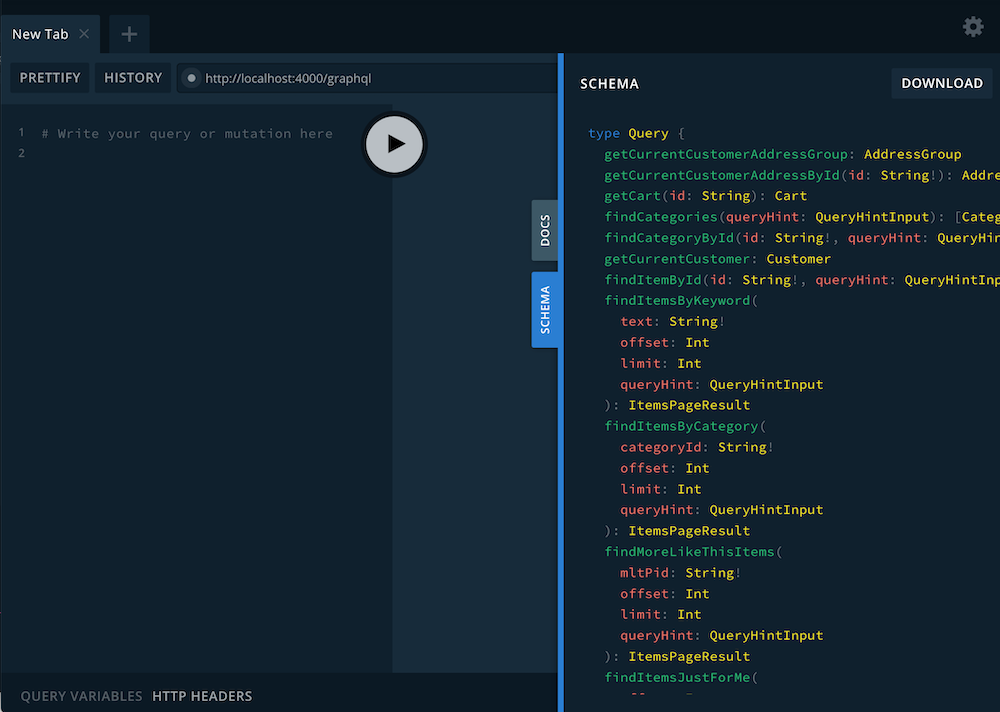
Within the GraphQL Playground, you can:
- Inspect the schema types and fields exposed by the brX GraphQL Service.
- Review available queries and mutations.
- Execute queries and mutations directly in the editor pane and view responses.
Using the GraphQL Playground
Autocompletion in the Editor
In the query or mutation editor pane, start typing query or mutation followed by a space. Use the autocompletion shortcut for your system (Shift+Space or Ctrl+Space) to display all available queries, mutations, and field names. This feature helps you discover the schema and available operations efficiently.
Setting HTTP Headers
Each GraphQL request must include both authorization and connector HTTP headers. When working in the GraphQL Playground, set headers as follows:
{ "connector": "<CONNECTOR_ID>", "authorization":"Bearer <ACCESS_TOKEN>" }
Replace <CONNECTOR_ID> with the connector you want to use (for example, commercetools or sap).
Replace <ACCESS_TOKEN> with the value of the authorization property from the authentication response.
To obtain an access token, use a command such as:
curl -i -d '{"username":"<USERNAME>", "password":"<PASSWORD>"}' -H 'Content-Type: application/json' -H 'connector: <CONNECTOR_ID>' https://localhost:4000/signin
HTTP/1.1 200 OK
...
Content-Type: application/json; charset=utf-8
...

{"authorization":"eyJlbmMiOi..."}
Exploring the GraphQL Schema in HTML Documentation
If you have an enterprise license, you can download and extract the brX GraphQL Service source. Open the docs/schema/index.html file in your browser to view the schema documentation. This HTML documentation provides detailed descriptions of each API and model type.
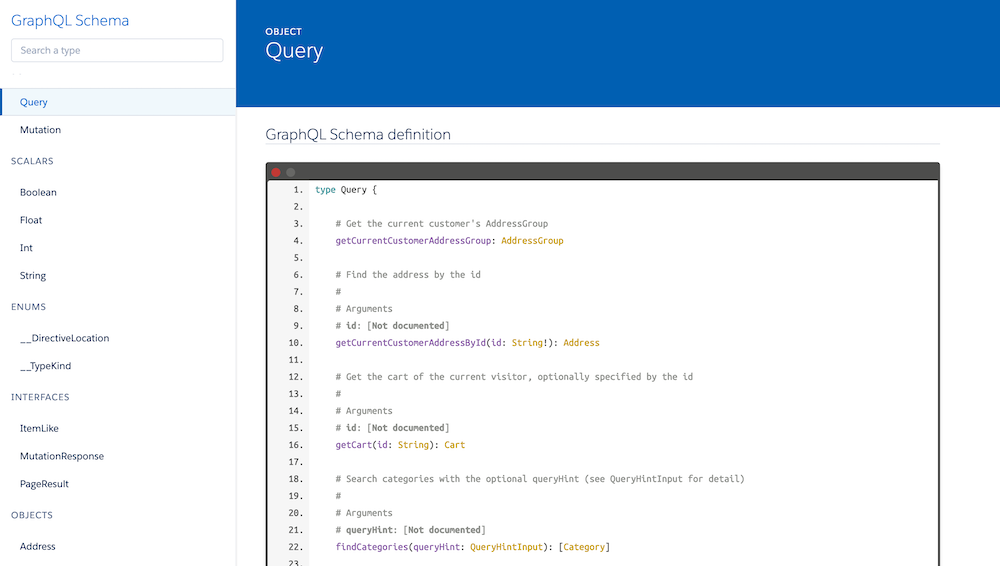
Data Mapping for Bloomreach Discovery
For details on how Bloomreach Discovery data maps to the GraphQL schema, see: