Content Vulnerability Dashboard - User Guide
Overview
The Security Vulnerability Dashboard provides a centralized interface to track and monitor security vulnerabilities across Bloomreach CMS versions. The dashboard aggregates vulnerability data from OWASP Dependency-Check scans and supplements it with remediation status from Jira tickets.
Info: The dashboard is available only with Premium Support. To request access, contact Bloomreach Support or your Account Manager.
Purpose
Security vulnerabilities in software dependencies can expose your systems to risk. The dashboard enables you to:
- View known vulnerabilities relevant to your CMS version
- Prioritize remediation based on severity (Critical, High, Medium, Low)
- Track remediation status using linked Jira tickets
- Make informed decisions about upgrades and patches
Dashboard Benefits
| Benefit | Description |
|---|---|
| Transparency | Review vulnerabilities reported for the latest supported CMS release branches |
| Risk Assessment | Assess severity to prioritize security work |
| Fix Timelines | See target fix versions for vulnerabilities |
| Self-Service | Check vulnerability status without waiting for support responses |
| Compliance Support | Export data for security audits and compliance reporting |
Getting Started
Accessing the Dashboard
Info: Only customers with Premium Support can access the dashboard. To request credentials, contact Bloomreach Support or your Account Manager.
- Go to the dashboard
- Log in with the username and password provided by your administrator
- After authentication, you will be redirected to the dashboard
Dashboard Features
Dashboard View After Selecting a Version
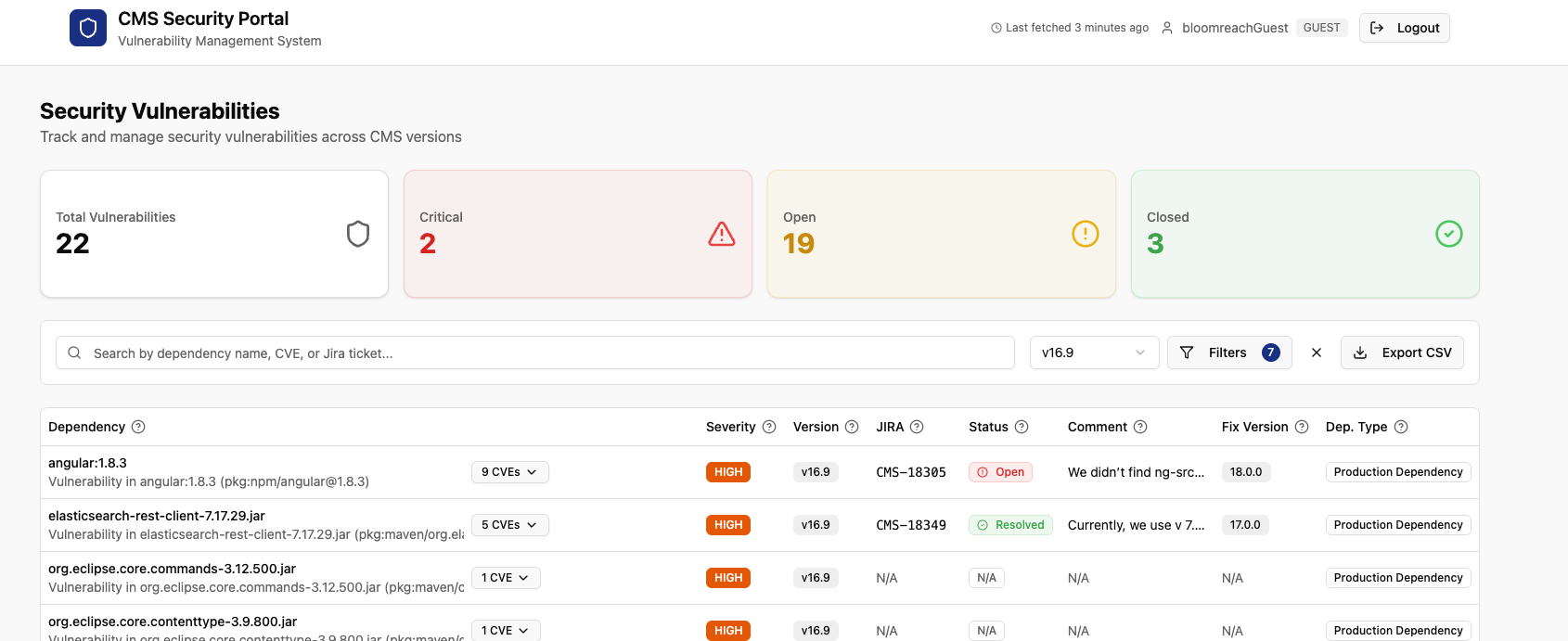
After logging in, the dashboard displays:
- Statistics Cards: Total vulnerabilities, Critical count, Open issues, Resolved count
- Filters: Version, Severity, Status, Dependency Type, Search
- Vulnerability Table: Paginated list with CVE ID, Title, Severity, Status, Version
Statistics Overview
The dashboard header provides key metrics:
| Metric | Description |
|---|---|
| Total Vulnerabilities | Count of vulnerabilities in the filtered results |
| Critical | Issues with the highest severity that require immediate attention |
| Open | Vulnerabilities that have not been resolved |
| Resolved | Issues that have been addressed (see Comments for details) |
Filtering Vulnerabilities
Use filters to refine the vulnerability list:
| Filter | Options | Example Use |
|---|---|---|
| Version | All supported releases | "Show vulnerabilities in v16" |
| Severity | Critical, High, Medium, Low | "Show only Critical and High issues" |
| Status | Open, In Progress, Resolved | "Show open vulnerabilities" |
| Dependency Type | Production, Developer | "Show only production dependencies" |
| Search | Free text | Search by CVE ID, component name, or Jira ticket |
You can combine filters. For example, use "v16 + Critical + Open" to display unresolved critical issues in version 16.
Viewing Vulnerability Details
Select any row in the vulnerability table to view details:
- CVE Information: Official CVE ID, title, and description
- Affected Component: The vulnerable library or dependency
- Evidence: Links to CVE databases and security advisories
- Jira Ticket: Linked issue with status, fix version, and planned release date
- References: Additional resources and documentation
Important: Review the Comments section in the vulnerability detail view to determine if a vulnerability is fixable. Comments provide context such as:
- Whether the vulnerability is exploitable in the Bloomreach context
- If remediation is blocked by upstream dependencies
- Available workarounds or mitigations
- Reasons for a "Won't Fix" status
Exporting Data
Select Export CSV to download the current filtered view. The export includes:
- CVE ID and title
- Severity and status
- CMS version
- Affected component
- Jira ticket (if available)
Common Use Cases
Use Case 1: Determine if a CVE Affects an Installation
Scenario: "Does CVE-2024-1234 affect our v15 installation?"
Steps:
- Log in to the dashboard
- Select v15 in the Version filter
- Enter CVE-2024-1234 in the search box
- If the CVE appears, select it to view details and remediation status
- If not listed, the OWASP scanner has not flagged this CVE for v15. This does not guarantee the version is unaffected.
Use Case 2: Generate a Security Report for Critical Production Issues
Scenario: "I need a report of all critical issues in production."
Steps:
- Set filters:
- Severity: Critical
- Dependency Type: Production
- Review the filtered results
- Select Export CSV to download the data
- Use the CSV file for reporting or audit purposes
Use Case 3: Compare Security Posture Across Versions
Scenario: "What is the security posture of each CMS version?"
Steps:
- For each version (v14, v15, v16, v17):
- Select the version filter
- Record statistics for Total, Critical, Open, and Resolved vulnerabilities
- Compare the results to identify the most secure version
Use Case 4: Check if a Fix is Planned
Scenario: "Is a fix planned for this vulnerability?"
Steps:
- Locate the vulnerability in the list
- Select it to view details
- Review the Jira Ticket section:
- Status: Indicates if work is in progress
- Fix Version: Target release for the fix
- Review the Comments section for information about fixability, blockers, or alternative mitigations
Understanding Vulnerability Data
Severity Levels
| Level | CVSS Score | Description |
|---|---|---|
| Critical | 9.0 - 10.0 | Requires immediate action. Can be exploited remotely with severe impact. |
| High | 7.0 - 8.9 | High priority. Significant risk that should be addressed promptly. |
| Medium | 4.0 - 6.9 | Moderate risk. Address during regular maintenance cycles. |
| Low | 0.1 - 3.9 | Minor risk. Address when feasible. |
Status Definitions
| Status | Description |
|---|---|
| Open | Vulnerability identified; not yet under remediation |
| In Progress | Remediation work is underway |
| Resolved | Vulnerability has been addressed (see Comments for details) |
| N/A | No Jira ticket linked. The vulnerability was detected by the OWASP scanner but has not yet been triaged or tracked in Jira. Jira Ticket, Status, and Fix Version will display N/A. |
Important: "Resolved" status does not always mean a code fix was applied. The Jira ticket's Resolution field provides the actual outcome. Common Jira resolutions:
- Fixed: Code fix applied and tested
- Won't Fix: Risk accepted; issue will not be fixed (e.g., version is EOL or unsupported)
- Won't Do: No action will be taken
- Invalid: False positive or not applicable to Bloomreach usage
- Duplicate: Already tracked by another ticket
- Cannot Reproduce: Vulnerability could not be verified
- Outdated: Refers to a deprecated component or version
- Probably fixed, check next version: Likely resolved by an upstream release
Always review the Comments section in the vulnerability detail view for the specific resolution.
Dependency Types
| Type | Description |
|---|---|
| Production | Used at runtime; affects deployed applications |
| Development | Used only internally by Bloomreach; does not pose risk to customers |
OWASP Dependency-Check
- Scans CMS dependencies automatically
- Identifies known CVEs in libraries
- Runs on each CMS version branch
- Updated regularly via Jenkins jobs
Frequently Asked Questions
How often is the data updated?
Data is refreshed when an administrator selects the "Refresh" button. This action retrieves the latest OWASP scan results from Jenkins and current ticket status from Jira.
Why do I see the same CVE multiple times?
A vulnerability may appear for each CMS version it affects. Use the Version filter to view results for a specific version.
Can I receive notifications about new critical vulnerabilities?
Currently, the dashboard does not provide notifications. You must check the dashboard for updates.
Who should I contact for access?
Contact your Account Manager or the Bloomreach Support team to request dashboard credentials.
How can I determine if a vulnerability is fixable?
Review the Comments section in the vulnerability detail view. Comments provide:
- Engineering assessments regarding fixability
- Dependencies on upstream library releases
- Applicability to Bloomreach usage
- Available workarounds or configuration changes
- Explanations for "Won't Fix" decisions
Does "Resolved" mean the vulnerability is fixed?
Not always. "Resolved" indicates the vulnerability has been addressed, but the actual outcome depends on the Jira ticket resolution. Common resolutions include:
- Fixed: Code fix applied
- Won't Fix: Risk accepted; no fix planned (often for EOL or unsupported versions)
- Won't Do: No action will be taken
- Invalid: False positive or not applicable
- Duplicate: Already tracked by another ticket
- Cannot Reproduce: Vulnerability could not be verified
- Outdated: Refers to a deprecated component or version
- Probably fixed, check next version: Likely resolved by an upstream release
A Jira ticket may be used to track investigation and then closed after assessment. Always review the Comments section for the actual resolution.
The vulnerability details do not load. What should I do?
- Check your network connection
- Refresh the page
- Clear your browser cache
- Contact support if the issue continues
What does N/A mean in the Jira Ticket, Status, or Fix Version columns?
N/A indicates that no Jira ticket has been linked to the vulnerability. The OWASP scanner detected the CVE, but it has not yet been triaged or assigned a tracking ticket. Until a ticket is linked, Jira Ticket, Status, and Fix Version will display N/A.
Report an Issue or Suggestion
For assistance with the dashboard or questions about vulnerabilities:
- Vulnerability Questions: Contact Bloomreach Support
- Feature Requests: Submit requests through your Account Manager