CMS agent User Guide
Bloomreach's CMS agent makes it easier to find, write and edit content in our content application. Describe what you need in everyday language, and the CMS agent helps you with:
-
content assistant: works alongside you as you write, and gives you suggestions on your documents, such as a summary, a translation or better wording.
-
navigator: finds the content you need across your repository.
-
composer: edits your documents for you to review and accept.
You review every change, and publishing stays a separate step. The CMS agent works with the AI model your team has configured.
Note: In 17.4, the AI Content Assistant was renamed to the CMS agent. The navigator was earlier called Search Agent. This guide uses the current names for all versions.
Info: The CMS agent is available in version 16.4.0 and later. A standard or premium license is required, and access is controlled by the
xm.chatbot.userrole. If you don't see the CMS agent, ask your administrator to enable it.
Find the Section for Your Version
What you can do with the CMS agent depends on your version.
| Your version | Where you use the CMS agent | Section |
|---|---|---|
| 17.4 and later | In AI Perspective and in the document editor. Both have the same interface. | 17.4 and later |
| 17.3 | In AI Perspective, where it edits documents, and in the document editor, where it suggests content | 17.3 |
| 16.4 to 17.2 | In the document editor, where it suggests content | 16.4 to 17.2 |
Use the CMS agent (17.4 and later)
Where You Work with the CMS agent
You can use the CMS agent in two places. Both have the same chat, conversation threads, result cards and change review.
-
AI Perspective: select CMS agent in the CMS navigation menu. Use it for work across your repository, such as searching or editing several documents.
-
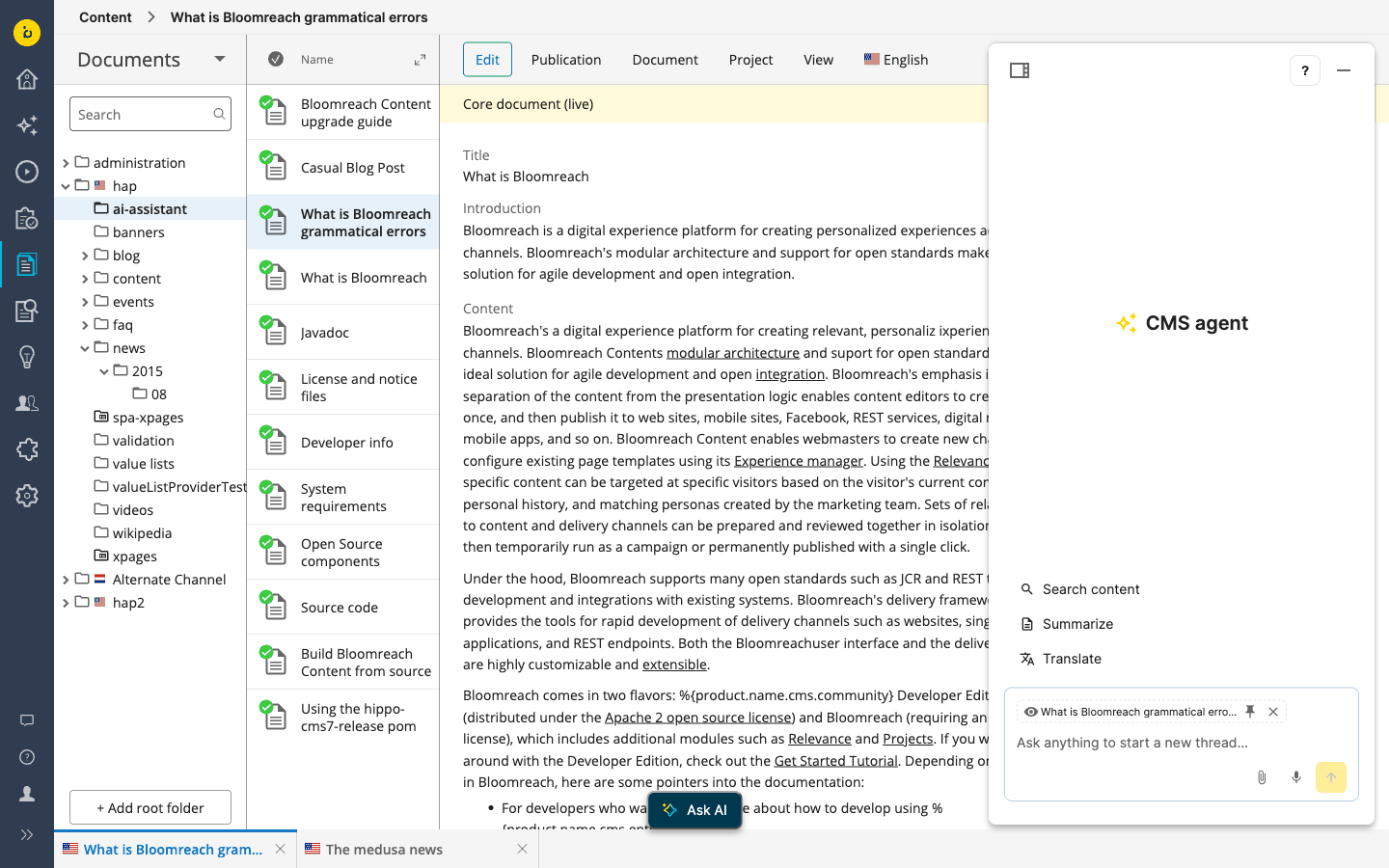
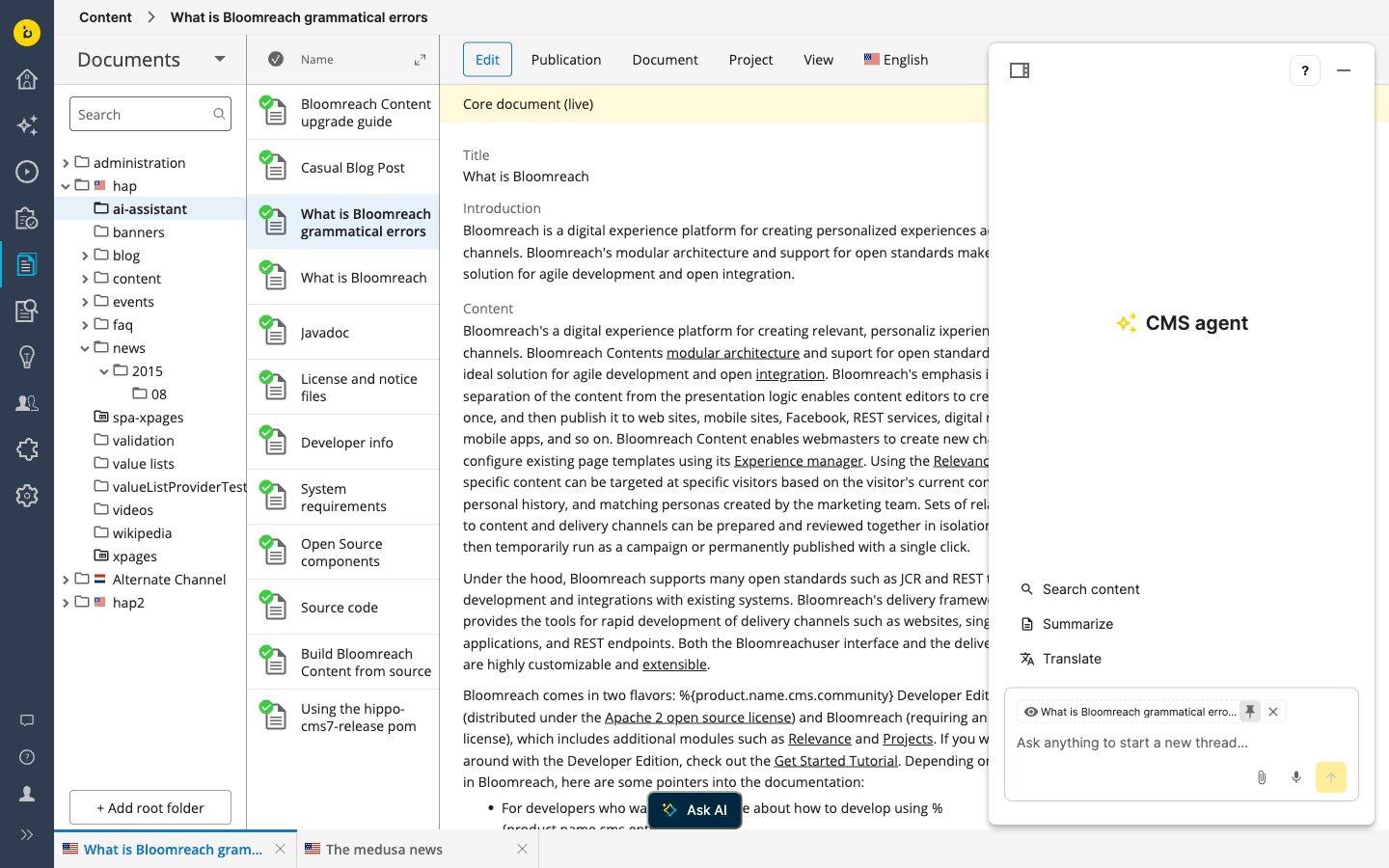
In the document editor: open a document and select the Ask AI button. The chat panel opens next to the editor, with your document already attached.
Write and Improve Content Faster
Ask the content assistant to work on your text, for example:
-
Summarize a long document for a teaser, social post or overview.
-
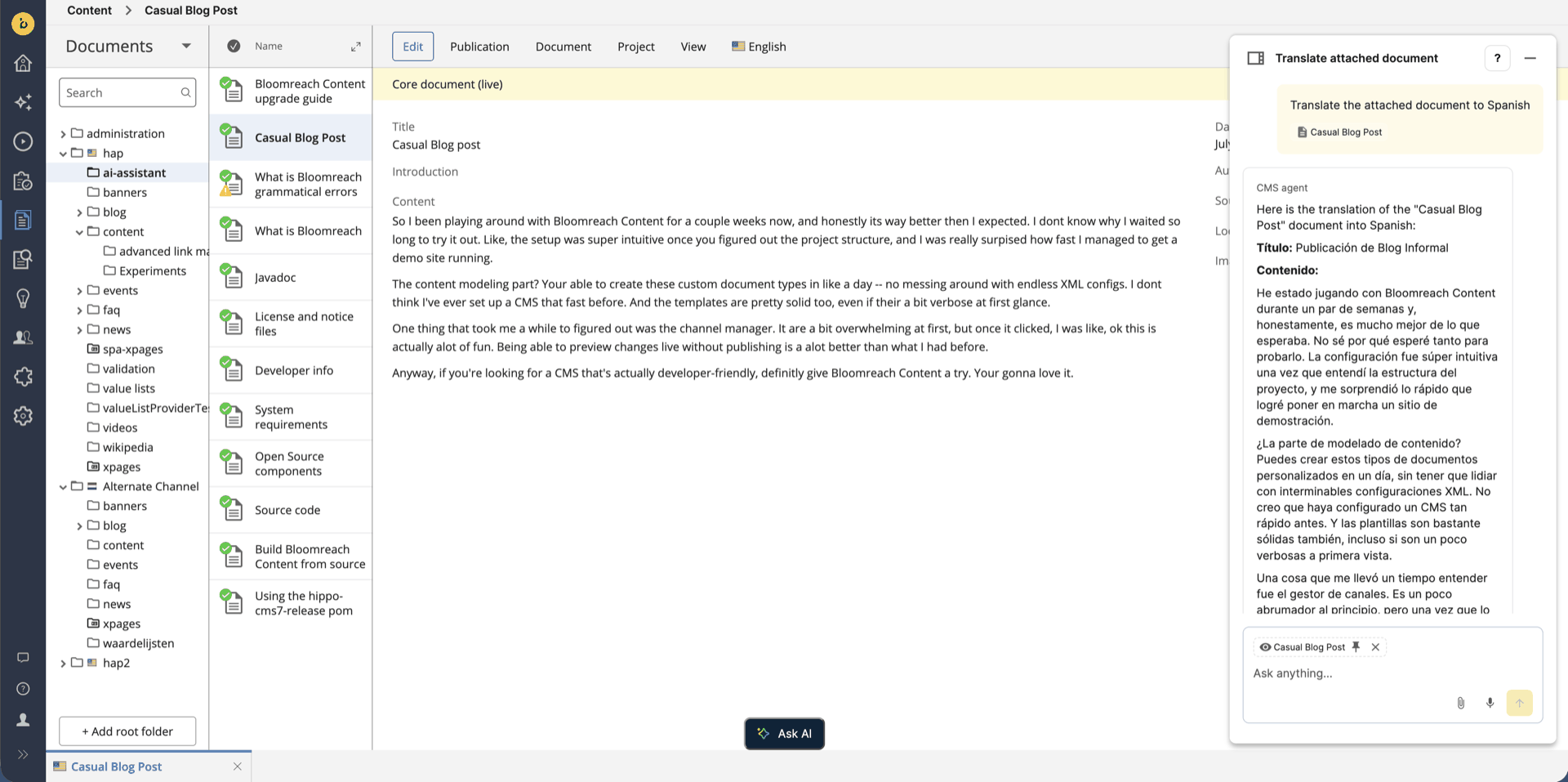
Translate content into another language.
-
Expand a short draft, or rewrite it to read more easily.
-
Check spelling and grammar.
-
Suggest tags, keywords and SEO improvements.
-
Check that the tone matches your brand voice.
Find the Content You Need
Describe what you're looking for, and the navigator searches your repository by meaning, not only by exact words. You can narrow the search by:
-
document type, for example "news articles"
-
locale, for example "product pages with “de” locale"
-
folder, for example "banners in the summer campaign folder"
Attribute filtering is under active development. For language, use the exact locale code, for example "docs with locale 'en'". Date ranges can't be used as filters in 17.4.
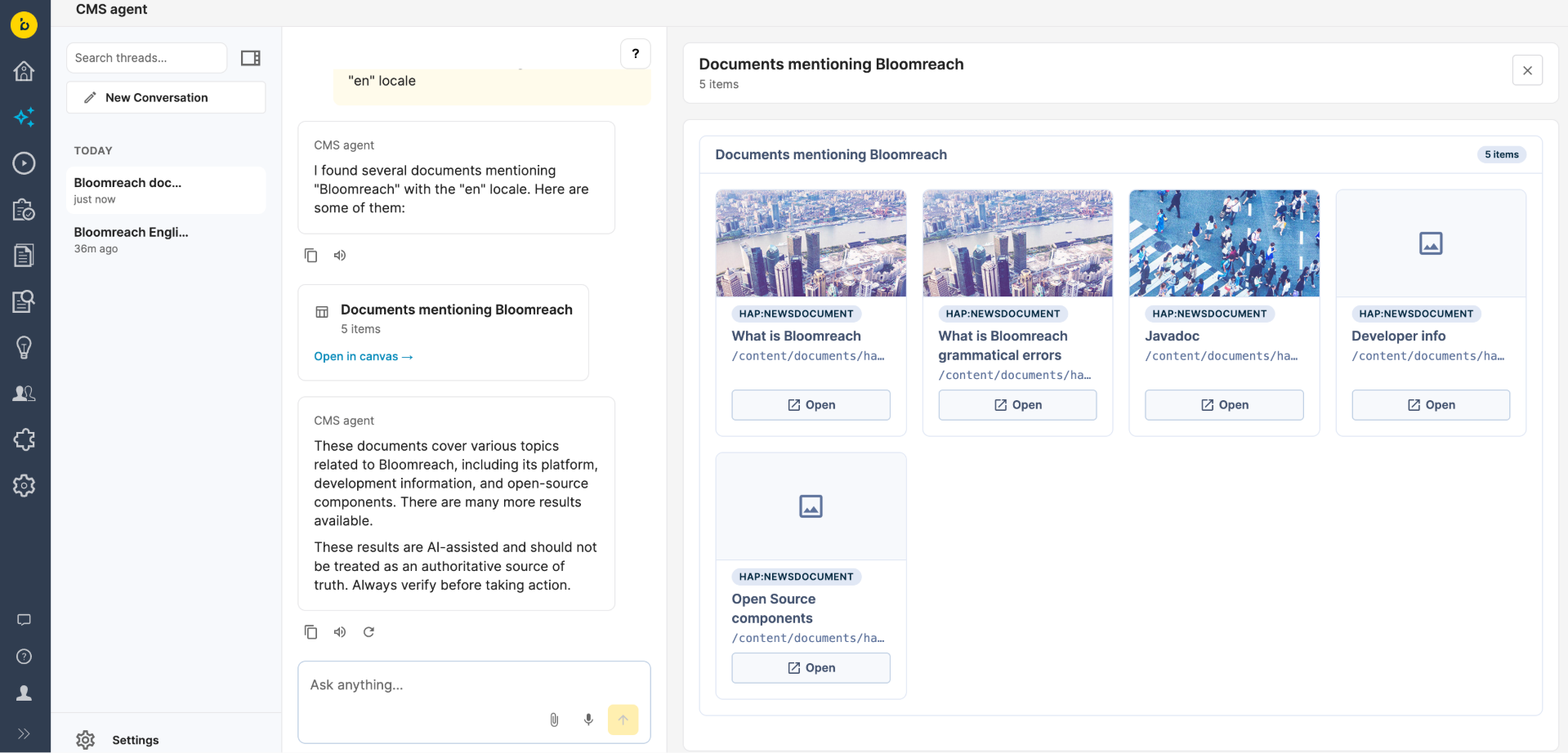
Results appear as a document list, or as an image grid when the documents have images. Select a result to open it in the editor.
-
Results respect your CMS permissions.
-
The navigator searches the content your administrator has indexed: published content by default, or unpublished content if preview mode is set up. New or changed documents can take a few minutes to appear.
Let the CMS agent Edit Your Documents
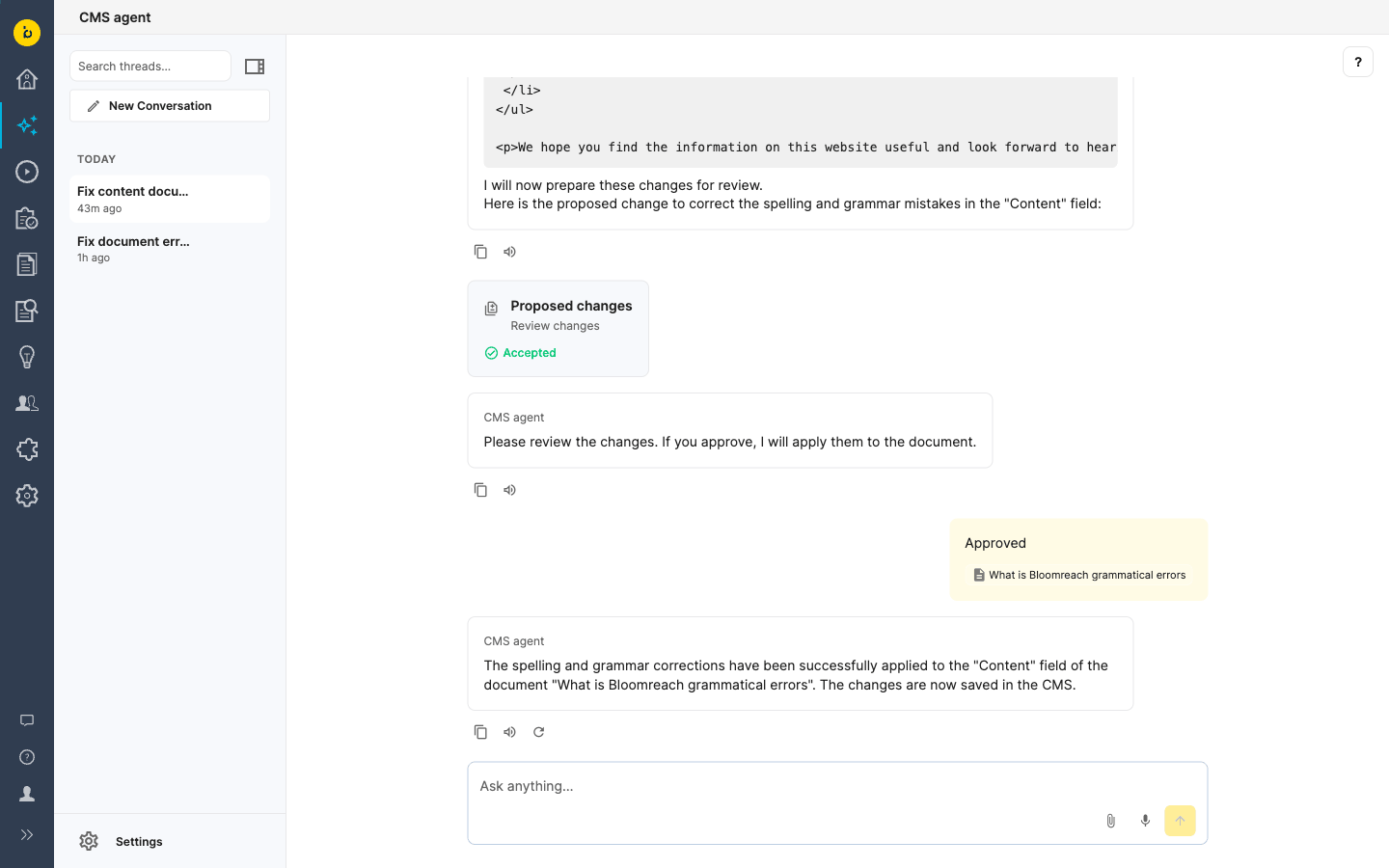
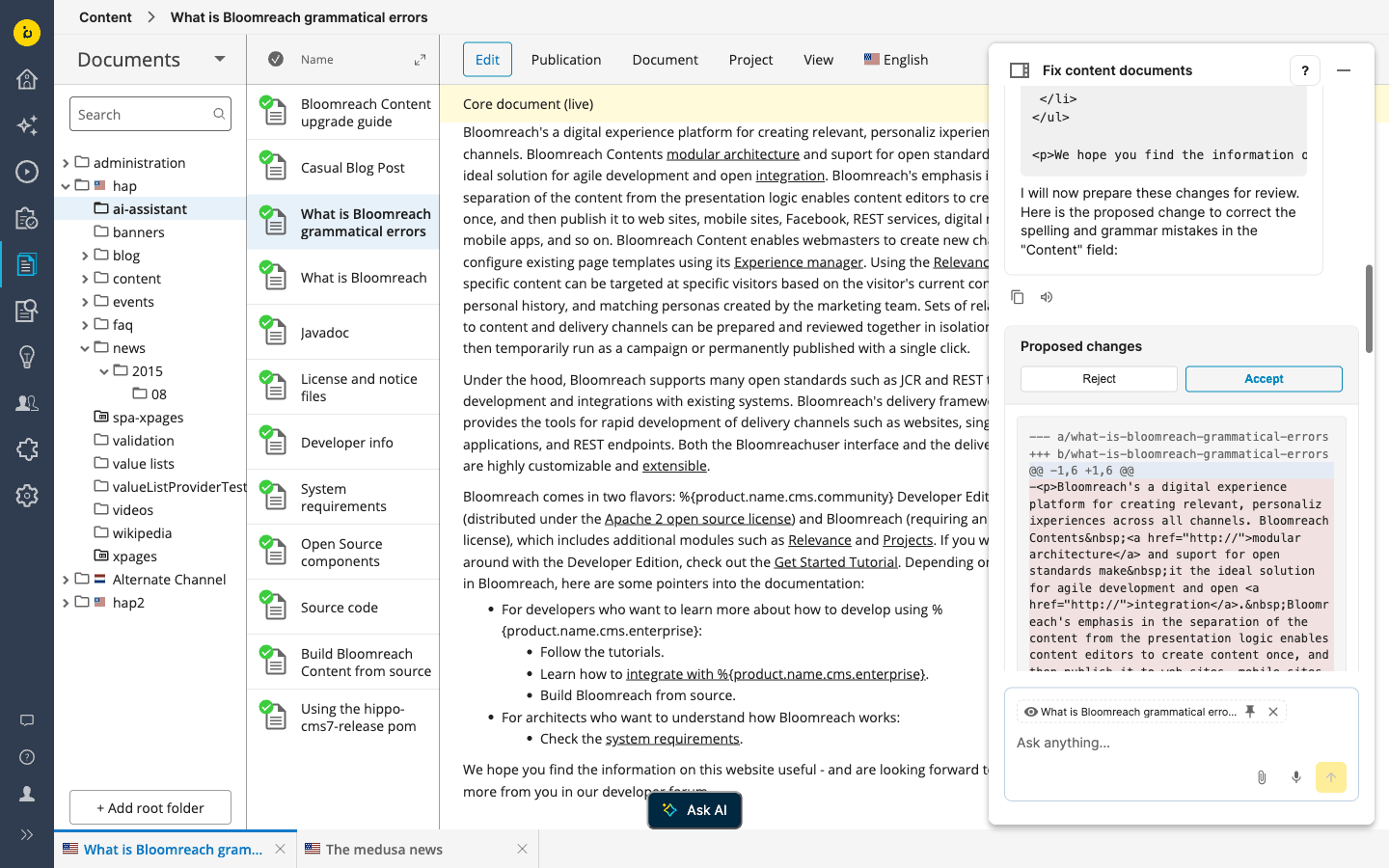
Describe the change you want, for example "Rewrite the teaser to be more concise" or "Fix the German translation of the checkout label". The composer edits the document and shows the result as Proposed changes, with the changed fields next to the original.
-
Select Accept, and the CMS agent applies the edit to the document. It's saved as a draft, the same as if you'd typed it yourself.
-
Select Reject, and the document stays as it is.
-
If you send another message before you select Accept or Reject, the proposal is marked Outdated and can't be accepted any more. Ask the CMS agent again to apply the edit.
Publishing stays a separate step in the editor.
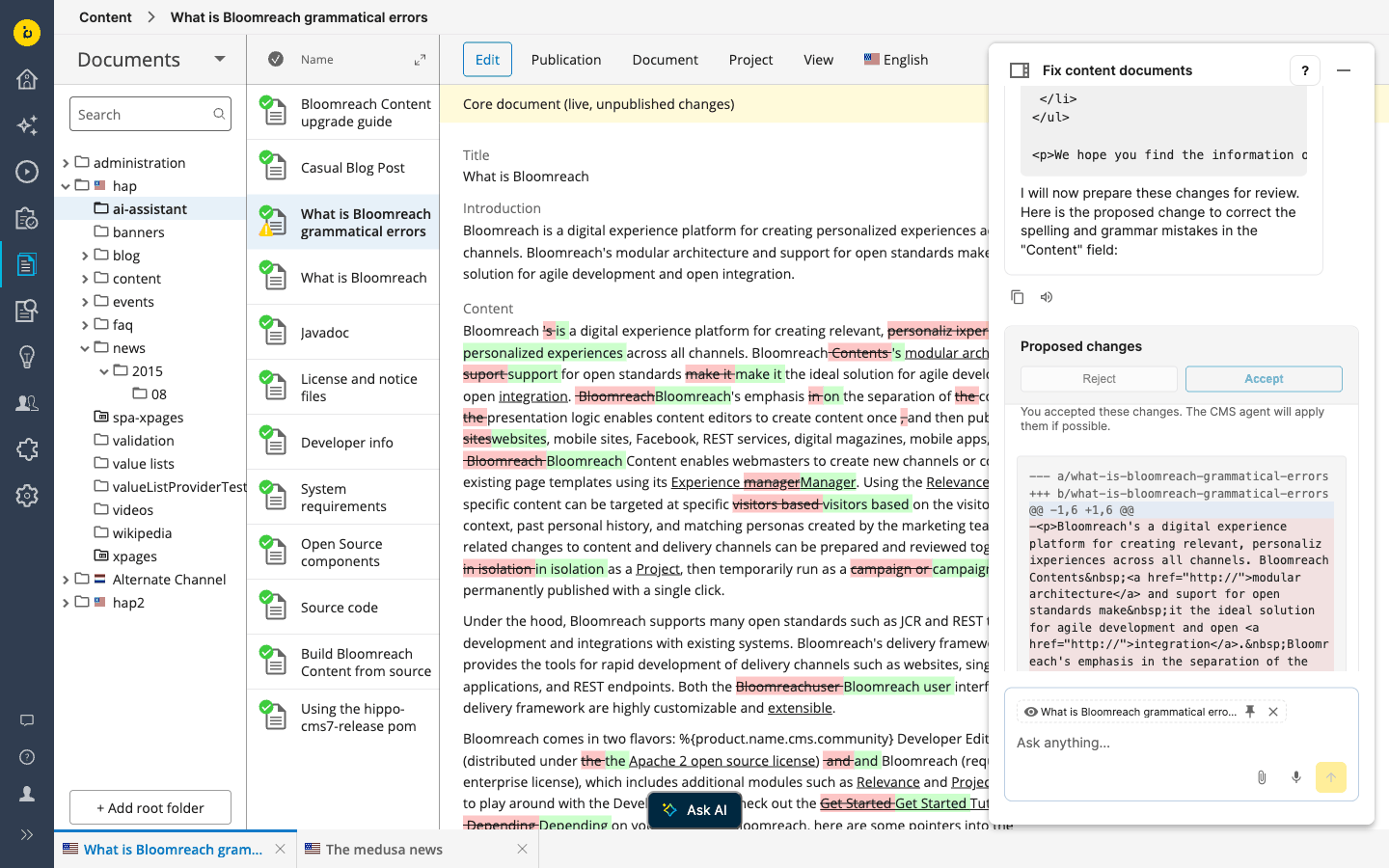
Working in a project? In the document editor, when the document you have open is part of a project, the CMS agent reads and edits it in that project, not in the main channel. The edit is reviewed and merged with the rest of the project's changes. In AI Perspective, the CMS agent works with documents in the main channel only. See AI module projects support.
Use Information from Your Other Systems
Your developers can connect the CMS agent to other systems your team uses, such as a product information system or a brand knowledge base. You can then ask for that information in the same chat, in AI Perspective and in the document editor. If a connected system isn't available, the CMS agent tells you. See Connect MCP Servers.
Start from a Suggestion
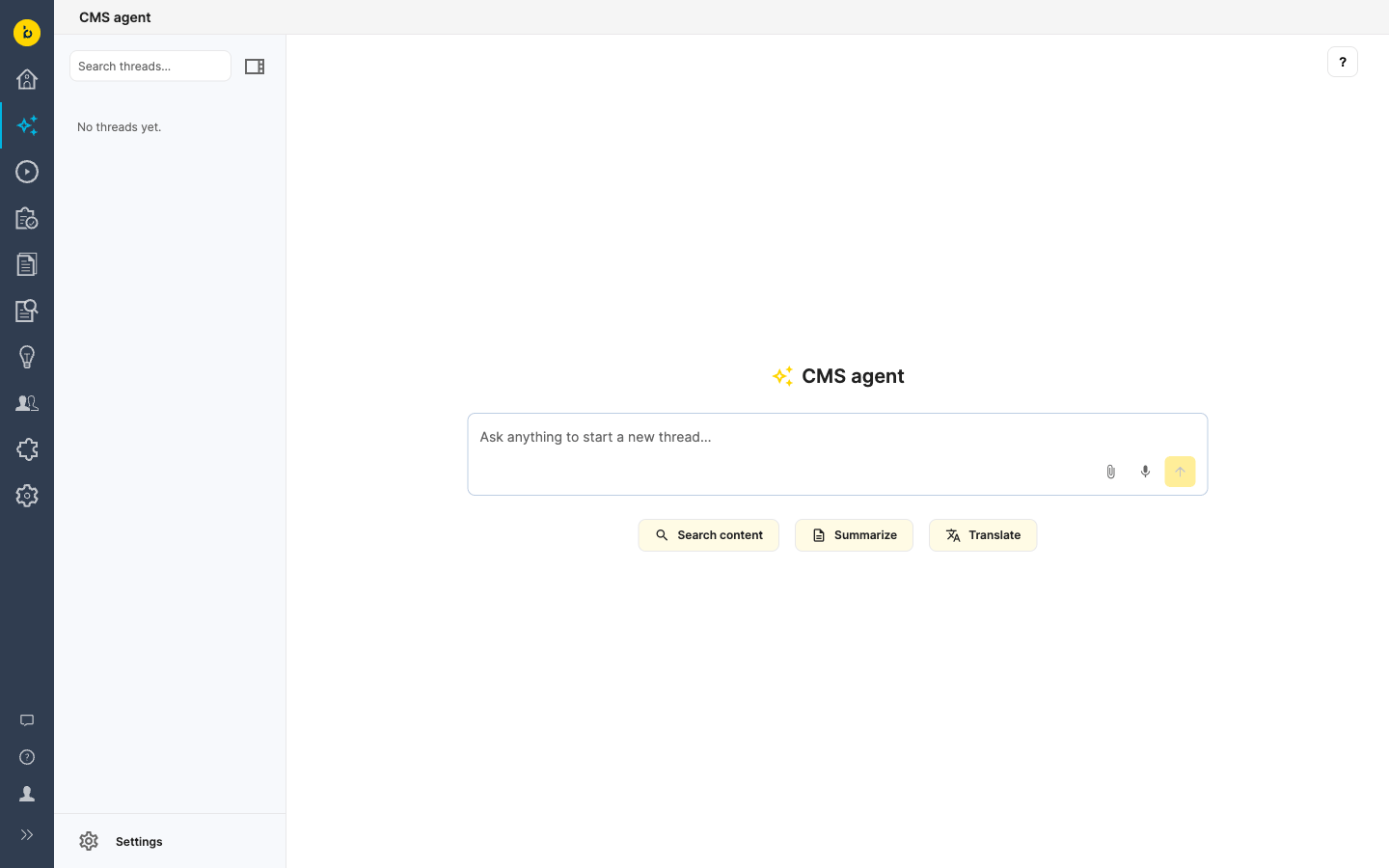
The start screen shows suggestions, such as Search content, Summarize and Translate. Select one to fill in its prompt, then finish the sentence. To add, edit or remove suggestions, go to Settings > Suggestions.
Give the CMS agent the Right Documents
-
In the document editor, the document you have open is attached automatically. Your edits are saved first, so the CMS agent reads your latest version. Select Keep attached to keep it in the conversation when you open another document.
-
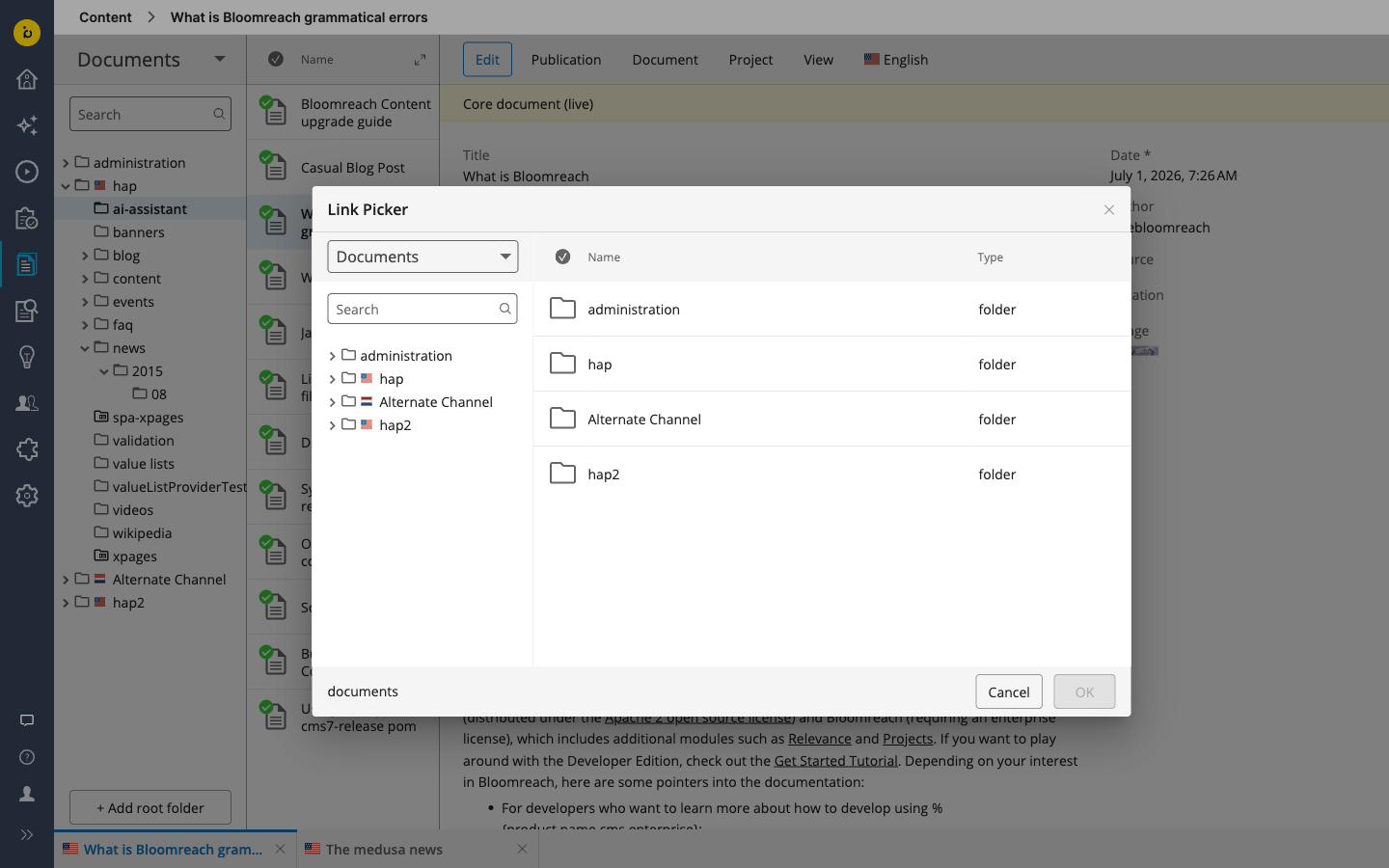
Select Attach to add documents from the content library, for example a style guide to follow or a source text to translate. Select Remove to take one out.
Keep Track of Your Conversations
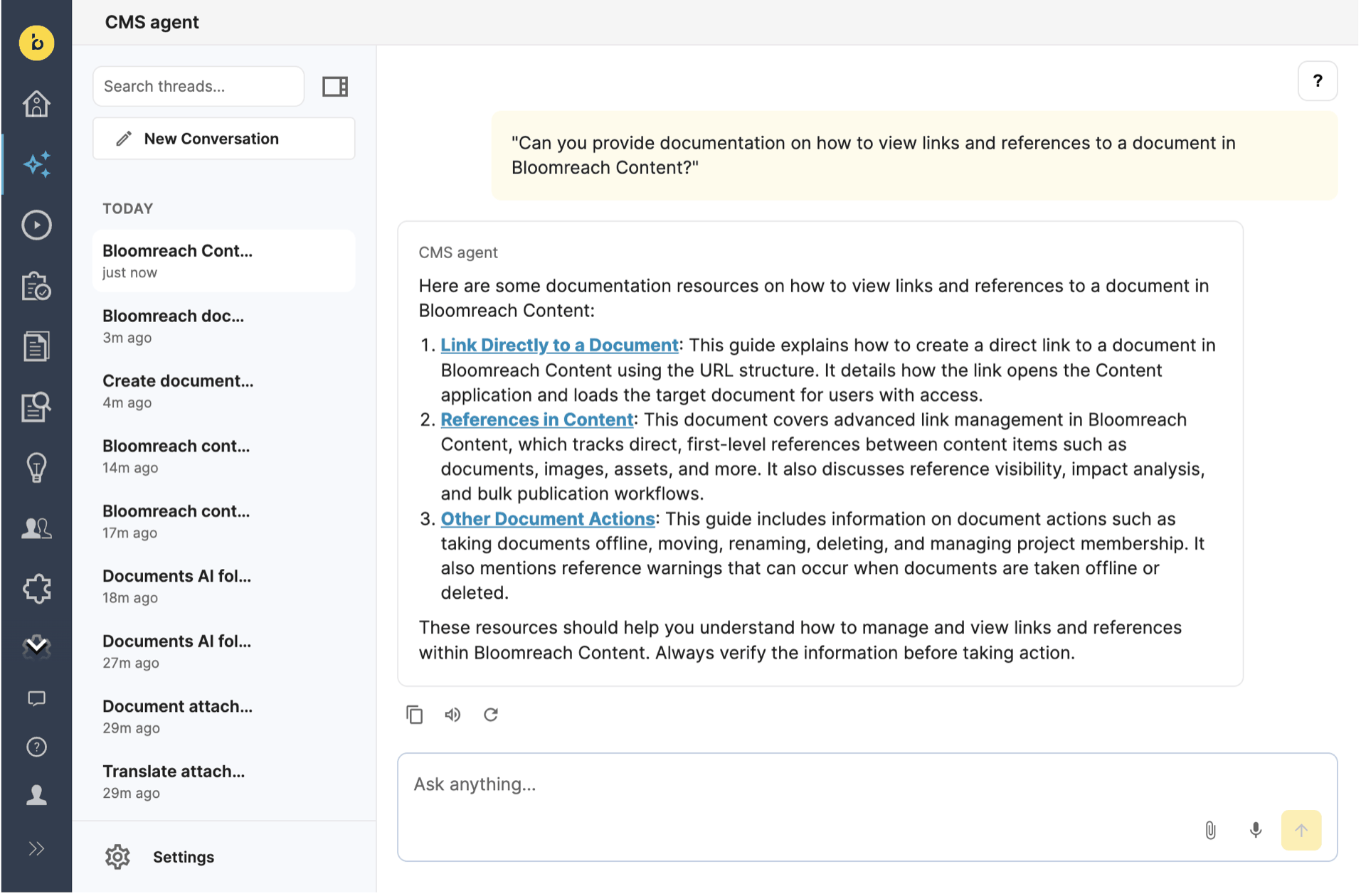
Your conversations are listed under Threads, in both places. Select New Conversation to start one, and search, rename or delete threads from the list.
Choose How Results Appear
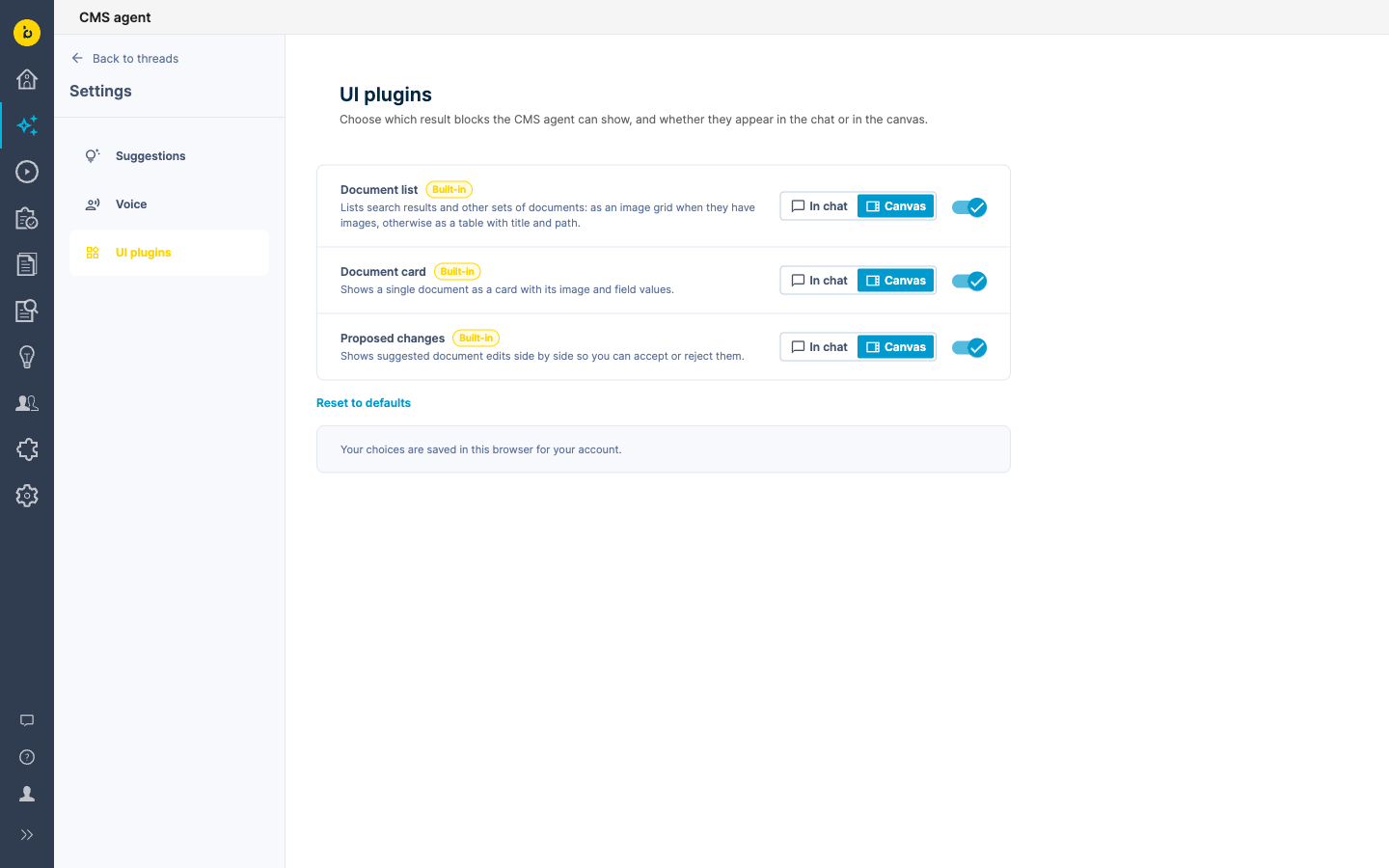
Go to Settings > UI plugins to choose which result blocks the CMS agent shows:
-
Document list: search results and other sets of documents
-
Document card: a single document with its image and field values
-
Proposed changes: edits side by side, with Accept and Reject
For each block, choose In chat or Canvas, or turn it off so the CMS agent answers in text. In the document editor, results always appear in the chat. Select Reset to defaults to start over.
Talk Instead of Typing
-
Select Voice input to dictate your request. Your browser asks for microphone access the first time.
-
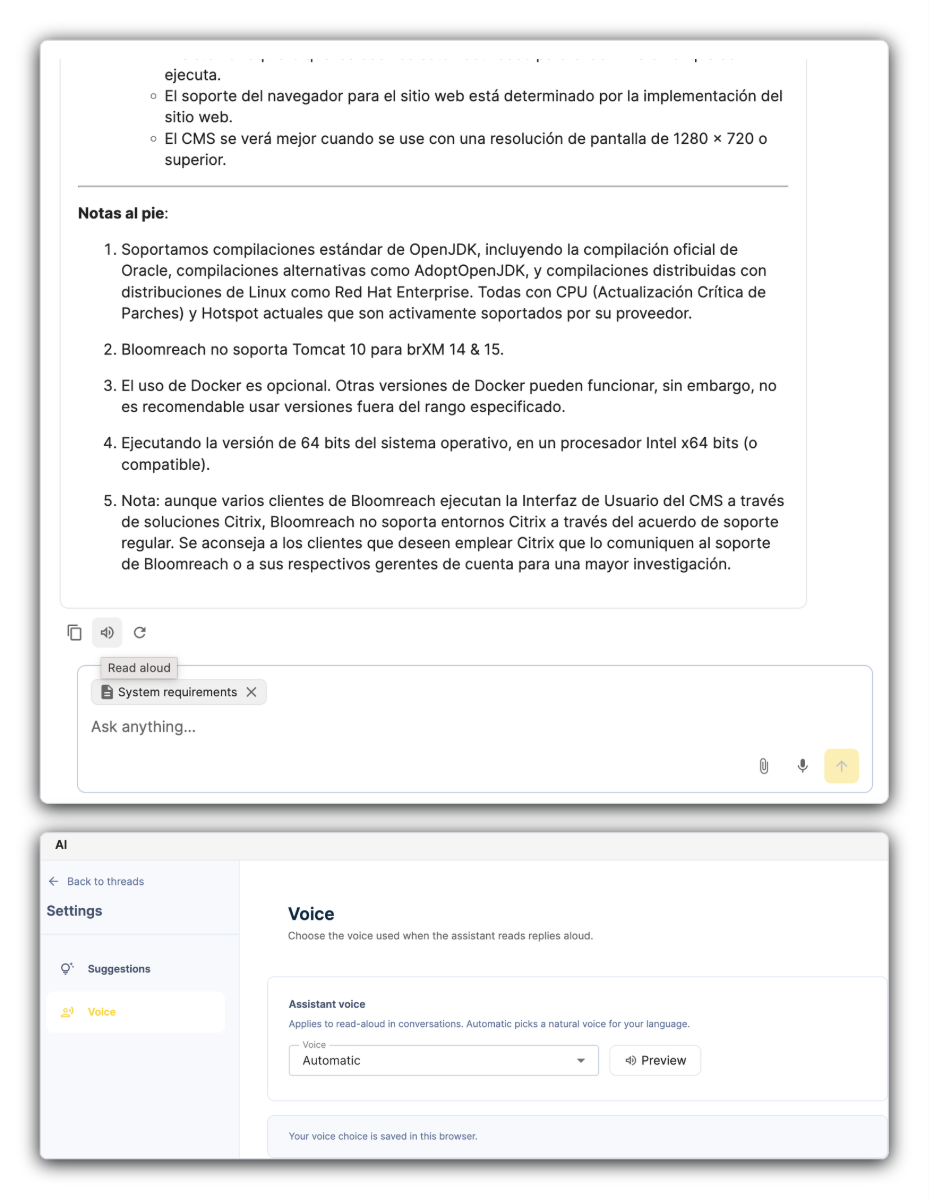
Select Read aloud to hear a reply. Choose the voice in Settings > Voice.
Limitations in 17.4
-
No image or PDF analysis. You can't ask the CMS agent to analyze images or PDFs in 17.4. This returns in 17.5.
-
No new documents. The composer edits documents and resource bundles that already exist. It can't create documents.
-
Documents and resource bundles only. The composer doesn't edit pages, images, assets or taxonomy items.
-
You publish. Accepting an edit saves a draft. Publishing is up to you.
-
Your permissions apply. The CMS agent works in your own CMS session, so it can only do what you can do yourself.
-
Search results aren't a complete list. Results are ranked by relevance and aren't suited to tasks that need an exact or complete list.
-
Conversations aren't stored permanently. They're kept on the CMS server and are cleared when it restarts.
-
Settings stay in your browser. Suggestions, voice and UI plugin choices are saved in this browser for your account, and aren't shared with your team.
What Changed from 17.3
-
The navigation menu item for AI Perspective is now called CMS agent.
-
The CMS agent in the document editor now has the same interface as AI Perspective, including threads, result cards and Proposed changes. The CMS agent edits the document for you to accept.
-
To add documents to a conversation, use Attach.
-
Image and PDF analysis returns in 17.5.
Earlier Versions
17.3: AI Perspective and the Document Editor
In 17.3 you use the CMS agent in two places.
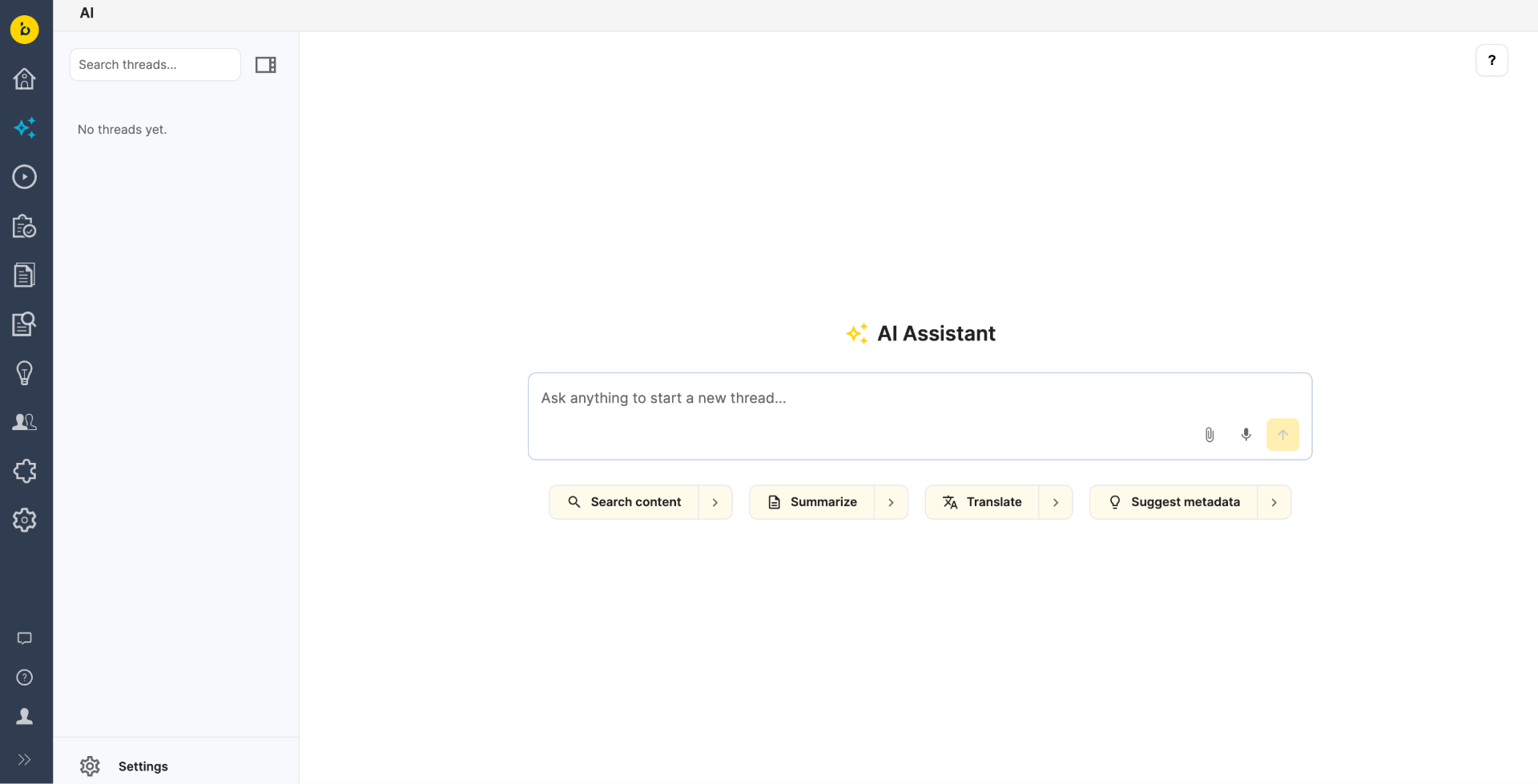
AI Perspective is a workspace for working across your repository. Select AI in the CMS navigation menu to open it.
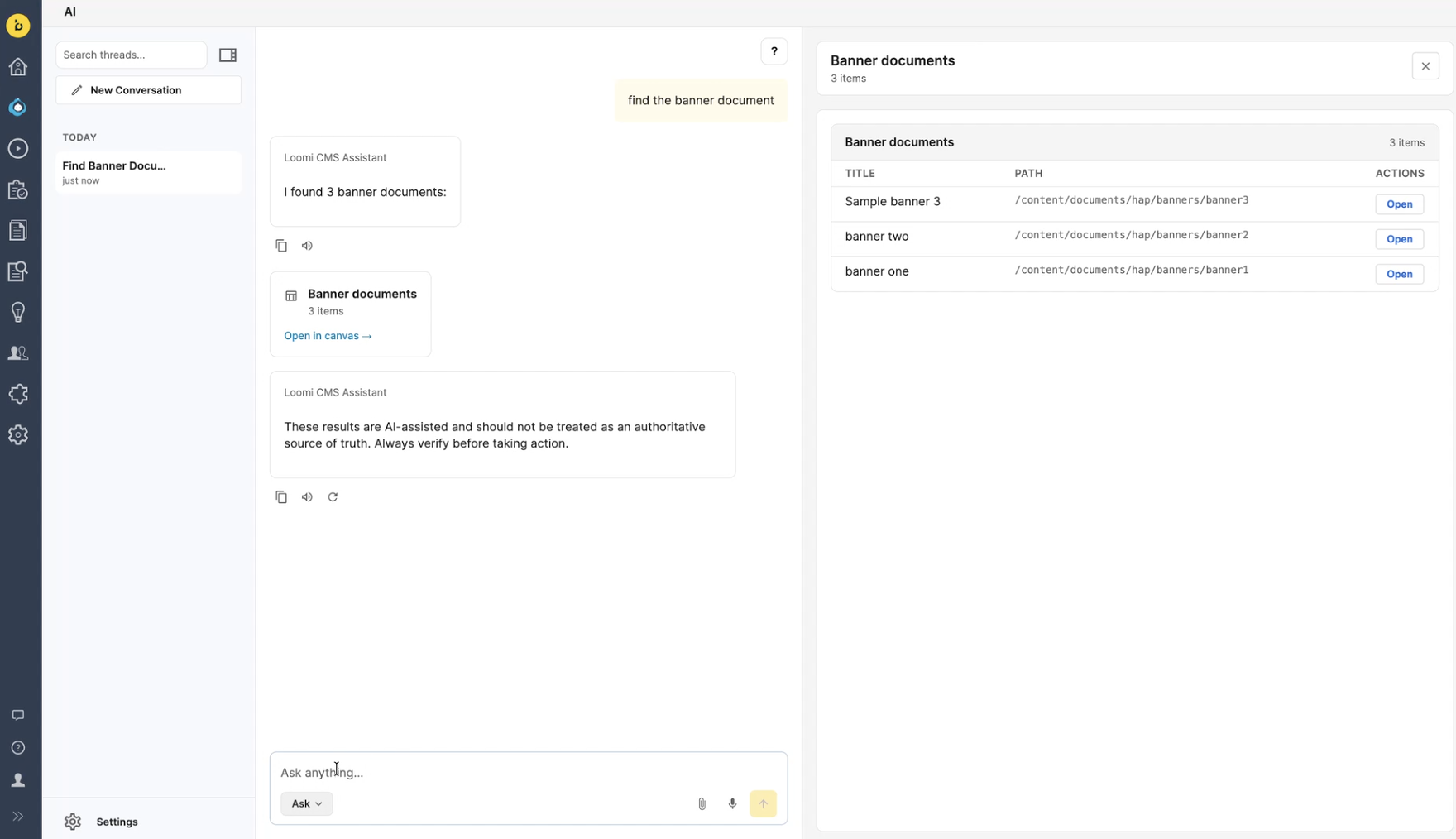
- Find content: describe what you're looking for, and the navigator searches your repository by meaning. Read a result in the workspace, open it in the editor, or ask the CMS agent to change it.
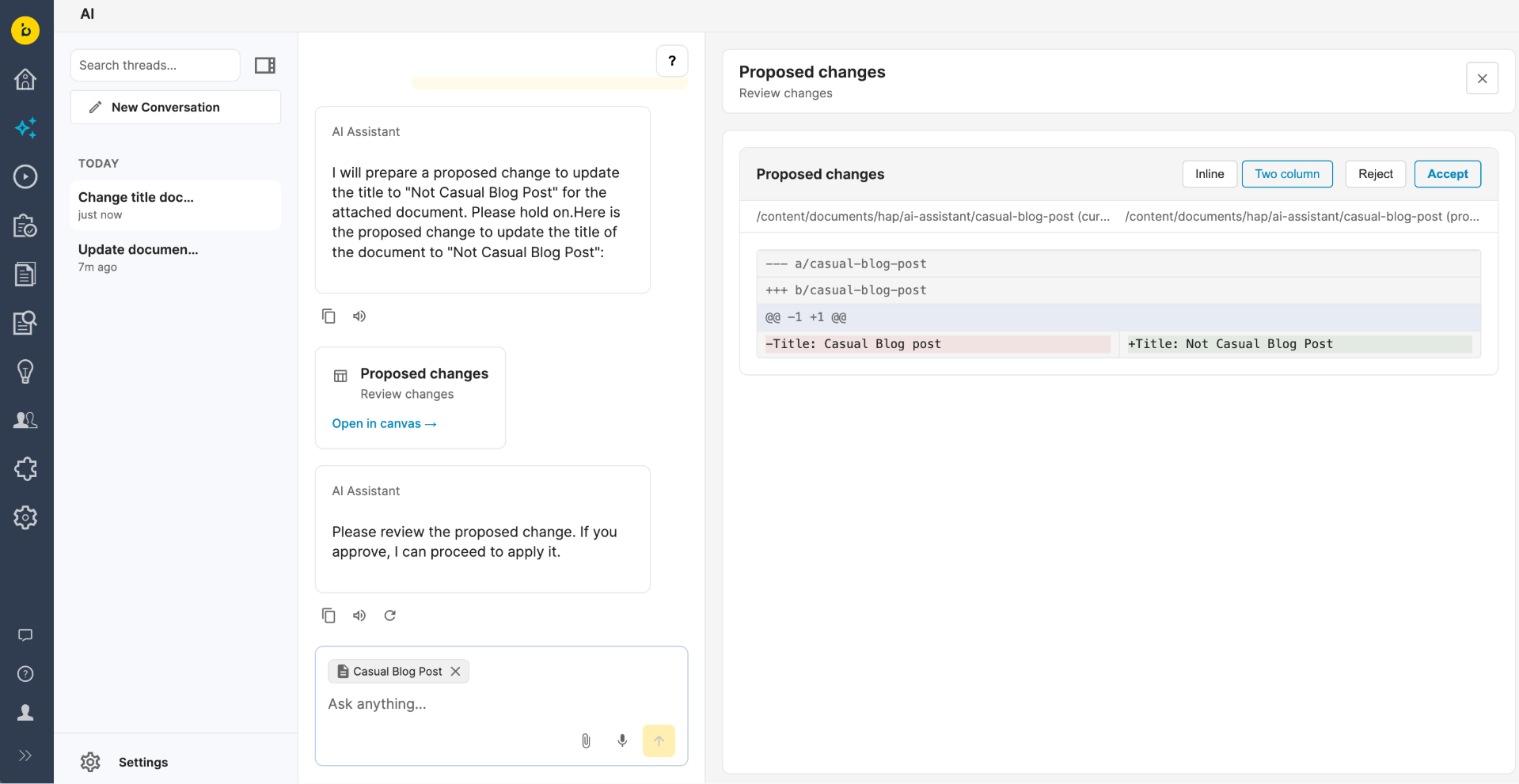
- Edit documents: describe the change you want, and the composer edits the document. You see the change as a before/after in the conversation, and it's only saved after you confirm. It's saved as a draft, and publishing stays a separate step.
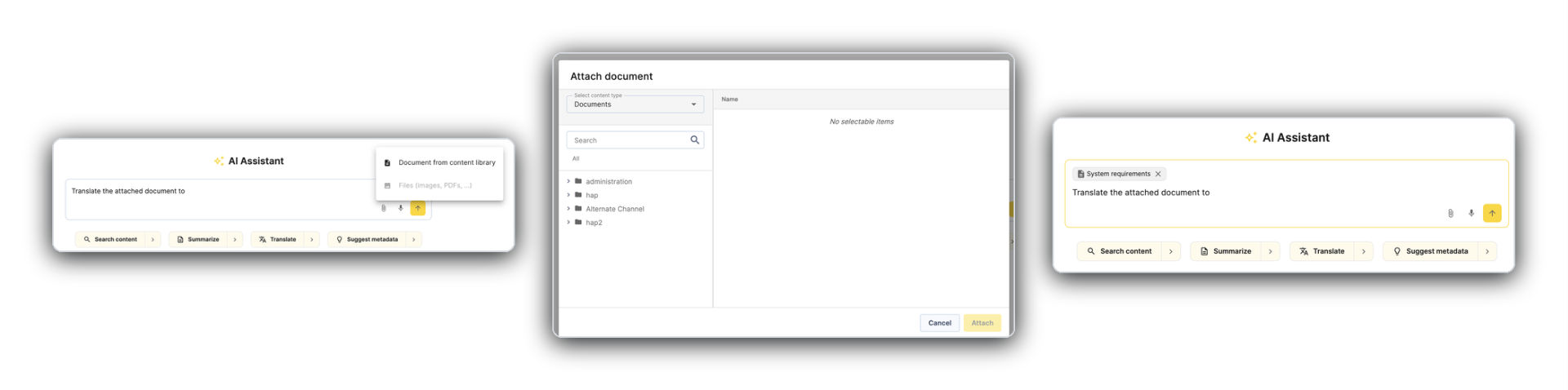
- Pick a document: browse or search your folders with the document picker, then ask the CMS agent to work on the document you picked.
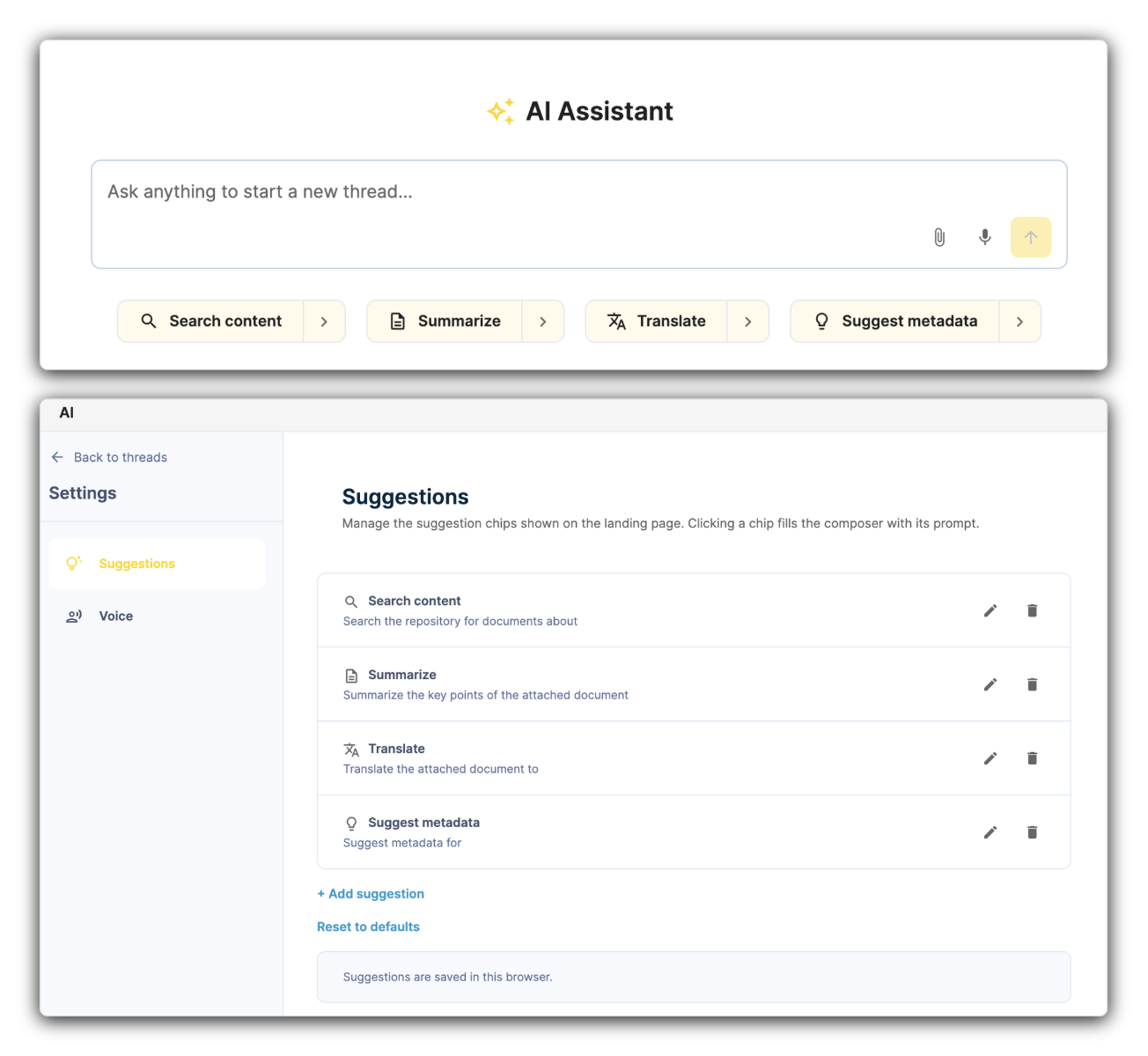
- Start from a shortcut: Search content, Summarize and Translate fill in a common prompt. Change them in Settings > Suggestions.
- Talk instead of typing: use the microphone button to dictate, and the read-aloud button to hear a reply. Choose the voice in Settings > Voice.
In the document editor, the CMS agent works as described for 16.4 to 17.2: the CMS agent suggests content, and you apply it to your fields.
Limitations in 17.3: the composer edits documents and resource bundles that already exist. It can't create documents, and it doesn't edit pages, images, assets or taxonomy items. The CMS agent works in your own CMS session, with your permissions. Shortcuts are saved in your browser only. Search results are ranked by meaning and aren't a complete list.
16.4 to 17.2: The CMS agent in the Document Editor
In these versions you use the CMS agent from the document editor.
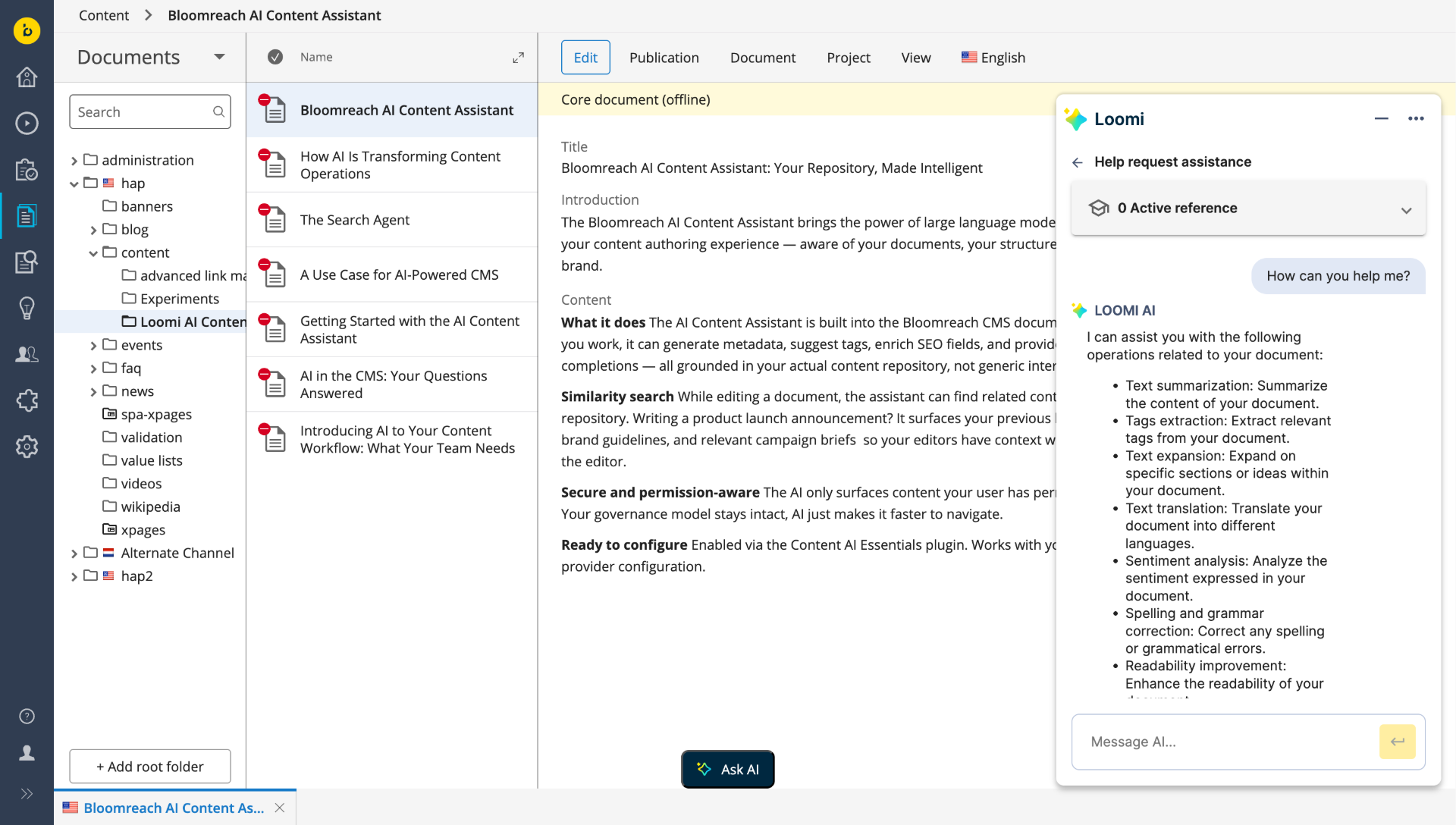
How to use it
-
Open the document you want to work on.
-
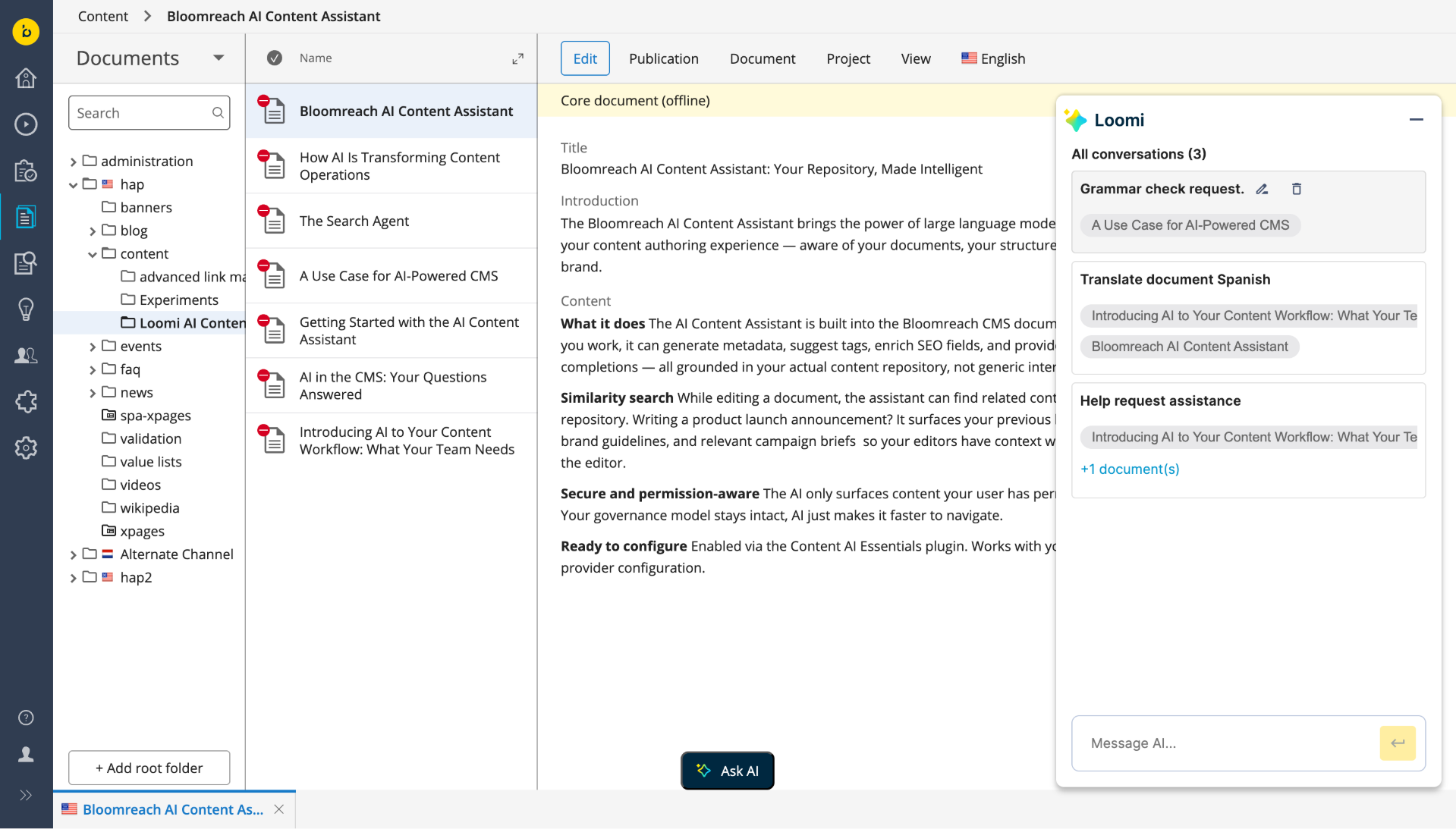
Select the Ask AI button. The chat panel opens next to your document.
-
Describe what you want in everyday language.
-
Optionally, add references to give the CMS agent more context (16.6 and later).
-
Review the suggestions, and apply the ones you want to your fields. Nothing changes in your document until you do.
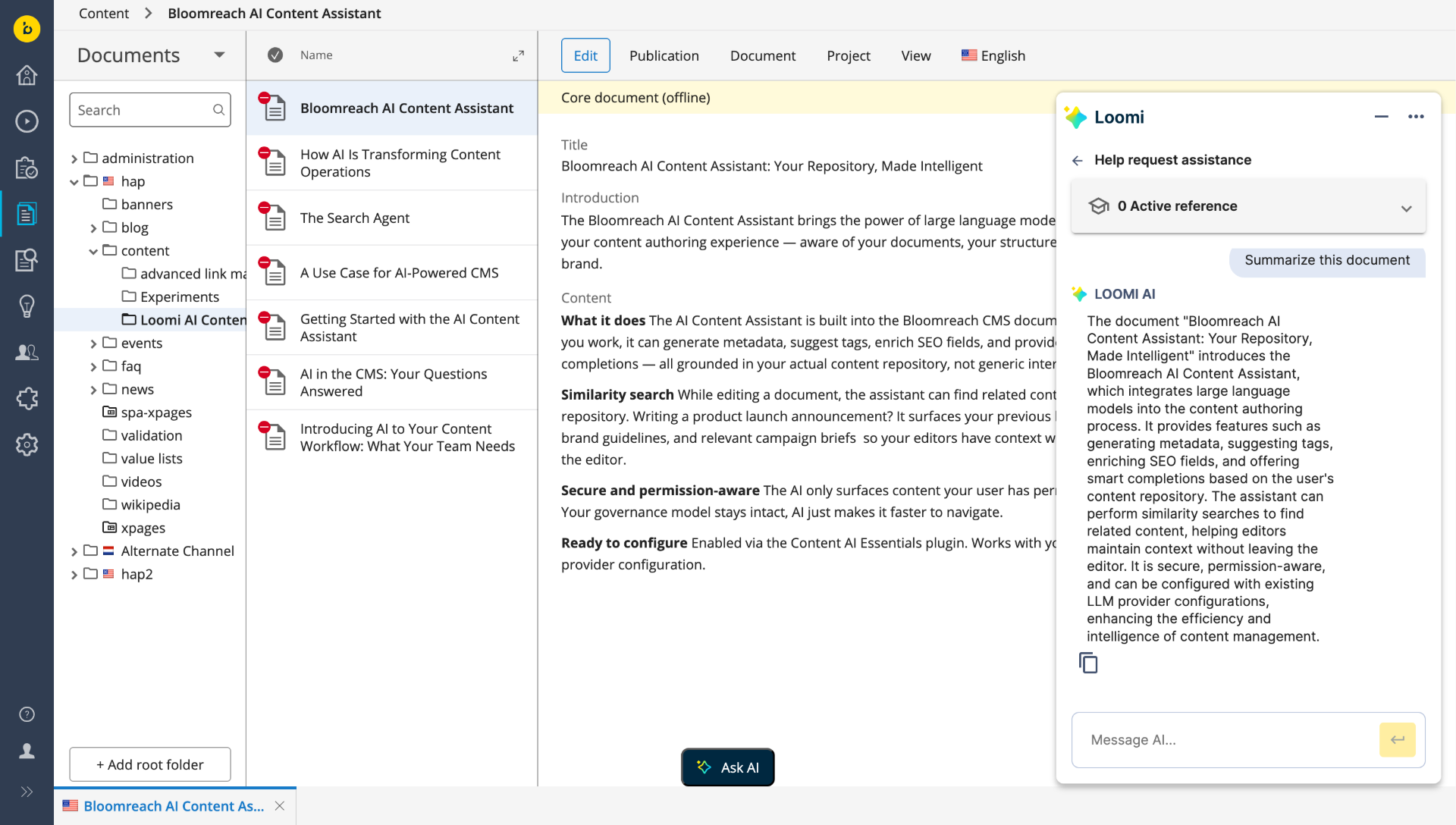
What you can do
- Write and improve content: the content assistant summarizes, extracts tags and keywords, expands a draft, translates, checks sentiment, fixes spelling and grammar, improves readability and suggests SEO improvements.
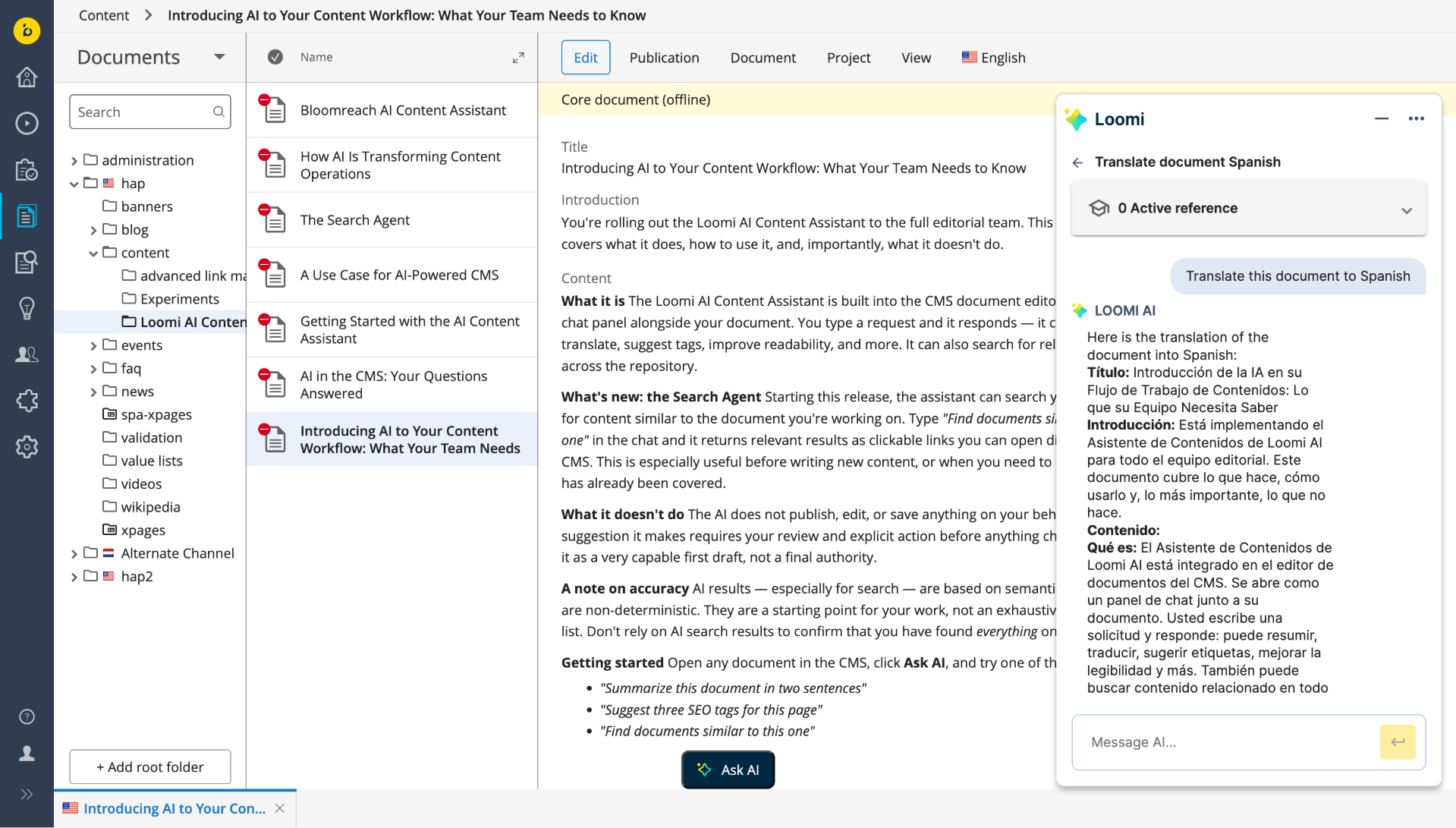
-
Work with images (16.4.1 and later): ask the CMS agent to describe an image or suggest alt text. If your AI model doesn't support the image type, you see a general error message.
-
Keep your conversation history (16.6 and later): start, rename and switch between conversation threads during your CMS session.
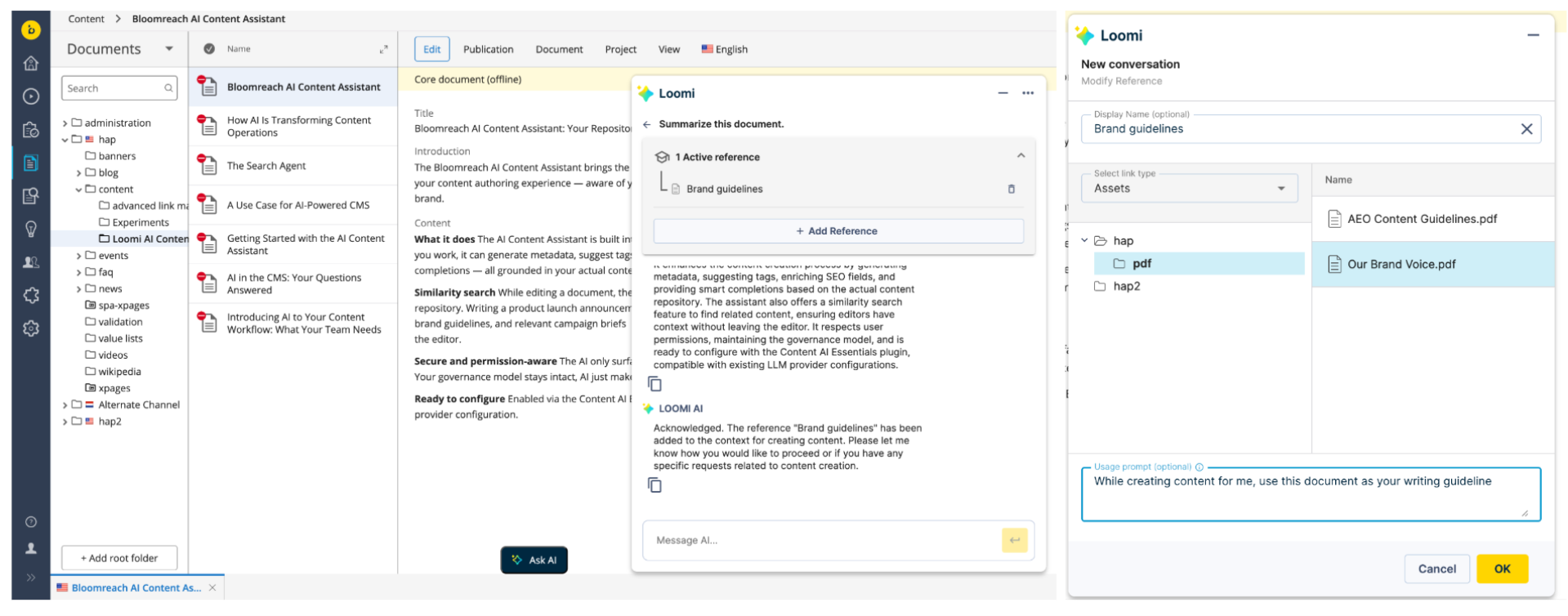
- Add references (16.6 and later): select + Add reference to add a document or image from your repository, give it a name and, optionally, a usage prompt, for example "Use this as our brand guidelines". Then refer to it by name in your messages.
-
Use PDFs as context (16.7 and later): add a PDF asset as a reference, for example your brand, legal or accessibility guidelines.
-
Find similar content (16.8 and later): the navigator finds documents in your repository that are similar to your request, even when they use different words. Select a result to open it in a new editor tab.
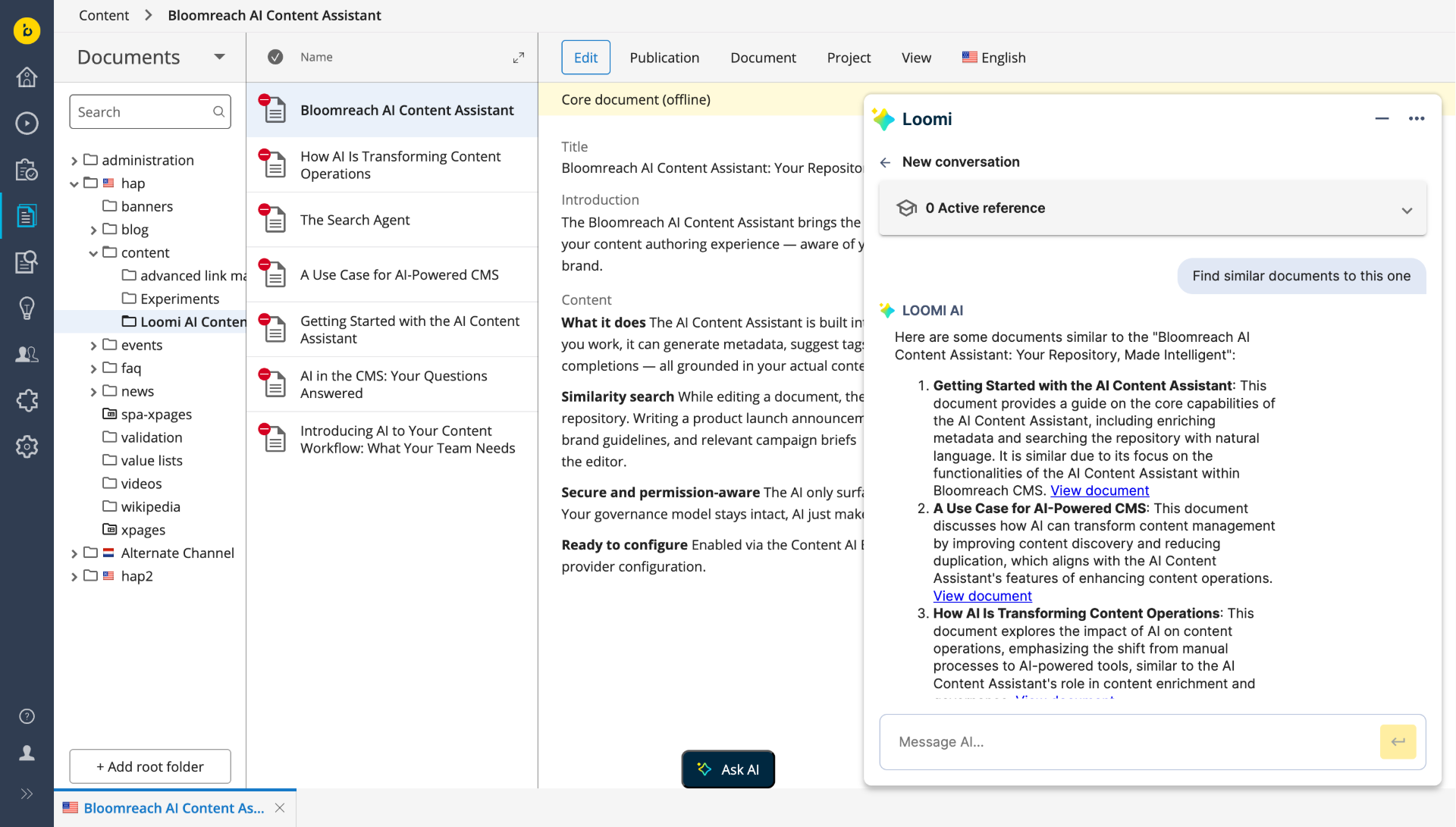
- Search your whole repository in plain language (17.1 and later): ask for content across your repository, for example "Do we have anything on GDPR compliance?". Your administrator sets how many results you get (5 by default, up to 20).
Administrators can control who can use the CMS agent by user role (16.7 and later).
Limitations in 16.4 to 17.2
-
The CMS agent suggests content. You apply every change yourself.
-
Value list fields aren't supported. Asset fields aren't supported, except PDFs.
-
References belong to one conversation and one user. They aren't shared.
-
Conversation history is cleared when the server restarts.
-
Search results are ranked by meaning and aren't a complete list. You can't filter them by document type, language, folder or date.
Ask the CMS agent What It Can Do
In any version, you can ask the CMS agent about itself, for example:
-
"What can you help me with?"
-
"How can you help me translate this document?"
-
"Find documents about our loyalty programme."
For Administrators and Developers
-
Set up the CMS agent: Initialize and Configure (Overview), Setup via Properties (Production), Setup via Essentials (Development)
-
Search and filters: Initialize Vector Store and Ingestion and Metadata and attribute filtering for AI search
-
Projects: AI module projects support
-
Connect other systems: Connect MCP Servers
-
Extend the CMS agent with your own tools, model providers, vector stores or filterable fields: Extensibility Guide
-
Upgrade: Upgrade 17.3 to 17.4 and AI Module Upgrade Instructions